Bank statements
What is a bank statement?
Access: Accounting → Bank statements → Bank statements
A bank statement or account statement shows you all recorded transactions on your bank account and the account balance for a given period.
Statements are issued quarterly, monthly (most common), or daily, depending on the bank or the services subscribed to by the company.
Paper statements are becoming less common and are being replaced by e-statements.
A statement is structured as follows:
-
Header: contains the account holder's details and address
-
Body: this is a table listing all transactions with the opening balance for the period at the top and the balance after the list of transactions. You will find the following columns:
-
Transaction date;
-
Value date;
-
Transaction description;
-
Debit (for disbursements);
-
Credit (for receipts).
- Companies can subscribe to services from their bank to retrieve bank statements in electronic format (for the most commonly used formats in France):
-
CFONB120 in text format.
-
CAMT53 in XML format (ISO20022).

Prerequisites for bank statements - Set up a bank account
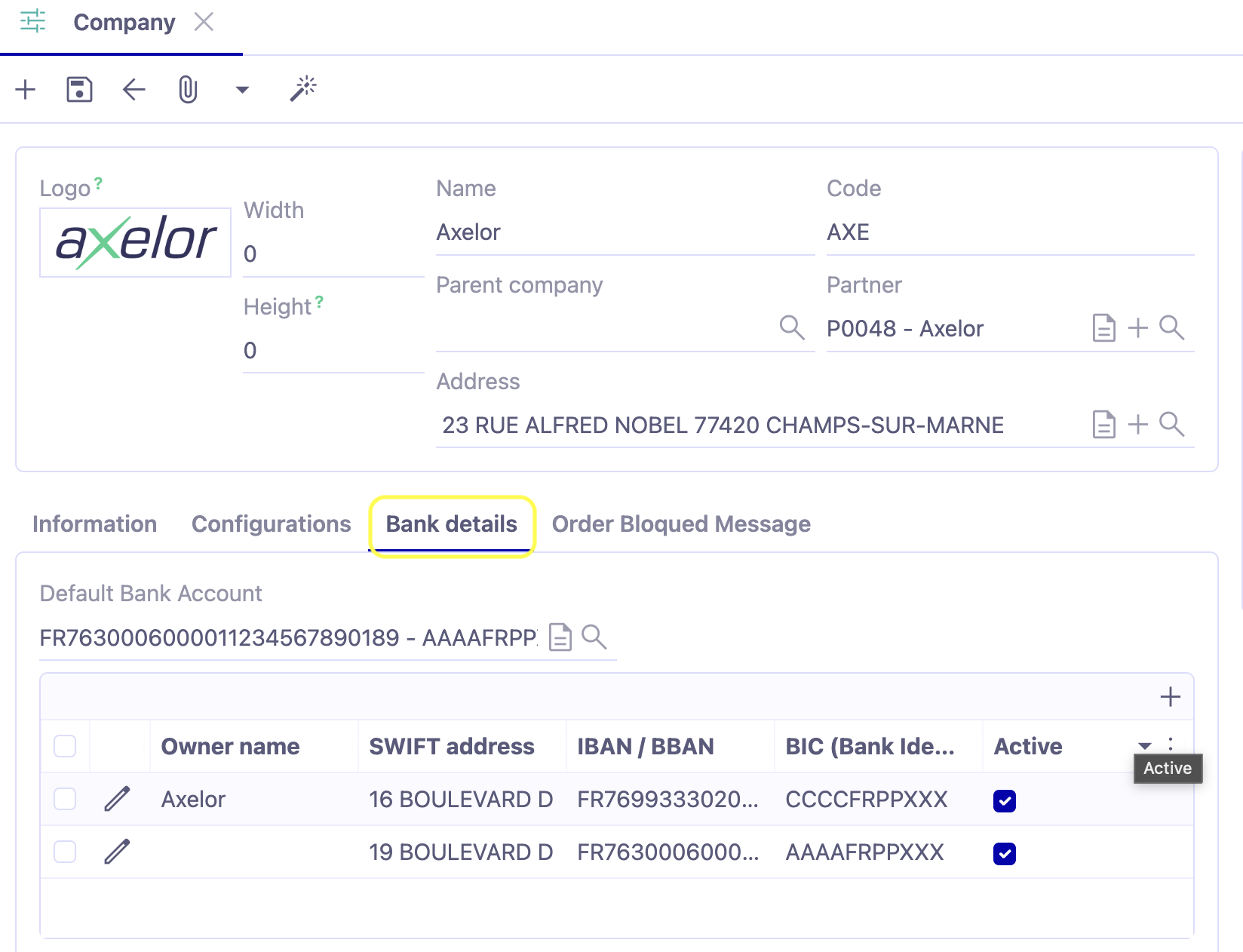
Access: Application Config → Users/Company → Companies → on a company file, open the Bank details tab
The Bank details tab on the company file allows you to activate the company's various bank accounts, including the default bank details.
Note that when it comes to reconciliation, the bank details may indicate the associated accounting account and the journal (make sure you have created these items before configuring them so that you can link them).
Bank statements
To access bank statements:
Access: Accounting → Bank statements → Bank statements
From the Bank statements menu, you will have access to the list of bank statements, if you have already connected your AOS to EBICS and your bank.
View bank statement lines: click on this button in the Bank statements menu to display all bank statement lines.
-
From the list view, click on the + icon to create a new record, which will open with preloaded values.
-
To access the statement, click on the line and the statement will be displayed. The Start date and End date indicate the period covered by the statement.
-
Status: the “Status” column shows whether the statement is being created or imported.
-
A statement is made up of lines. From the list view, a button allows you to open the bank statement lines to perform searches.
-
Proceed to load the bank statement.
As a reminder, the bank account and associated statement lines are represented by the Bank details column.
Load a bank statement
Access: Accounting → Bank statements → Bank statements
-
From the bank statement list view, click + and fill in the header fields.
-
Import: once the main fields have been filled in, the “Import” button will appear highlighted. Click on the button.
-
Make sure that the uploaded file and the file format are compatible.
-
The cfonb120 format allows you to upload .txt and .fdl extensions, although it is the encoding that is most important.
-
The lines will then be imported. Check that the link to the bank account has been created correctly. If not, this will block future operations, including reconciliation.
Printing the statement
Print: in the toolbar on the statement form view, the “Print” button allows you to print the statement.
You can also print bank statements from the statement line list view.
Structure of bank statements
A statement consists of a header with a label, the file used to load the statement (and its format), a start date and end date corresponding to the transaction dates, and a status (by default “Received”, then “Imported” once the import is complete).
You will therefore find the following elements on the file: a header, lines, and a color legend for the lines.
A statement can cover multiple bank accounts (see the Bank details column).
The blue lines are balance lines (no reconciliation required).
The red lines are transaction lines (lines to be reconciled).
View bank balances and details
To access bank balances:
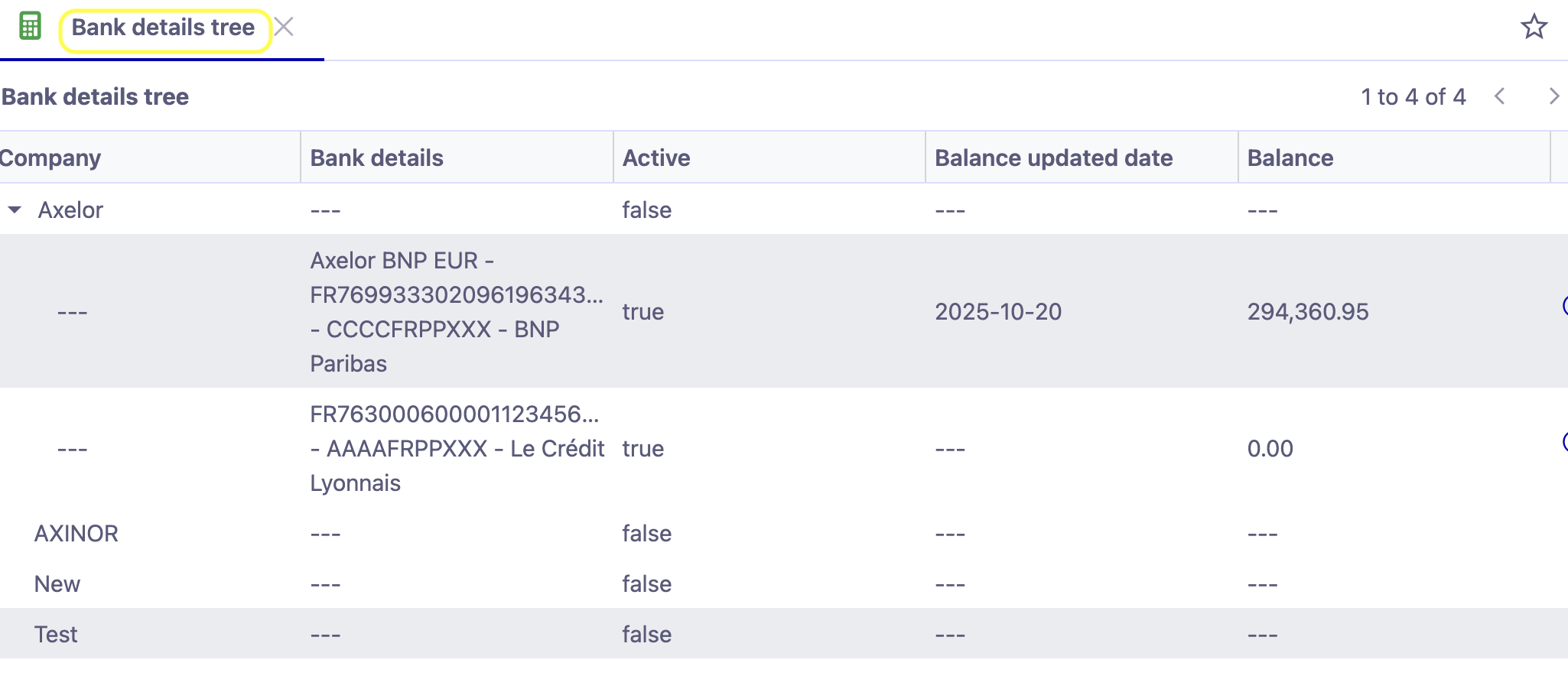
Access: Accounting → Bank statements → Bank account details tree OR Application config → Users/Companies → Configuration → Bank account details tree
The list view is as follows:
-
At the end of the line, the Balances are displayed with the date of the last balance update (which corresponds to the last statement import date).
-
Clicking on the Magnifying Glass icon at the end of the line will open the list of statement lines.
-
Clicking on the List icon at the end of the line will open the list of balances.
CAMT 053
Introduction
CAMT 053: is a bank statement of financial accounts. It is an internationally standardized file (ISO 20022 standard) used between institutions for electronic data exchange. This file contains a set of accounting data, bringing together information on expenses, taxes, credits, and debits. CAMT 053 can be supplemented by CAMT 054.
Download the CAMT 053 file
Access: Accounting → Bank statement → Bank statement
-
Create a new bank statement.
-
Enter the essential information: the description / dates / file format (e.g., camt 053).
-
File: select the file.
-
Import: click on the button to start the import.
-
Bank statement lines: the table of bank statement lines will then be filled in.
At present, AOS does not manage the entire file. This means that, for the time being, CAMT 053 interbank codes are not yet managed by AOS.
This issue is expected to be fixed in the next version.
Therefore, at present, AOS offers the use of CAMT 053 in France but not abroad.