Create and configure a survey
Create a new survey
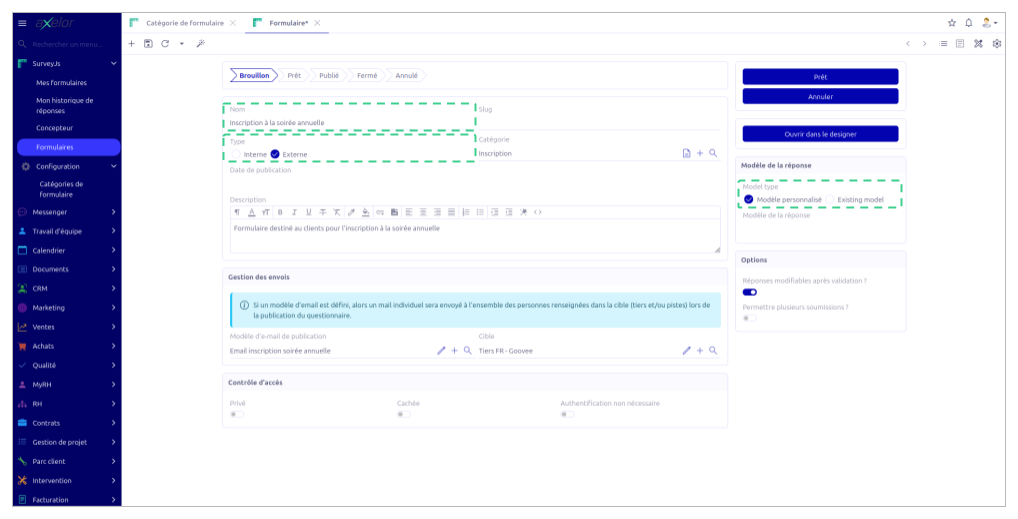
A survey is created from SurveyJs > Forms > New. The creation form has several panels that fill in progressively according to the choices made.
The first two fields to fill in — the type (Internal or External) and the model type (Custom or Existing) — are the most important because they condition the whole configuration. Their modification rules differ:
- the type can still be changed as long as the survey remains in the Draft status;
- the model type is frozen from the first save.
The model type must be defined carefully before the first save. If the model type is Existing, you must also remember to select the target AOS model (e.g. Partner, Lead, Employee…), which is mandatory and can no longer be modified after the first save.
The survey name is the only mandatory text field. It is displayed to respondents; it must therefore be clear and explicit.
Design the questionnaire in the Designer
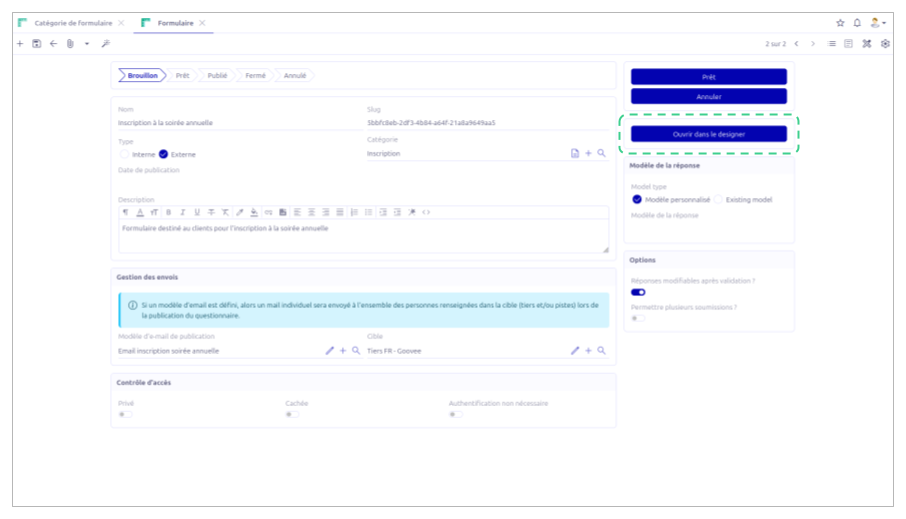
Once the survey is created and saved, the Open in Designer button becomes available. It opens the SurveyJS graphical editor in which questions are built.
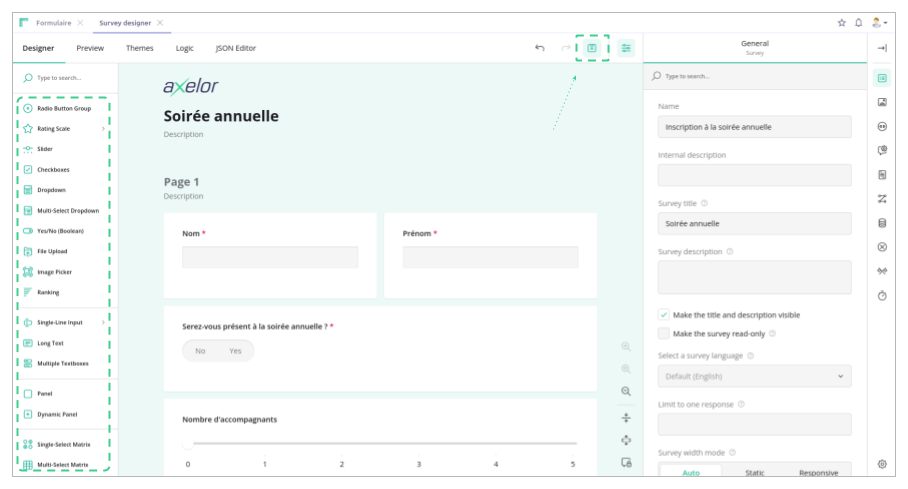
The Designer offers a wide variety of question types: short text, long text, single choice (radio), multiple choice (checkboxes), drop-down list, star or slider rating, date, file upload, etc. Questions can be organized into several pages, which is useful for long surveys. It is also possible to define conditional visibility rules: for example, only display a question if the answer to a previous question is "Yes".
Changes made in the Designer are saved into the AOS survey when clicking the save button.
Targeting configuration
Targeting varies according to the chosen survey type.
Internal targeting
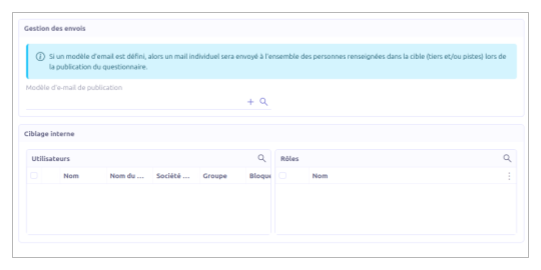
For an internal survey, the Internal targeting panel allows you to select AOS users directly (by name) and/or roles. When a role is selected, all users who have that role at the time of publication will be included in the targets, even if they were not explicitly named. These two methods can be combined.
External targeting and access control
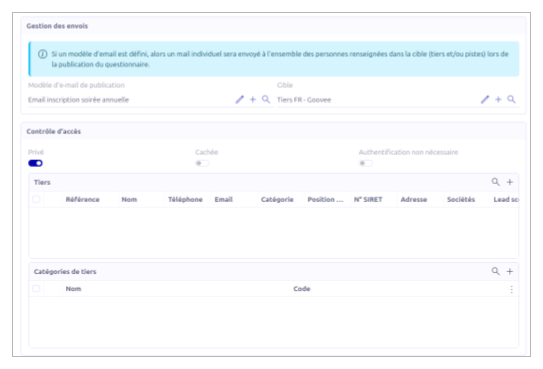
For an external survey, the Mailing management panel allows you to select a marketing targeting list (Partner and/or Lead) and a notification email template. The Access control panel then allows you to define the visibility rules of the survey on the Goovee portal:
- Private — the survey is only visible to the partners or partner categories explicitly listed in the survey; other partners connected to the portal will not see it.
- Login not required — makes the survey accessible without authentication, which makes it visible even to visitors not connected to the portal.
- Hidden — excludes the survey from the portal's public list, regardless of the visitor's connection status.
The Private and Login not required options are mutually exclusive: enabling one automatically disables the other.
Configure the response options
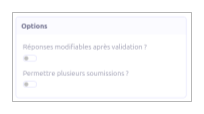
The Options panel, in the form's right side column, offers two behavioral settings.
- Allow response editing — allows a respondent to come back to their response after submitting it. Without this option, the response is final once submitted.
- Allow multiple responses — allows the same respondent to submit several distinct responses to the same survey. By default, a respondent can answer only once: if a response already exists for them, the Viewer opens with their previous responses in update mode, or read-only depending on the previous option.