Navigation and prior setup
Navigation in the application
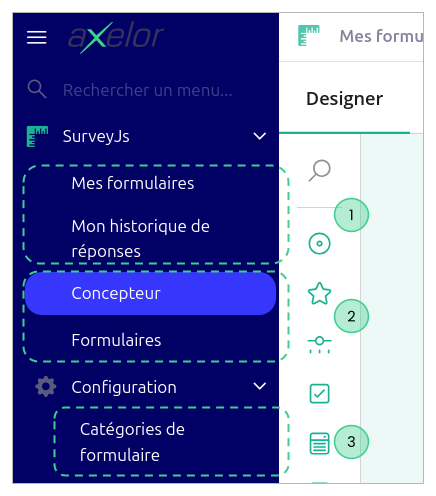
The module adds a main SurveyJs menu in the AOS navigation bar, visible only when the Survey application is enabled. This menu groups features according to the user's profile.
- Regular users access My forms, which lists the published internal surveys they have been targeted by, and My response history, which retraces all the responses they have already submitted in the past (1).
- Administrators and functional managers have access to the Designer, which gives direct access to the questionnaire design tool, and to Forms, which provide a complete view of all existing surveys with their statuses and parameters (2).
- Finally, the Configuration sub-menu gives access to the form categories repository, which is used to classify and easily find surveys by theme (3).
Prior setup
Before starting to create surveys, a few setup steps are required.
Application activation
The module must be enabled in the Administration > Application management menu by enabling the Survey application. Without this step, the SurveyJs menu does not appear in the interface.
Default email template
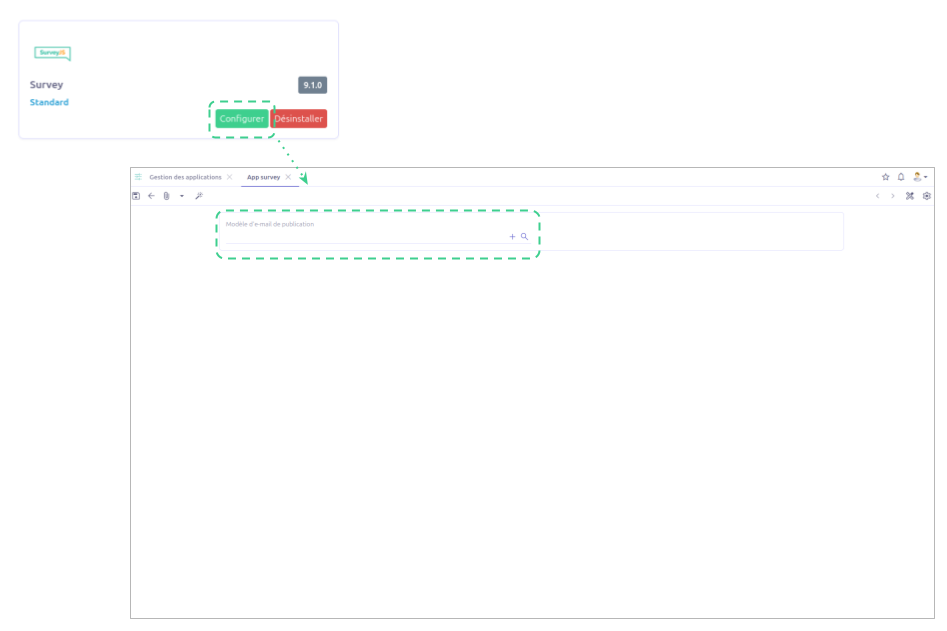
For respondents to receive a notification when a survey is published, an email template must be configured in the Survey application configuration. This template plays a fallback role: it is used if no template is specified on the survey itself.
Without this parameter, publication triggers no email sending. The template must be of type SurveyConfig to be selectable in this context.
Marketing targeting lists
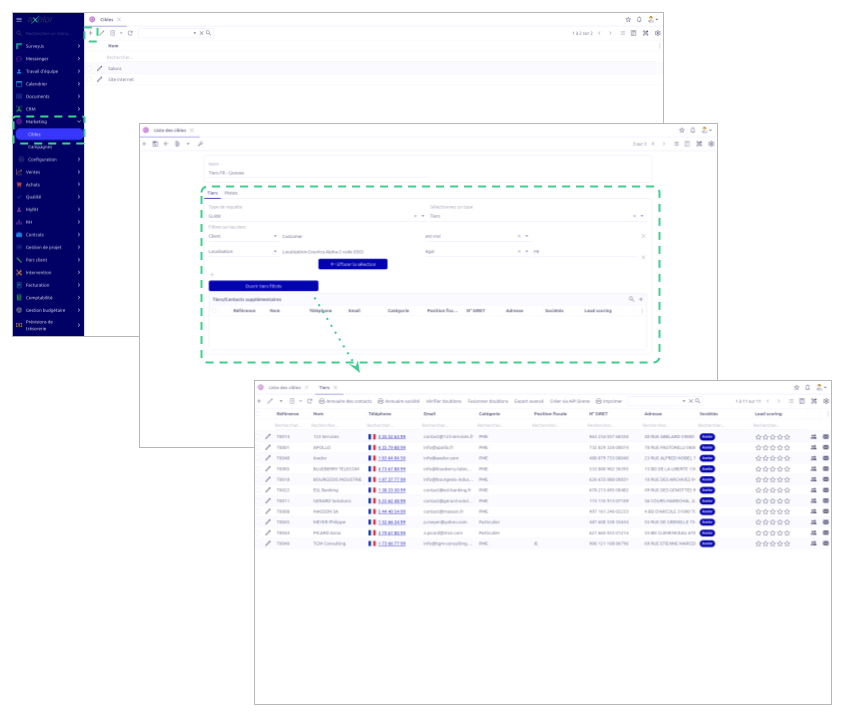
For external surveys, recipients are identified through targeting lists from the Marketing module. These lists must be created and populated before configuring an external survey. They make it possible to dynamically define the third parties and leads to target according to business criteria (sector, customer type, region, etc.).
Survey categories
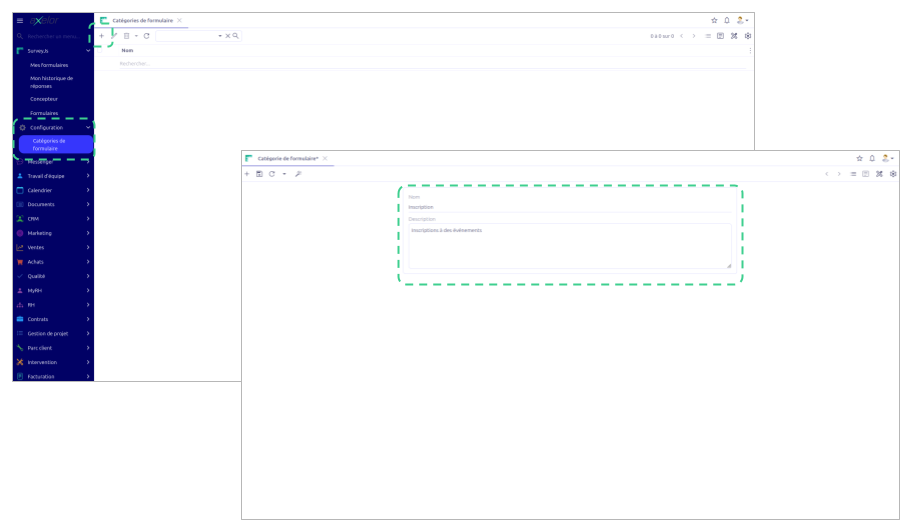
Although optional, categories make it easier to organize surveys when their number grows. They are to be created in SurveyJs > Configuration > Form categories before creating the first surveys, so they can be assigned right from creation.
These categories are purely informative and help the designer and end users filter the forms to find the one they are interested in. Each category consists of a name and a description.