Fill in a survey (respondent side)
Access for an internal user
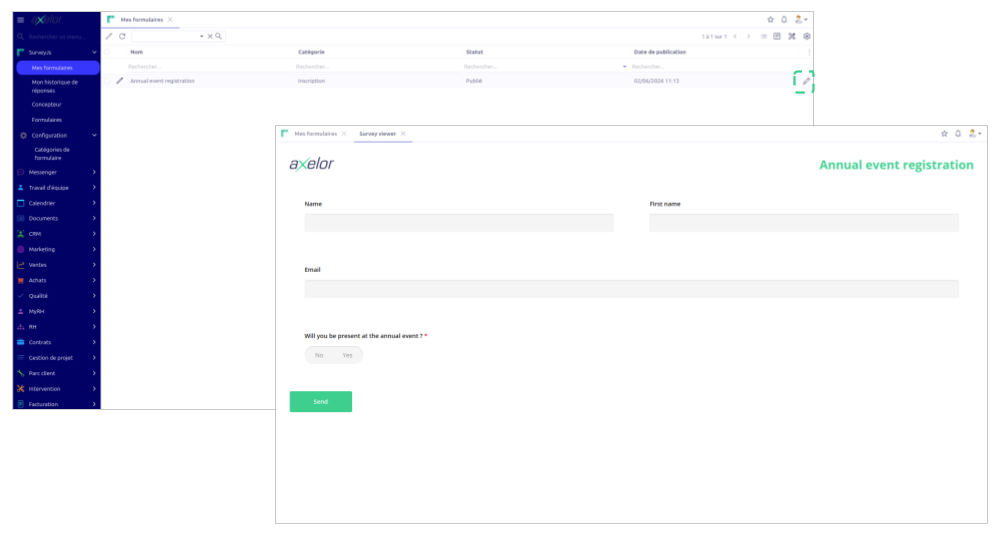
An employee targeted by an internal survey goes to the My forms menu. There they find the list of surveys intended for them, with for each one the name, the category, the status and the publication date. A Fill in button lets them open the entry form.
The form opens with the questions as they were designed in the Designer. If the survey is multi-page, Next and Previous buttons allow navigation between pages. Once all the questions are filled in, the Submit button records the responses.
If the survey only allows one response per person and the employee has already answered, the form opens with their previous responses pre-filled. They can then modify them if the Allow response editing option is enabled. Otherwise, the form is displayed read-only.
Access for an external respondent
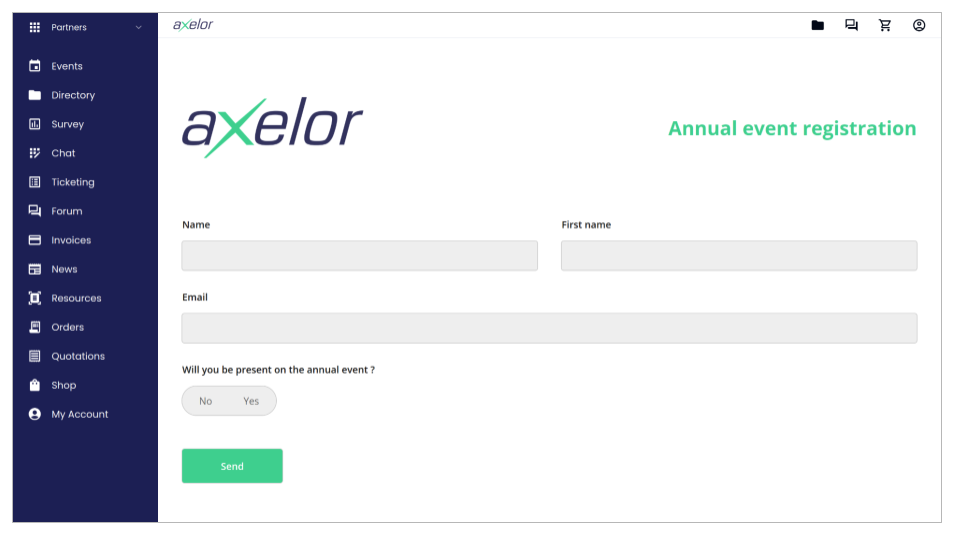
A partner accesses the surveys intended for them through the Goovee portal. On the portal's survey page, they see the list of available surveys: those that are published, not hidden and accessible according to their rights. They can also use the search bar to find a survey by its name. If the notification email was indeed sent at publication, the partner may also have accessed it directly via the link contained in that email.
By clicking on a survey, the partner is redirected to the portal's entry page, where the SurveyJS Viewer is displayed. They fill in the questions and submit the form. The response is recorded in AOS and associated with their partner account, which lets them find it later in the My responses section of the portal.
Consult one's own responses
An internal user can find all their past responses in the My response history menu of AOS. Each line of this history represents a submitted response, with the date and the name of the associated survey. By clicking on the View response button, the form opens with the responses as they had been submitted.
A partner has the same type of history, but on the Goovee portal. The My responses section of the portal lists all the responses they have submitted, with the survey name and the submission date. By clicking on a line, they can reopen their response to consult it, or even modify it if the survey allows it.