App BPM Configuration
Overview
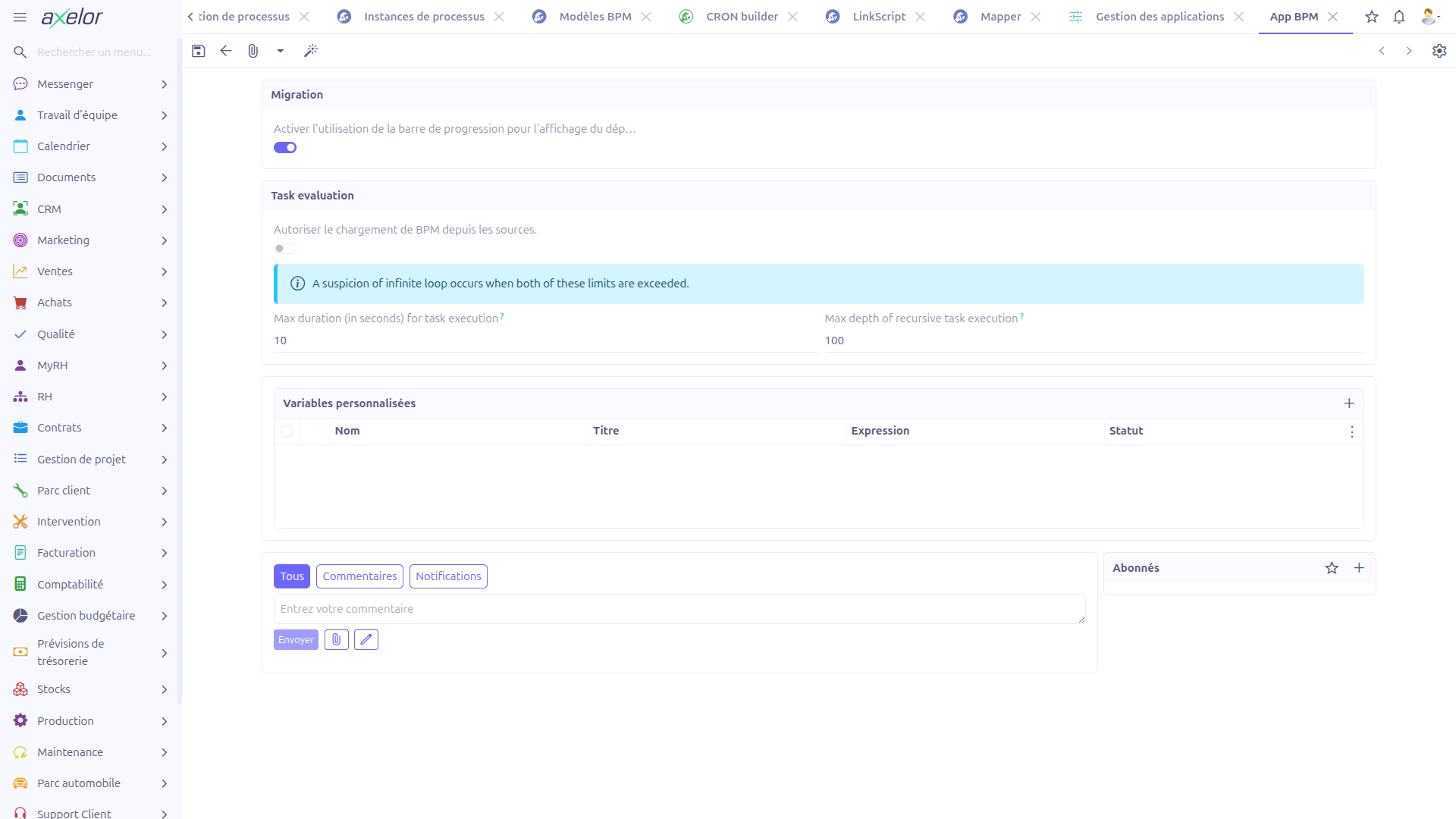
The App BPM Configuration provides settings that control the behavior of the BPM execution engine, particularly the infinite loop prevention mechanism during task evaluation.
Accessing the Configuration
The configuration is accessed through the App Management system:
-
Go to Administration > Apps management
-
Find the BPM application card or row
-
Click Configure (available only when the BPM app is installed)
| The configuration form cannot be deleted, duplicated, or created manually — only one configuration record exists per application instance. |
Configuration Settings
Migration Panel
The Migration panel exposes a single option that controls the deployment progress feedback:
| Field | Type | Default | Description |
|---|---|---|---|
Enable Using progress deployment display bar |
Boolean switch |
|
When enabled ( |
Task Evaluation Panel
The configuration form provides two settings that control infinite loop prevention during BPM task evaluation:
| Field | Type | Default | Description |
|---|---|---|---|
Max duration (in seconds) |
Integer |
|
Maximum time allowed for a single task evaluation chain. When exceeded (in combination with the depth limit), the engine suspects an infinite loop and stops execution. |
Max depth of recursive task execution |
Integer |
|
Maximum number of recursive task evaluations allowed in a single chain. When exceeded (in combination with the duration limit), the engine suspects an infinite loop and stops execution. |
|
A suspicion of infinite loop occurs when both of these limits are exceeded simultaneously. The engine does not stop execution when only one limit is reached — both conditions must be met. |
Understanding the Dual-Threshold Mechanism
The infinite loop prevention uses a dual-threshold approach to avoid false positives:
-
A long-running but shallow evaluation chain (high duration, low depth) is allowed to continue — it may simply be processing a complex task
-
A deep but fast evaluation chain (low duration, high depth) is allowed to continue — it may be evaluating many lightweight tasks
-
Only when evaluation is both long-running AND deeply nested does the engine suspect an infinite loop
This design ensures that legitimate complex process chains are not interrupted while still catching actual infinite loops.
Disabling Limits
Setting a negative value for either limit disables that specific constraint:
| Configuration | Effect |
|---|---|
Duration limit = |
No time limit is applied. Only the depth limit is checked. |
Depth limit = |
No depth limit is applied. Only the duration limit is checked. |
Both = |
Infinite loop prevention is completely disabled. |
| Disabling both limits removes all protection against infinite loops. Only do this in development or testing environments where you can manually stop runaway processes. |
Custom Variables
Overview
Custom variables let you define reusable, named values that become available as bindings in every BPM Groovy script and expression. Instead of repeating the same lookup, computation, or service call in many tasks, gateways, and listeners, you declare it once as a custom variable and reference it by name throughout your processes.
Each custom variable is a named expression. When a BPM script is evaluated, every
valid custom variable is evaluated first and its result is injected into the script
bindings under the variable’s name — alongside the built-in helpers such as
ctx, beans, date, and studiouser (see
Scripting in BPM).
Configuring Custom Variables
Custom variables are managed from the Custom variables panel of the App BPM Configuration form (see Accessing the Configuration):
-
Go to Administration > Apps management and click Configure on the BPM app
-
Open the Custom variables panel
-
Click + to add a row, or open an existing row to edit it
-
Fill in the fields described below
-
Save the App BPM Configuration form
On save, each custom variable expression is validated by evaluating it once. The result of this validation is reported through the variable’s Status field.
Fields
| Field | Type | Description |
|---|---|---|
Name |
String |
The binding name under which the evaluated value is exposed in BPM scripts. Use this exact name to reference the variable in your expressions. Choose a name that does not collide with the built-in bindings or with process/task variables. |
Title |
String |
A human-readable label for the variable, used for display only. |
Expression |
String (code editor) |
The Groovy expression that produces the variable’s value. It is evaluated in the
standard BPM script context, so it can use the built-in helpers ( |
Status |
Selection (read-only) |
Result of the last validation: Valid when the expression evaluated without error, Invalid when it raised an exception. Only Valid variables are made available in BPM scripts at runtime. |
Validation and Status
When the App BPM Configuration form is saved, the engine validates the whole list of custom variables:
-
Each expression is evaluated against the standard BPM binding context.
-
If evaluation succeeds, the variable’s Status is set to Valid.
-
If evaluation raises an exception, the Status is set to Invalid.
|
Only variables with a Valid status are loaded into the script bindings at runtime. An Invalid variable is silently skipped, so its name will be unresolved in your expressions. Always check the Status after saving when a variable does not behave as expected. |
Using Custom Variables in Processes
Once a custom variable is Valid, its name is available as a binding in every BPM script and expression — script tasks, service tasks, gateway conditions, task expressions, listeners, and any other place where a Groovy/JUEL expression is evaluated (see Expression Builder and Task Evaluation).
For example, with a custom variable named companyCurrency defined by the
expression:
__ctx__.filterOne('Company', 'self.code = ?1', 'AXELOR')?.getTarget()?.currencyyou can then reference companyCurrency directly in any process script:
invoice.currency = companyCurrency|
Custom variable expressions are evaluated on every script execution. Keep them lightweight; avoid heavy queries or expensive service calls in a custom variable that is loaded for all BPM scripts, as this cost is paid each time a script runs. |
Implementation
Custom variables are stored in the CustomVariable entity
(com.axelor.studio.db.CustomVariable) and linked to the configuration through the
AppBpm.customVariableList one-to-many relationship.
| Field | Type | Description |
|---|---|---|
|
String |
Binding name exposed in BPM scripts |
|
String |
Display label |
|
String |
Groovy expression producing the value |
|
Integer (selection) |
|
Validation is performed by AppBpmController.validateCustomVars(), triggered by the
App BPM Configuration form’s onSave. At runtime, valid custom variables are loaded
and injected into the script bindings by AxelorBindingsHelper.getBindings(),
which fetches all CustomVariable records with a Valid status, evaluates each
expression with GroovyScriptHelper, and binds the result under the variable’s name.
Technical Details
The configuration is stored in the AppBpm entity (com.axelor.studio.db.AppBpm), which has a one-to-one relationship with the base App entity:
| Field | Type | Description |
|---|---|---|
|
OneToOne: App |
Link to the base App record |
|
Integer (default: 10) |
Duration threshold in seconds |
|
Integer (default: 100) |
Depth threshold in recursive calls |
|
Boolean (default: true) |
Enables the deployment progress bar in the BPM modeler |
These values are read by the task evaluation engine (WkfTaskServiceImpl) during BPM process execution.
See also: Task Evaluation for details on how these limits are enforced during process execution.
Related Pages
-
Task Evaluation — How infinite loop prevention works during task evaluation
-
Infinite Loop Prevention (Annex) — Additional reference on configurable values
-
BPM Overview — Complete BPM feature overview