Setup Axelor Template
Axelor Template is an enterprise module, which can be installed and used from Axelor’s nexus repository.
Nexus Configuration
| We recommend the use of AOS packages, which include natively template module dependency. If you do so, you can skip this part and resume your reading on Application configuration. |
settings.gradle
In settings.gradle file, inside dependencyResolutionManagement,
declare a new repository to let Gradle install axelor-template module from the dedicated Nexus repository.
dependencyResolutionManagement {
  repositories {
    // keep the declaration of your other repositories there
    maven {
      name 'maven-enterprise'
      url 'https://repository.axelor.com/nexus/repository/maven-enterprise/'
      credentials {
        username axelorMavenUsername
        password axelorMavenPassword
      }
    }
  }
}Application configuration
Using Axelor Template requires adding a set of parameters as the template module communicates with two other tools:
-
Axelor Template API (mandatory)
-
Axelor Library (not mandatory)
The configuration of Axelor Library and Axelor Template API can be done in three locations, with the following precedence rules:
-
AppTemplate
-
Config file
-
License
For each configuration property, the system will first read it from AppTemplate, if it is empty it will look for it in the configuration file, and finally it will look for it in the license.
| It is possible to read different properties from different locations. |
| The easiest configuration is the use of the license. |
AppTemplate
A configuration page is provided to set up Axelor Template API and Axelor Library properties. It overrides the properties defined in axelor-config.properties and license metadata.
Config file
When template module configuration is set locally, it requires adding the following parameters to the axelor-config.properties file:
-
template.library.url: URL of template library server
-
template.library.user: Username of the technical user
-
template.library.password: Password of the technical user
-
template.api.baseUrl: Base URL of Template API server
-
template.api.user: Username of the API technical user
-
template.api.password: Password of the API technical user
Here’s a sample of the configuration:
# Template library
template.library.url = https://aos-library.axelor.com
template.library.user = templateUser
template.library.password = password

# Template API
template.api.baseUrl = https://template-api.saas.axelor.com/v2
template.api.user = test-customer
template.api.password = 123
Notice: Library and API credentials are provided by Axelor.
Installation
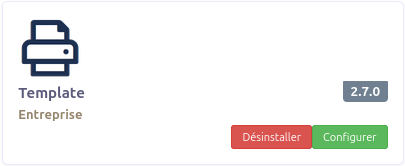
To install Template app:
-
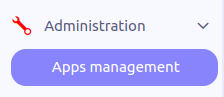
Go to the menu
Apps management -
Search for
Template -
In
Templateapp card, clickInstall
You should have the following result on cards view:
Menus
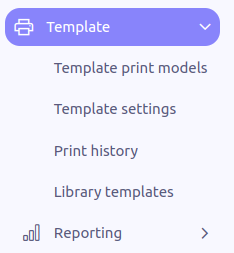
The Template app is now available on the sidebar menu with the following menus:
-
Template print models: List all the templates available for printing.
-
Template settings: List all the template settings used in printing. It allows the definition of the datasets which will be used in template print models.
-
Print history: List all the prints.
-
Library templates: The library of templates provided by Axelor. In one click, you can create a template and its settings from a template made by Axelor. A configuration is required to make it work (see Application configuration).
API and Library Configuration
After the template application is installed, you can override properties (if needed).
-
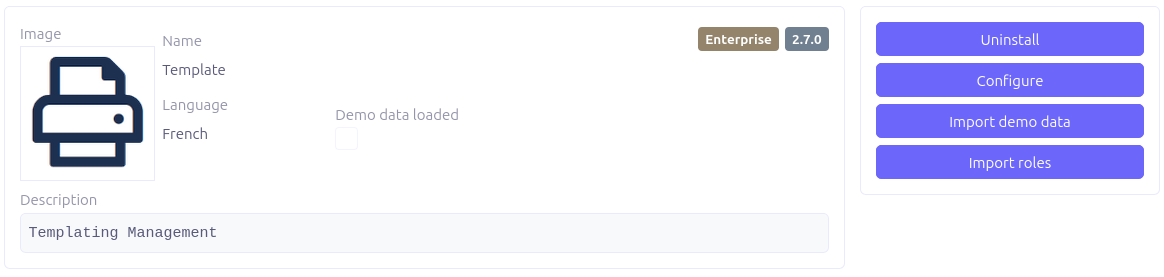
Go to the configuration of
Templateapp
-
Click on
Configure -
You should have this view:
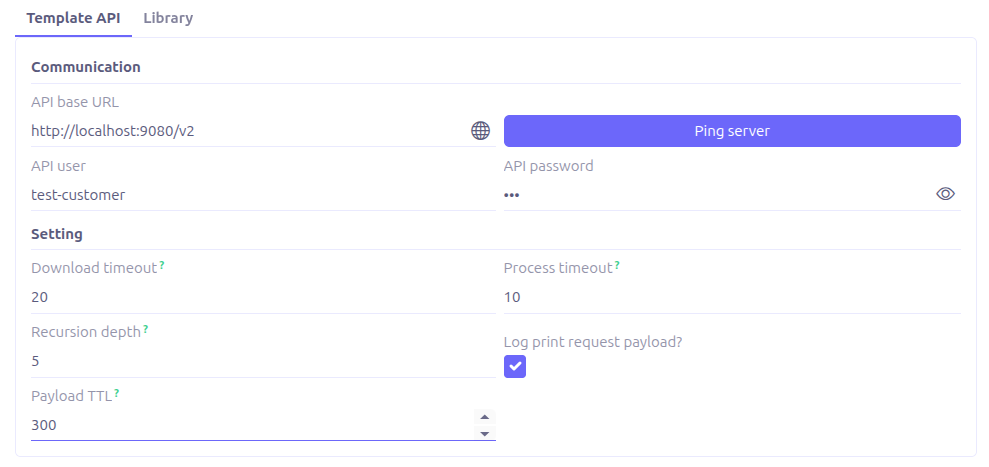
Here is the list of the available properties:
Template API
-
API base URL: The URL of the Axelor Template API server. you can use https://template-api.saas.axelor.com/v2
-
API user: Username of the API technical user
-
API password: Password of the API technical user
-
Download timeout (in seconds): The time limit for downloading a document. If the duration of your document generation is less than the limit, then your document is directly downloaded. Otherwise, a notification informs you as soon as your document is ready and available for download.
-
Process timeout: The duration (in seconds) the download process can take before being detached to a separate thread.
-
Recursion depth: Represent the depth allowed during access the children elements from a parent model.
{d.parent.child1.child2.child3…}, the minimum value is 1 and the default is 3. -
Log print request payload?: Determines whether the system should store a copy of the final, merged JSON data used for document generation. This is invaluable for debugging issues where the output document does not contain the expected data. However, enabling this option impacts negatively performances and disk space. Enable it only if necessary.
-
Payload TTL: The Time to Live (TTL) is the period, in minutes, for which a generated template request is stored on the server. After this period elapses, the request payload is automatically and permanently deleted.
-
Callback URL: The URL used by the Template API to notify the ERP when a print is ready. This field is optional, when empty, the system falls back to the ERP’s base URL or the callback URL stored in the user session. This property is primarily used for on-premise instances or setups with custom network configurations.
|
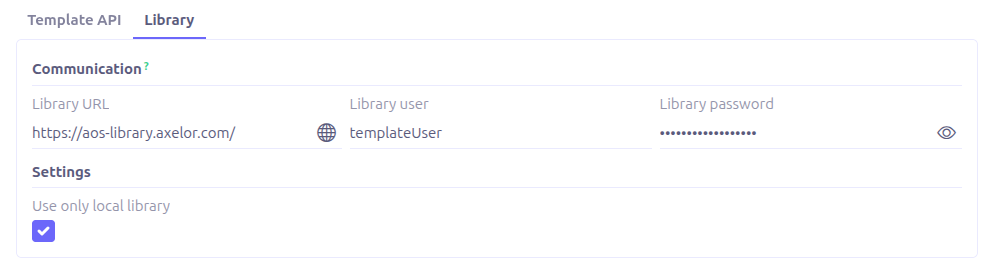
Library
-
Library URL: URL of Axelor Library server
-
Library user: Username of the Library technical user
-
Library password: Password of the Library technical user
-
Use only local library: When enabled, the library does not fetch elements from any remote server and relies solely on local elements.
-
Use only local library: disabled by default, it is configured only from the AppTemplate config page.