Studio Apps
Overview
Studio Apps allow you to package related Studio customizations (models, fields, menus, actions, selections, charts, dashboards) into a single application unit. This provides lifecycle management with install/uninstall capabilities, and export/import for deploying customizations across environments.
Studio Apps are managed from App > Configuration > Apps.
|
The Apps menu entry is only visible when |
App Views
Studio Apps can be displayed in two views:
Cards View
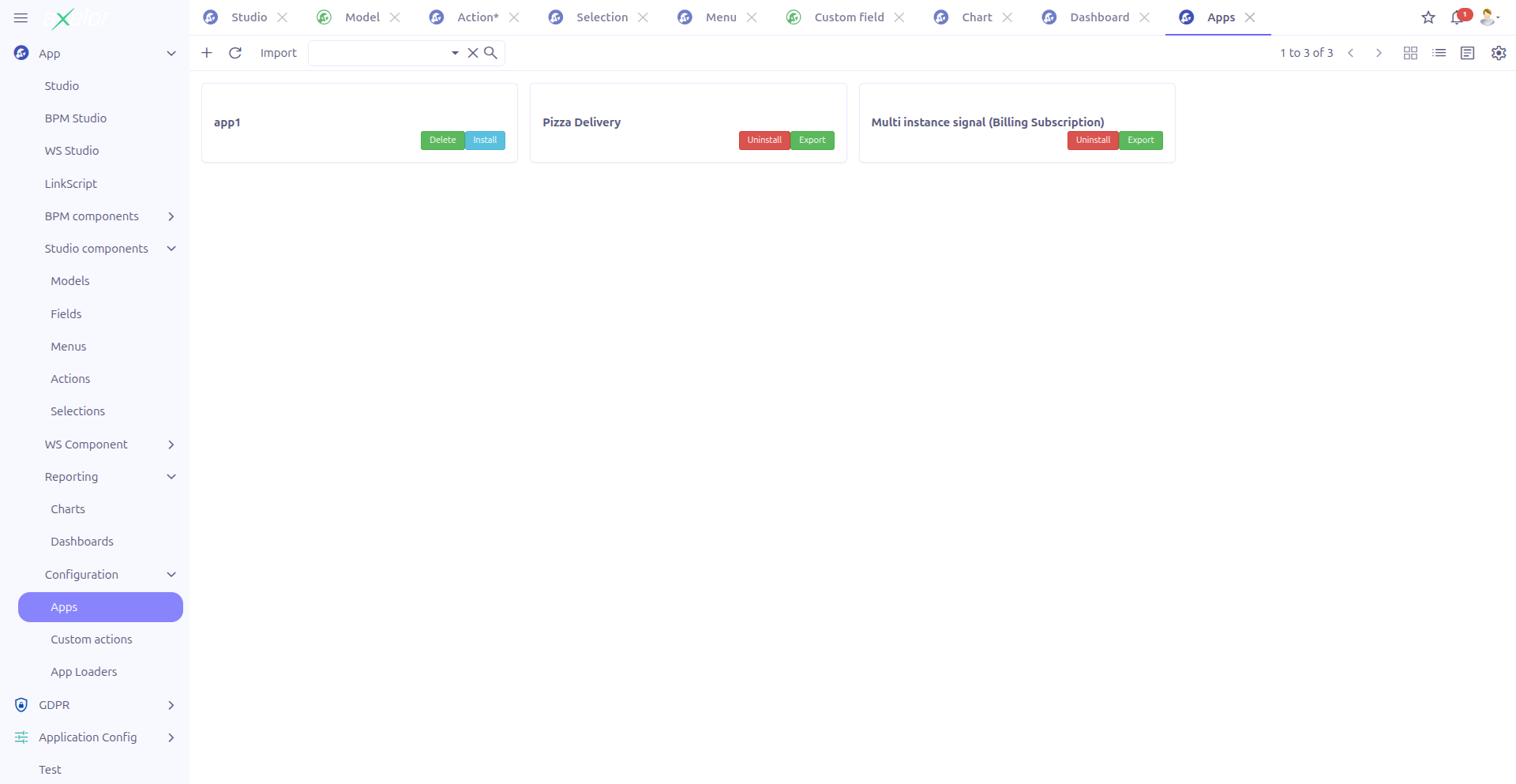
The cards view provides a visual overview of all Studio Apps with:
-
App image/logo
-
Name and code
-
Description excerpt
-
Active/inactive status badge
-
Delete button (only visible when the app is not installed)
The cards view also provides an Import button in the toolbar for importing apps from ZIP files.
Creating a Studio App
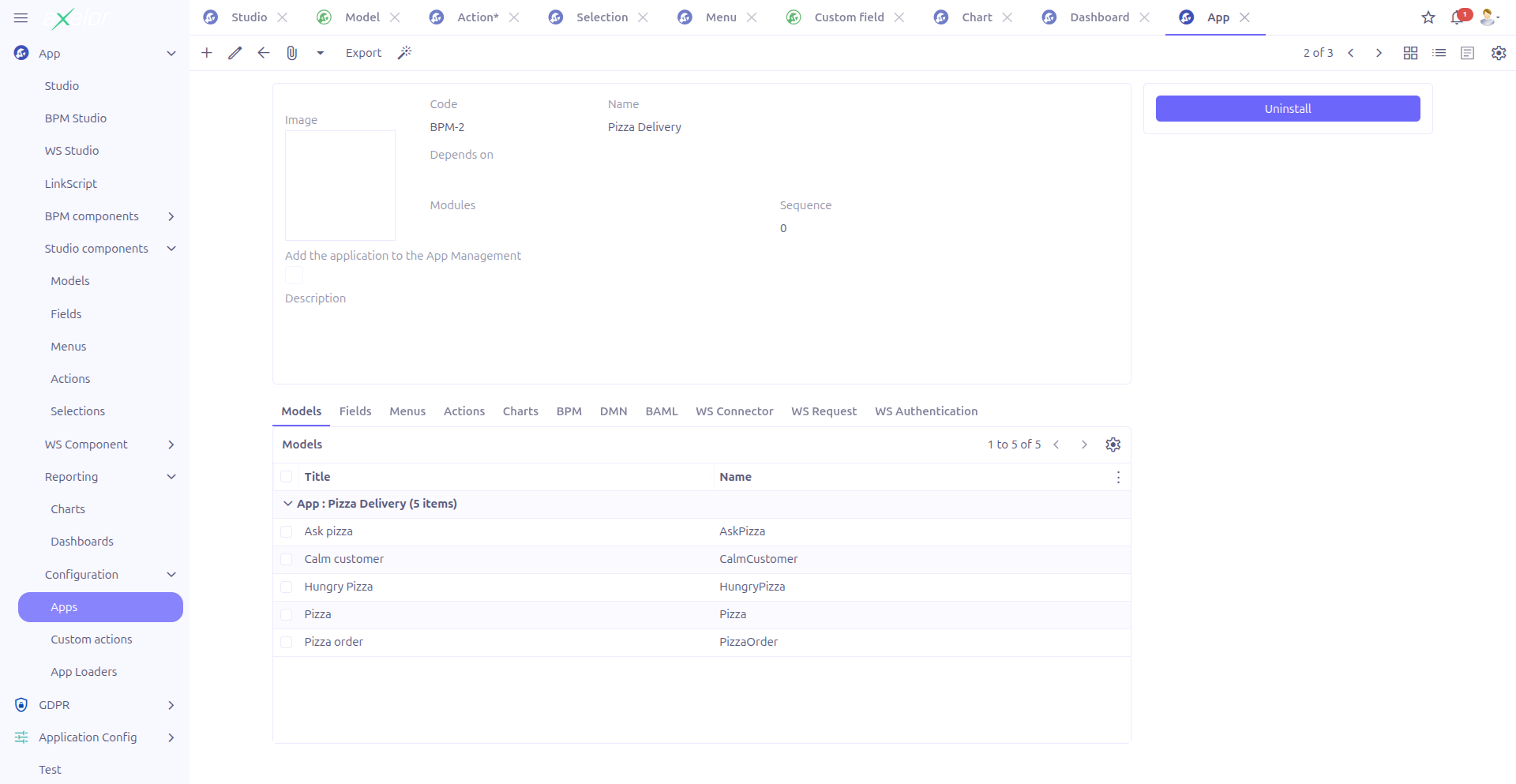
Basic Information
| Field | Required | Description |
|---|---|---|
Image (1) |
No |
App logo/icon displayed in the cards view and app list (Image widget, M2O:MetaFile). |
Code (2) |
Yes |
Unique technical identifier for the app. Used in import/export operations. |
Name (3) |
Yes |
Display name of the app. Supports translation. |
Dependencies (4) |
No |
Other Apps that must be installed before this one (TagSelect, M2M:App). |
Modules (5) |
No |
Associated application modules. |
Sequence (6) |
No |
Display order in the apps list. |
Show in app view (7) |
No |
When checked, the app appears in the main application management view (default: false). |
Description (8) |
No |
Detailed description of the app (HTML editor). |
Component Tabs
The form includes tabbed panels (dashlets) showing all Studio components grouped under this app:
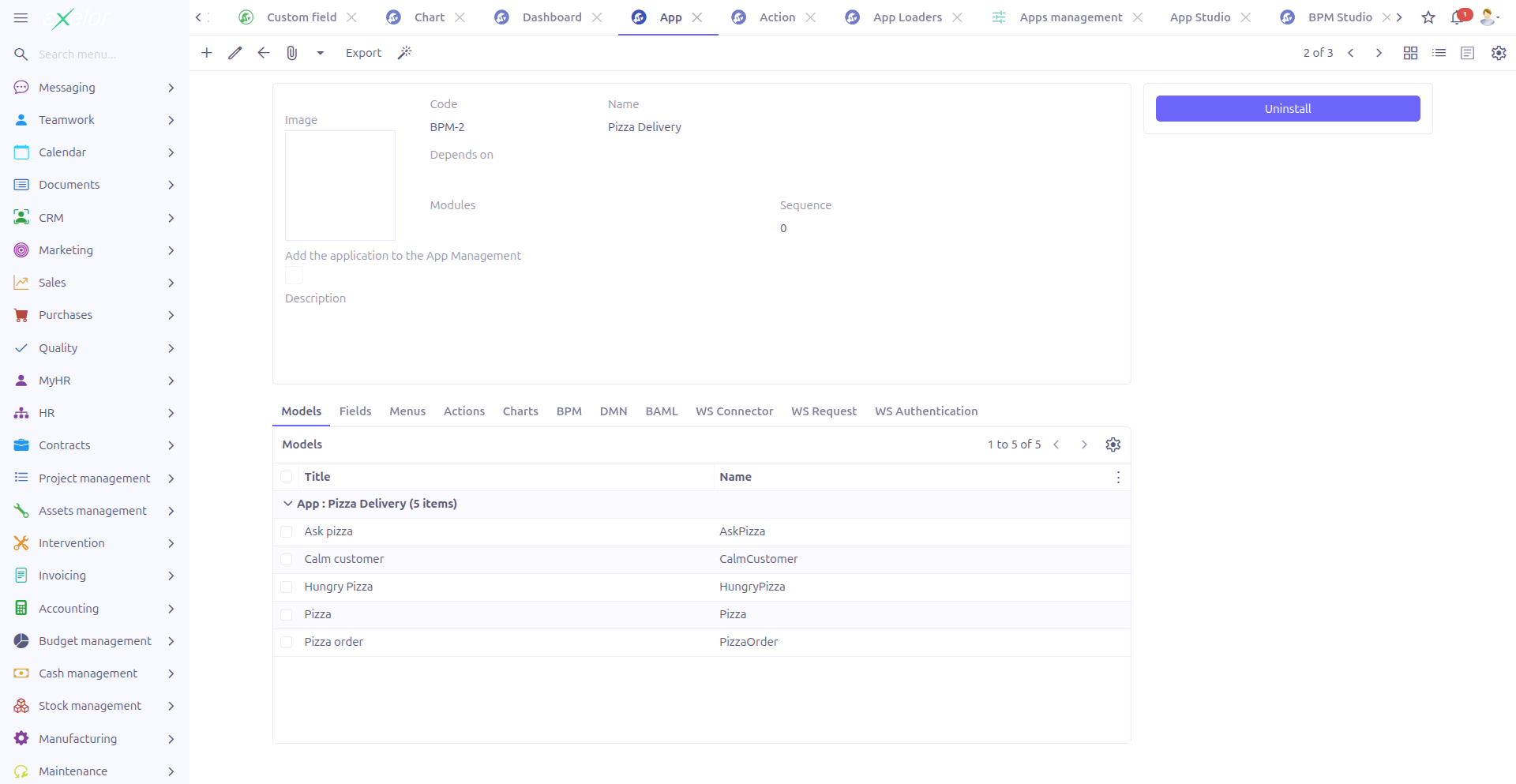
| Tab | Contents |
|---|---|
Models |
Custom models ( |
Fields |
Custom fields ( |
Menus |
Studio menus ( |
Actions |
Studio actions ( |
Meta Actions |
Generated meta actions ( |
Charts |
Studio charts ( |
Dashboards |
Studio dashboards ( |
BPM |
BPM processes associated with this app |
DMN |
DMN decision tables associated with this app |
BAML |
BAML models associated with this app |
WS Connector |
Web service connectors associated with this app |
WS Request |
Web service requests associated with this app |
WS Authentication |
Web service authenticators associated with this app |
These tabs provide a comprehensive view of everything packaged within the app.
Install and Uninstall
Install
The Install button appears in the form sidebar when:
-
The app record has been saved (has an ID)
-
The app is not currently installed (
generatedApp.activeis false)
Installing an app:
-
Generates the required
Apprecord -
Activates all associated menus, views, and actions
-
Makes the app’s customizations available to users
Uninstall
The Uninstall button appears when:
-
The app record has been saved (has an ID)
-
The app is currently installed (
generatedApp.activeis true)
| Uninstalling an app deactivates all its associated components. Users will no longer have access to the custom models, menus, and actions defined by the app. |
App Management Visibility
Two sidebar buttons control whether the app is surfaced in the central Apps Management view:
-
Add to App Management — Shown when the app is not yet listed there (
isInAppViewis false). It flags the app so it appears as a card in Apps Management. -
Remove from App Management — Shown when the app is already listed (
isInAppViewis true). It removes the card from Apps Management without deleting the Studio App itself.
Export and Import
Export
The Export button is available in the form toolbar. Clicking it opens an export dialog:
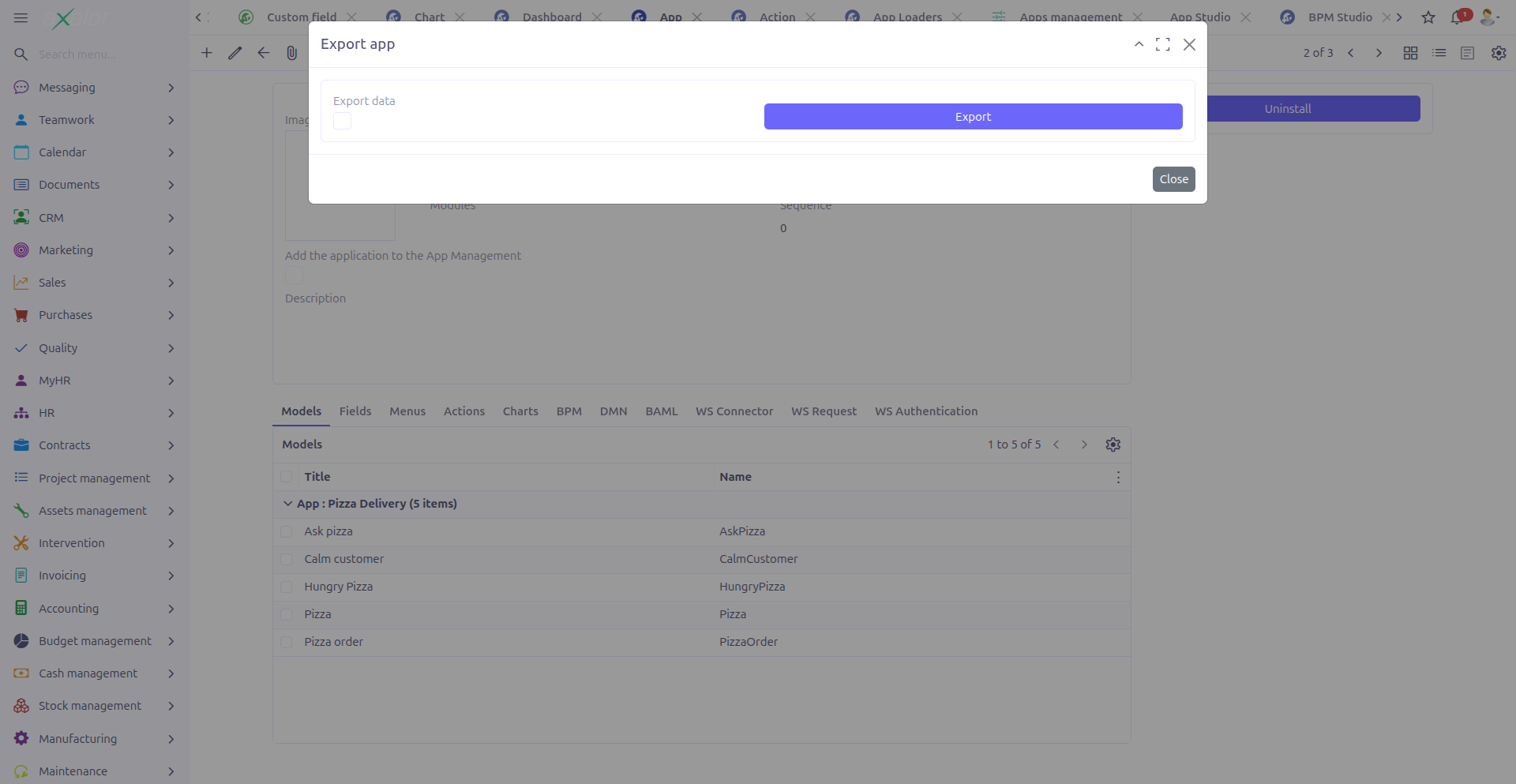
-
Export data (1): When checked, the export includes not only the app definition (models, fields, menus, etc.) but also the actual data records created through the custom models.
The export generates a ZIP file containing all the app’s components.
|
Use the Export data option when transferring a fully configured app with sample or reference data to another environment. Leave it unchecked to export only the structure (models, views, actions) without data. |
Import
The Import button is available in the grid/cards toolbar. Clicking it opens an import dialog:
-
Data file (1): Upload the ZIP file to import (MetaFile binary-link widget).
The import process:
-
Reads the ZIP file contents
-
Creates or updates the Studio App and all its components
-
Registers the generated views, menus, and actions
|
Importing an app with the same code as an existing app will update the existing app’s components. Review the import contents carefully before proceeding. |
Update from Data File
The Update app action lets you refresh an existing Studio App from an exported data file without recreating it. It opens an Update app dialog:
| Field | Description |
|---|---|
Data file |
The exported ZIP file to apply to this app (MetaFile binary-link, required). |
Detach absent elements |
When checked, elements that exist in the database but are absent from the imported file are detached from the application — they are unlinked from the app, not deleted. When unchecked, existing elements are kept even if they are missing from the file. |
After running, the update returns a log file if any issue occurred; otherwise it
reports a successful import. The update is handled by
StudioAppController.updateApp(), which delegates to
StudioAppService.updateApp(dataFileMap, studioApp, detachAbsent).
Technical Details
Studio Apps are stored in the StudioApp entity:
| Field | Type | Description |
|---|---|---|
|
String (required) |
Display name (translatable) |
|
String (required, unique) |
Technical identifier |
|
Large String |
HTML description |
|
String |
Associated module names |
|
Integer |
Display order |
|
Boolean (default: false) |
Show in main app view |
|
M2M: App |
Required dependencies |
|
M2O: MetaFile |
App logo |
|
M2O: App |
The generated base App record (contains active status) |
Key backend services:
-
StudioAppController.installApp()— Installs the app and activates components -
StudioAppController.uninstallApp()— Uninstalls the app and deactivates components -
StudioAppController.deleteApp()— Deletes the app (only when not installed) -
StudioAppController.exportApp()— Exports the app to ZIP -
StudioAppController.importApp()— Imports an app from ZIP -
StudioAppController.updateApp()— Updates an existing app from a data file, with optional detach of absent elements
Related Pages
-
Configuration — Enable/disable the Studio App feature
-
Custom Models — Models packaged in apps
-
Menus — Menus packaged in apps
-
Actions — Actions packaged in apps
-
Charts — Chart components packaged in apps
-
Dashboards — Dashboard components packaged in apps
-
Apps Management — Central app lifecycle management
-
Studio Overview — Complete feature overview
App Entity Auto-Generation
When a Studio App is saved, the system automatically generates a corresponding App entity (stored in the generatedApp field). This generation is triggered by the repository save hook.
The generated App has the following characteristics:
-
isCustom = true -
typeSelect = "custom" -
Image, description, dependencies, sequence, modules, and
isInAppVieware copied from the Studio App
This means every Studio App has a dual existence: the design-time StudioApp record and the runtime App record. The App record is what the Apps Management interface uses.