Studio Apps
Overview
Studio Apps allow you to package related Studio customizations (models, fields, menus, actions, selections, charts, dashboards) into a single application unit. This provides lifecycle management with install/uninstall capabilities, and export/import for deploying customizations across environments.
Studio Apps are managed from App > Configuration > Apps.
|
The Apps menu entry is only visible when |
App Views
Studio Apps can be displayed in two views:
Cards View
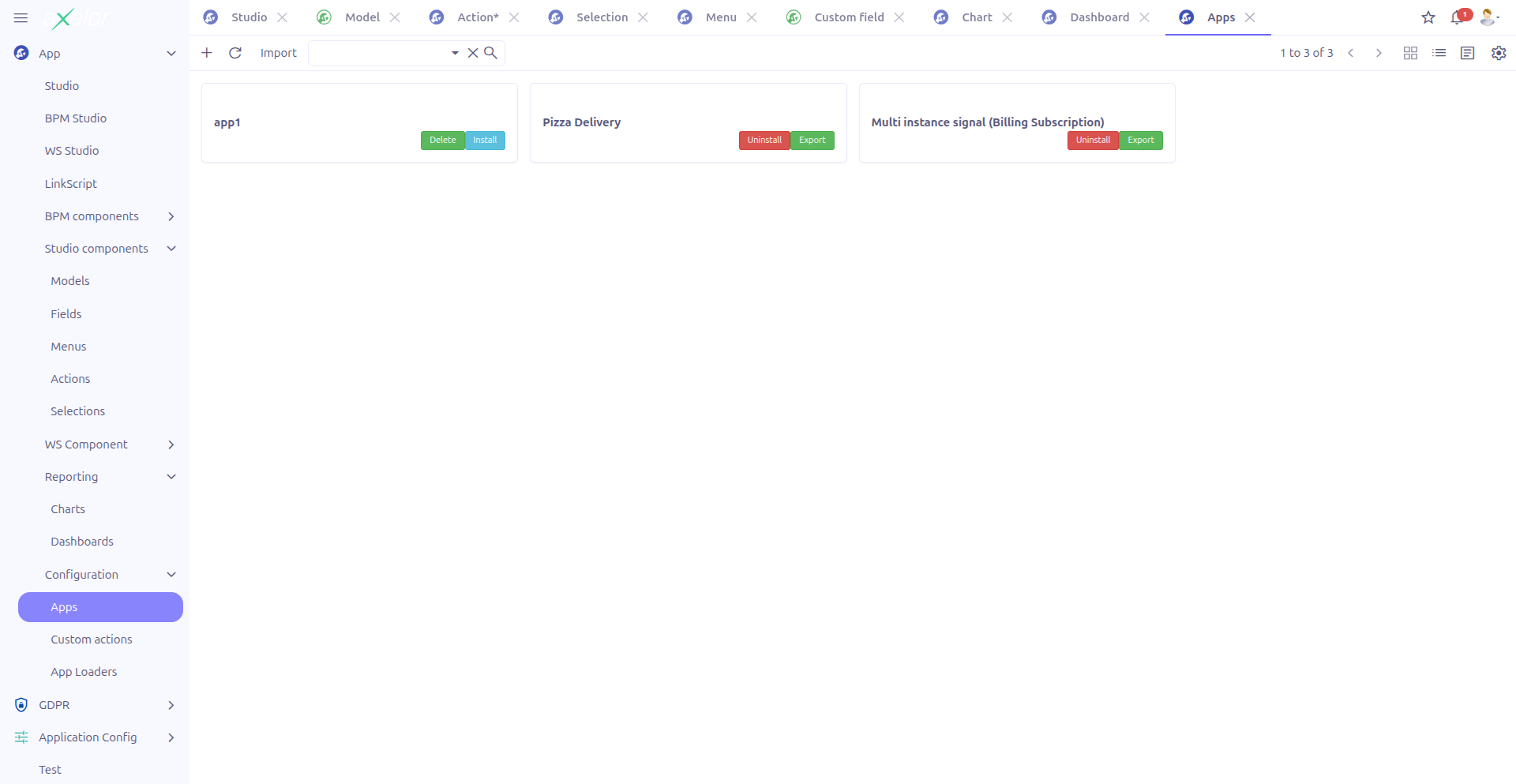
The cards view provides a visual overview of all Studio Apps with:
-
App image/logo
-
Name and code
-
Description excerpt
-
Active/inactive status badge
-
Delete button (only visible when the app is not installed)
The cards view also provides an Import button in the toolbar for importing apps from ZIP files.
Creating a Studio App
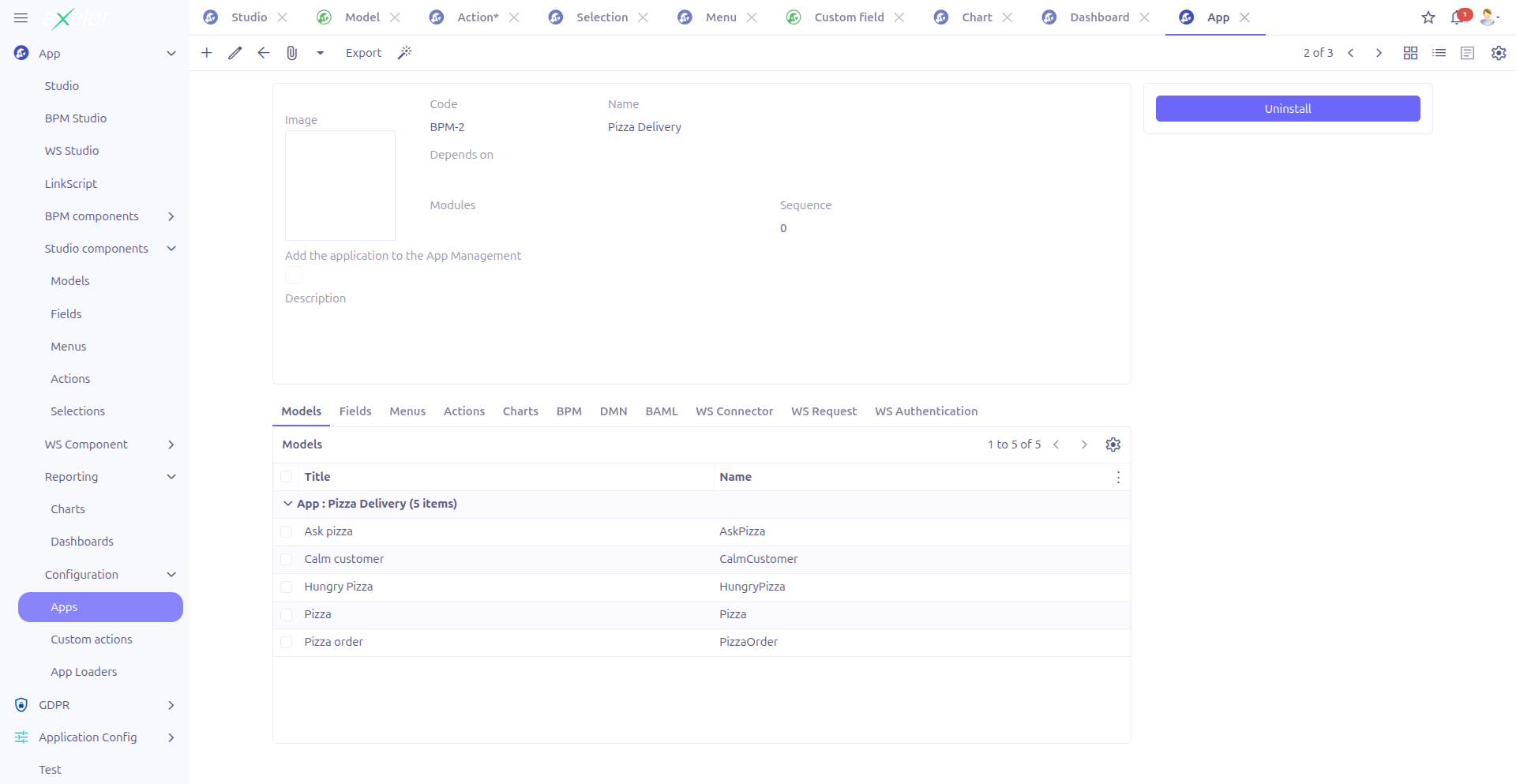
Basic Information
| Field | Required | Description |
|---|---|---|
Image (1) |
No |
App logo/icon displayed in the cards view and app list (Image widget, M2O:MetaFile). |
Code (2) |
Yes |
Unique technical identifier for the app. Used in import/export operations. |
Name (3) |
Yes |
Display name of the app. Supports translation. |
Dependencies (4) |
No |
Other Apps that must be installed before this one (TagSelect, M2M:App). |
Modules (5) |
No |
Associated application modules. |
Sequence (6) |
No |
Display order in the apps list. |
Show in app view (7) |
No |
When checked, the app appears in the main application management view (default: false). |
Description (8) |
No |
Detailed description of the app (HTML editor). |
Component Tabs
The form includes tabbed panels (dashlets) showing all Studio components grouped under this app:
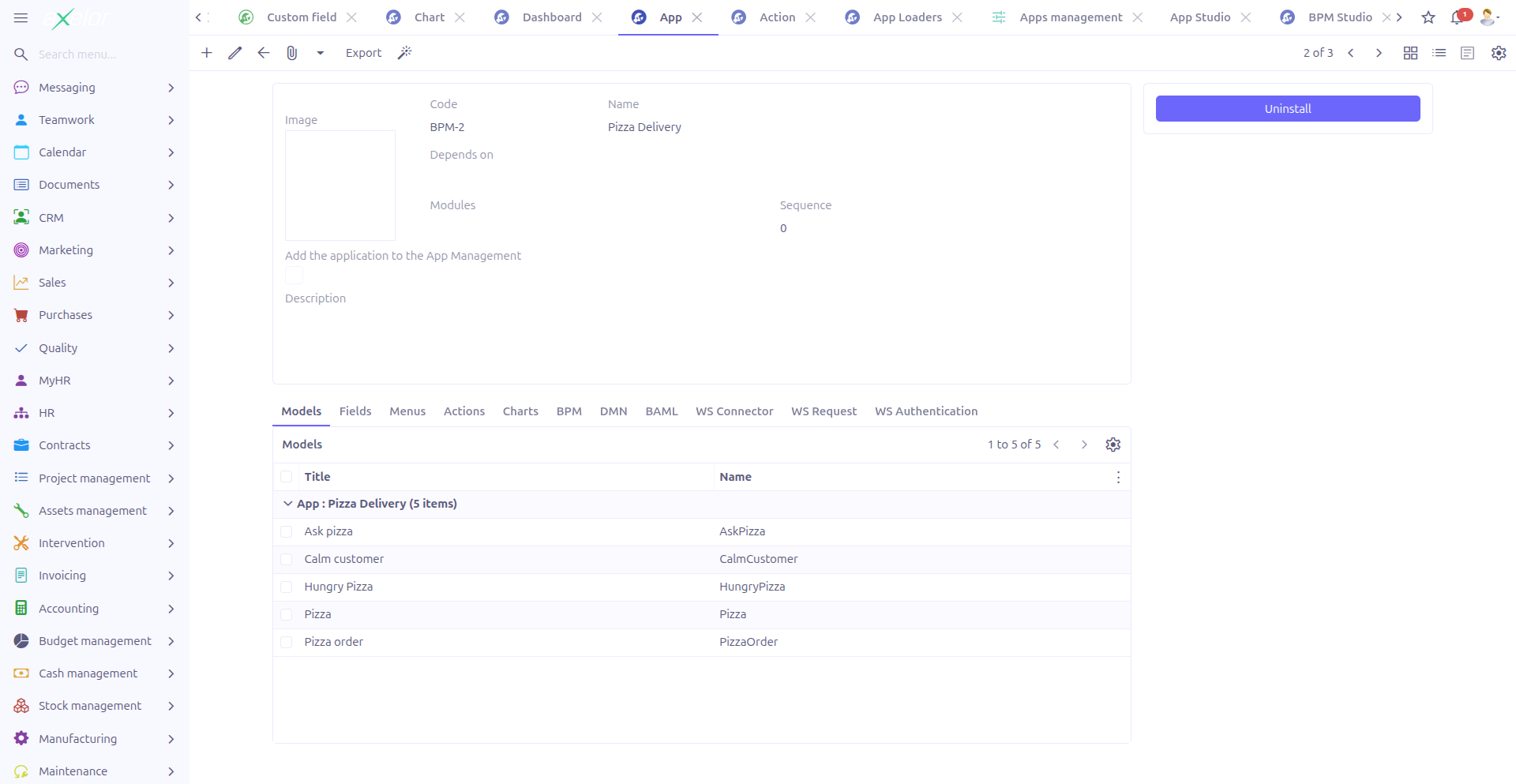
| Tab | Contents |
|---|---|
Models |
Custom models ( |
Fields |
Custom fields ( |
Menus |
Studio menus ( |
Actions |
Studio actions ( |
Charts |
Studio charts ( |
Dashboards |
Studio dashboards ( |
BPM |
BPM processes associated with this app |
DMN |
DMN decision tables associated with this app |
BAML |
BAML models associated with this app |
WS Connector |
Web service connectors associated with this app |
WS Request |
Web service requests associated with this app |
WS Authentication |
Web service authenticators associated with this app |
These tabs provide a comprehensive view of everything packaged within the app.
Install and Uninstall
Install
The Install button appears in the form sidebar when:
-
The app record has been saved (has an ID)
-
The app is not currently installed (
generatedApp.activeis false)
Installing an app:
-
Generates the required
Apprecord -
Activates all associated menus, views, and actions
-
Makes the app’s customizations available to users
Uninstall
The Uninstall button appears when:
-
The app record has been saved (has an ID)
-
The app is currently installed (
generatedApp.activeis true)
| Uninstalling an app deactivates all its associated components. Users will no longer have access to the custom models, menus, and actions defined by the app. |
Export and Import
Export
The Export button is available in the form toolbar. Clicking it opens an export dialog:
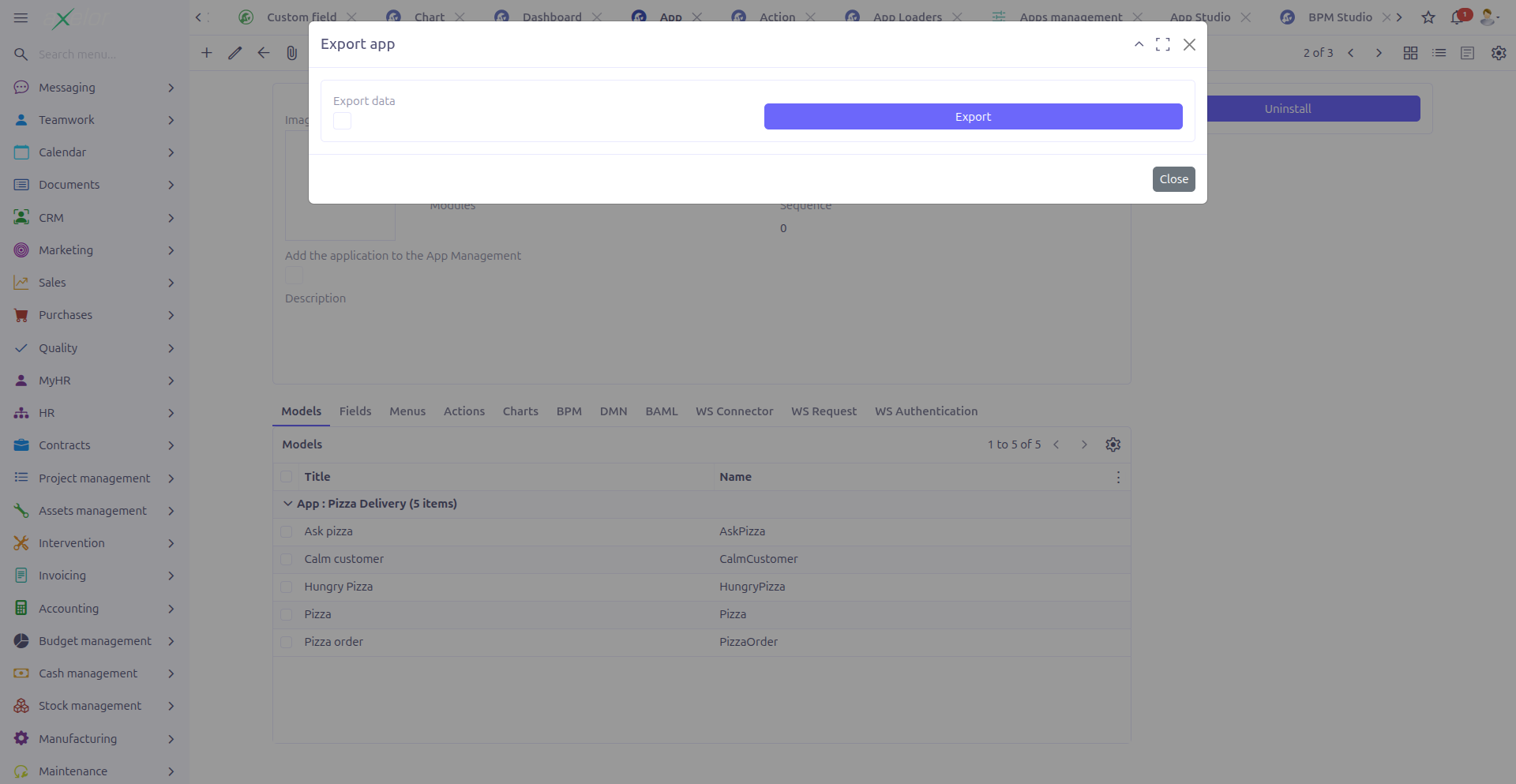
-
Export data (1): When checked, the export includes not only the app definition (models, fields, menus, etc.) but also the actual data records created through the custom models.
The export generates a ZIP file containing all the app’s components.
|
Use the Export data option when transferring a fully configured app with sample or reference data to another environment. Leave it unchecked to export only the structure (models, views, actions) without data. |
Import
The Import button is available in the grid/cards toolbar. Clicking it opens an import dialog:
-
Data file (1): Upload the ZIP file to import (MetaFile binary-link widget).
The import process:
-
Reads the ZIP file contents
-
Creates or updates the Studio App and all its components
-
Registers the generated views, menus, and actions
|
Importing an app with the same code as an existing app will update the existing app’s components. Review the import contents carefully before proceeding. |
Technical Details
Studio Apps are stored in the StudioApp entity:
| Field | Type | Description |
|---|---|---|
|
String (required) |
Display name (translatable) |
|
String (required, unique) |
Technical identifier |
|
Large String |
HTML description |
|
String |
Associated module names |
|
Integer |
Display order |
|
Boolean (default: false) |
Show in main app view |
|
M2M: App |
Required dependencies |
|
M2O: MetaFile |
App logo |
|
M2O: App |
The generated base App record (contains active status) |
Key backend services:
-
StudioAppController.installApp()— Installs the app and activates components -
StudioAppController.uninstallApp()— Uninstalls the app and deactivates components -
StudioAppController.deleteApp()— Deletes the app (only when not installed) -
StudioAppController.exportApp()— Exports the app to ZIP -
StudioAppController.importApp()— Imports an app from ZIP
Related Pages
-
Configuration — Enable/disable the Studio App feature
-
Custom Models — Models packaged in apps
-
Menus — Menus packaged in apps
-
Actions — Actions packaged in apps
-
Charts — Chart components packaged in apps
-
Dashboards — Dashboard components packaged in apps
-
App Loaders — Import/export apps across environments
-
Apps Management — Central app lifecycle management
-
Studio Overview — Complete feature overview
App Entity Auto-Generation
When a Studio App is saved, the system automatically generates a corresponding App entity (stored in the generatedApp field). This generation is triggered by the repository save hook.
The generated App has the following characteristics:
-
isCustom = true -
typeSelect = "custom" -
Image, description, dependencies, sequence, modules, and
isInAppVieware copied from the Studio App
This means every Studio App has a dual existence: the design-time StudioApp record and the runtime App record. The App record is what the Apps Management interface uses.