Global Search
🏷️ Available in Axelor Enterprise edition
The Global Search feature provides a powerful, system-wide full-text search capability, allowing users to quickly find information across different types of records in the application. It is built on top of Hibernate Search and backed by Elasticsearch or OpenSearch.
| For detailed information about Hibernate Search capabilities, see the Hibernate Search Reference Documentation. |
| Both Elasticsearch and OpenSearch are supported as backend search engines. This documentation uses "Elasticsearch" for simplicity, but all features apply to OpenSearch as well. |
Configuration
To enable and configure the Global Search feature, you need to set several properties in your axelor-config.properties file.
Enabling Global Search
Global Search is enabled by setting the Hibernate Search backend to Elasticsearch. The same configuration works for both Elasticsearch and OpenSearch.
# Enable Elasticsearch backend for Hibernate Search
# Works for both Elasticsearch and OpenSearch
hibernate.search.backend.type = elasticsearch

# Backend host configuration
# For Elasticsearch: default port 9200
# For OpenSearch: default port 9200
hibernate.search.backend.hosts = localhost:9200
The elasticsearch backend type is used for both Elasticsearch and OpenSearch. Hibernate Search’s Elasticsearch backend is compatible with OpenSearch.
|
Backend Connection Settings
Configure connection parameters for the Elasticsearch/OpenSearch backend.
# Protocol (http or https)
hibernate.search.backend.protocol = https

# Authentication
hibernate.search.backend.username = elastic
hibernate.search.backend.password = changeme

# Connection timeout in milliseconds
hibernate.search.backend.connection_timeout = 3000

# Read timeout in milliseconds
hibernate.search.backend.read_timeout = 60000

# Request timeout in milliseconds (for index/search operations)
hibernate.search.backend.request_timeout = 60000| For production deployments, use HTTPS and proper authentication credentials. |
For additional configuration options including schema management, automatic indexing strategies, and performance tuning, see the Hibernate Search Configuration Reference.
Version Compatibility
Hibernate Search 7.2 supports the following backend versions:
-
Elasticsearch: 7.10 - 8.18
-
OpenSearch: 1.3 - 2.16
| Using versions outside this range may result in compatibility issues or unsupported features. For the latest compatibility information, see Hibernate Search 7.2 Release Notes. |
For more configuration options, refer to:
Indexing Configuration
The indexing process can be tuned for performance.
# Number of entities to fetch and process in each batch during mass indexing.
global-search.indexer.batch-size = 100

# Number of parallel threads to use for loading entities from the database.
global-search.indexer.threads = 4

# Transaction timeout in seconds for the mass indexer.
global-search.indexer.timeout = 600
File Indexing
The content of attached files can also be indexed. You can configure the maximum file size and the types of files to be indexed.
# Maximum size of files (in MB) to be considered for content indexing.
global-search.file.max-size = 5

# Comma-separated list of additional MIME types to be indexed.
# By default, common document types (pdf, doc, xls, etc.) are supported.
global-search.file.type.custom = application/json,application/javascript
Indexing
Before you can use the search, you need to build the search index.
Mass Indexing
The initial index for all entities is created using a mass indexer. This process can be started via the command-line interface.
$ ./bin/axelor search indexThis command will find all entities configured for indexing and process them.
You can use the following options:
-
--drop: Drops the existing index and schema before starting. -
--tenant <tenant_id>: If multi-tenancy is enabled, you can specify which tenant to index.
# Re-index everything from scratch
$ ./bin/axelor search index --drop

# Index a specific tenant
$ ./bin/axelor search index --tenant my_tenantMapping Configuration
You define which entities and fields should be indexed in a YAML configuration file. By default, the application looks for a file named axelor-search.yaml in the classpath. You can specify a different file using the global-search.mapping-file property.
global-search.mapping-file = /path/to/my-search-mapping.yamlYAML Mapping Example
Here is an example configuration for indexing different types of entities.
indexes:
  - entity: com.axelor.contact.db.Country
    fields:
      - field: code
      - field: name
  - entity: com.axelor.contact.db.Address
    fields:
      - field: street
      - field: area
      - field: city
      - field: zip
      - field: country
        depth: 2        (1)
        include:        (2)
          - name
          - code
  - entity: com.axelor.contact.db.Contact
    index: Contact      (3)
    fields:
      - field: fullName
      - field: addresses
        depth: 2
      - field: title
        depth: 1
  - entity: com.axelor.sale.db.Product
    fields:
      - field: name
      - field: code
      - field: attrs    (4)
  - entity: com.axelor.meta.db.MetaJsonRecord
    fields:
      - field: jsonModel
      - field: name
- field: attrs| 1 | Index related entity fields up to depth 2 |
| 2 | Only include specific paths from the related entity |
| 3 | Optional custom index name - makes this entity directly searchable |
| 4 | JSON field - content indexed automatically |
Configuration Options:
-
entity: The fully qualified name of the entity to configure -
index: (Optional) Index name - when specified, the entity becomes directly searchable. When omitted, the entity’s field configuration is used only when it’s embedded in other indexed entities -
fields: List of fields to be indexed -
field: The name of the property in the entity -
depth: (For related entities) How deep to index the related entity’s fields -
include/exclude: (For related entities) Explicitly include or exclude specific paths
Special Field Types:
-
Translatable fields: Translatable values are automatically indexed in all available languages
-
File fields: File content is automatically extracted and indexed
-
Custom fields: Custom fields are automatically indexed
Search Usage
The global search feature provides a simple yet powerful interface for finding information across your entire application.
Accessing Global Search
There are two ways to access the global search:
-
Click the search icon in the top navigation bar:

-
Use the keyboard shortcut: Press Ctrl+/ from anywhere in the application
Using the Search Interface
Once activated, the search interface provides:
-
A search input field where you can type your query
-
An optional filter dropdown (labeled "All…") to narrow results to specific entity types
-
A results area displaying matching records with highlighted search terms
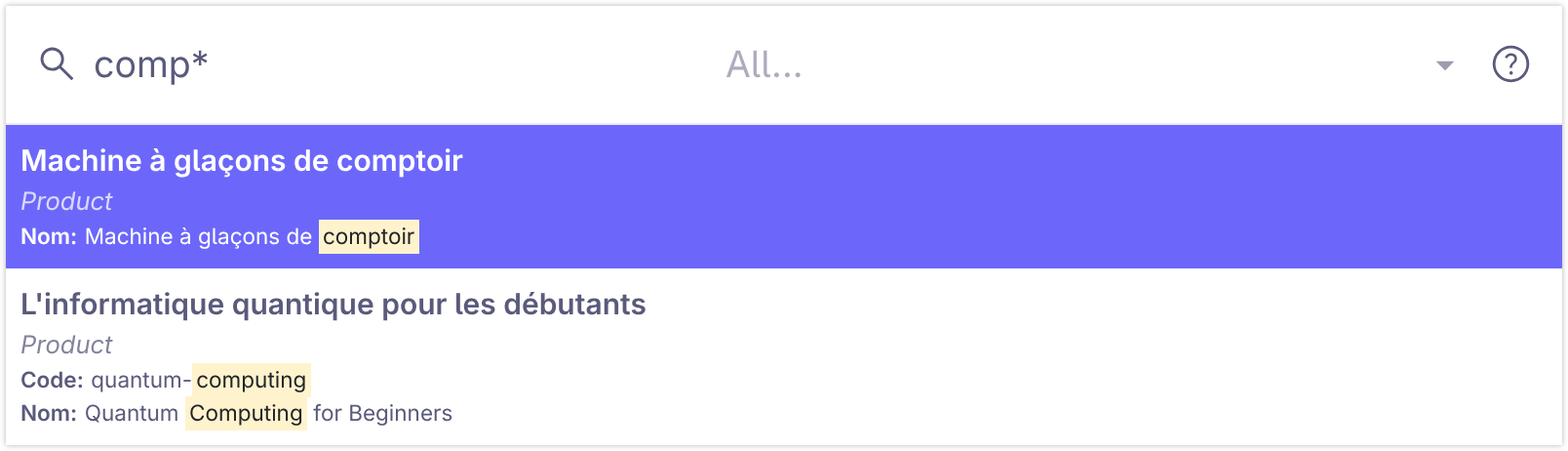
Search results display:
-
Entity type badge: Shows the type of record (e.g., "Product")
-
Record details: Key fields from the matching record
-
Highlighted matches: Search terms are highlighted in yellow to show where matches occurred
Click on any search result to open the corresponding record.
Search Syntax
The search supports a rich query syntax:
-
Multiple keywords: Use
|to search for multiple terms. Example:invoice|customer -
Phrase search: Use double quotes to search for an exact phrase. Example:
"blue shirt" -
Wildcard search: Use
at the end of a word for prefix queries. Example:compwill matchcomputerandcompany. -
Fuzzy search: Use
~followed by a number (1, 2, or 3) to find similar words.1is the most similar. Example:fast~1might matchfact.
The search syntax is based on the Simple Query String query (also supported in OpenSearch).
Wildcard queries (*) can be slow on large datasets. Use them sparingly for better performance.
|
Multi-Language Search
Global Search automatically supports translatable fields, allowing users to search content in their preferred language.
How It Works
When a field is marked as translatable, its translations are automatically indexed alongside the original value.
<entity name="Product">
  ...
  <string name="description" translatable="true"/>
</entity>
When this product is indexed with description "Red Laptop" and translations exist in the MetaTranslation:
-
Original: "Red Laptop"
-
French: "Ordinateur Rouge"
-
German: "Roter Laptop"
All these values are automatically indexed and searchable.
Language-Specific Search
Search queries automatically filter results based on the user’s current language preference:
-
Searches both original field values and translations for the user’s language
-
Original values are always searched regardless of user language
User language: French
Search query: "ordinateur"
Result: Finds "Red Laptop" product via its French translation
Performance Best Practices
Indexing Performance
-
Batch size: Adjust
global-search.indexer.batch-sizebased on available memory (default: 100) -
Thread count: Set
global-search.indexer.threadsbased on CPU cores (default: 4) -
Schedule mass indexing: Run during off-peak hours for large datasets
See Hibernate Search Mass Indexer documentation for advanced tuning.
Search Performance
-
Avoid wildcard queries at the beginning of terms (e.g.,
*term) -
Use phrase queries sparingly
-
Consider adding specific fields to search instead of searching all fields
-
Monitor cluster health via Elasticsearch Cluster Health API or OpenSearch Cluster Health API
Troubleshooting
Translations Not Appearing in Search
If translated values are not being found:
-
Check META_TRANSLATION table: Ensure translations exist with key format
value:OriginalValue -
Verify field is translatable: Check that
@Widget(translatable=true)is set on the entity field -
Reindex after adding translations: Run
./bin/axelor search index --dropto rebuild the index -
Check indexed data: Query Elasticsearch directly to verify translations are present in the index
-
Verify user language: Ensure the user’s language preference matches available translations
Connection Issues
If search is not working at all:
-
Verify backend is running: Check
http://localhost:9200/_cluster/health -
Check configuration: Verify
hibernate.search.backend.typeandhibernate.search.backend.hostsinaxelor-config.properties -
Review logs: Check both application and backend logs
-
Network: Ensure firewall allows connection to backend port
For more troubleshooting tips, see:
Index Corruption
If you encounter index corruption or inconsistencies:
# Drop and recreate the entire index
$ ./bin/axelor search index --drop

# For specific tenant
$ ./bin/axelor search index --drop --tenant my_tenant| Dropping the index will require rebuilding it completely, which can take significant time for large datasets. |
Additional Resources
Documentation
-
Hibernate Search 7.2 Compatibility - Version requirements and supported backends
Tools
Elasticsearch:
-
Kibana - Elasticsearch management and visualization
-
ElasticVue - Browser extension for Elasticsearch
OpenSearch:
-
OpenSearch Dashboards - OpenSearch management and visualization
-
OpenSearch Clients - Various client libraries
Multi-Backend:
-
ElasticVue Desktop - Desktop application supporting both Elasticsearch and OpenSearch