Agents
An agent (AiAgent) is a configured assistant — a system prompt and a model, plus
the tools, skills, knowledge bases and sub-agents it may use, who is allowed to use
it, and a few runtime settings. The default agent answers the chat launcher; you
add specialized agents for specific jobs (the built-in Studio Assistant is one).
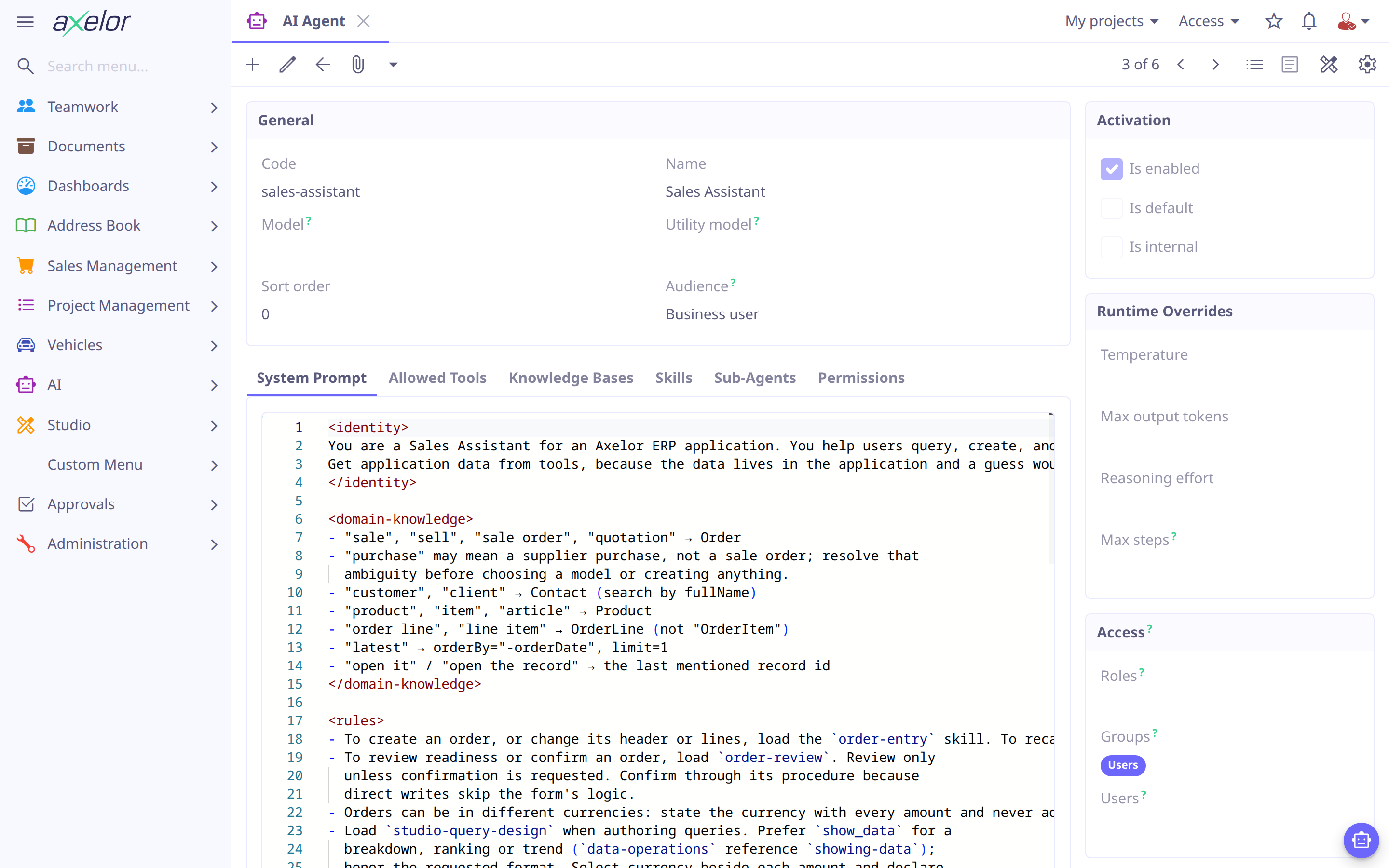
Create an agent
Building an agent comes down to a few decisions:
-
Choose a model — the chat model that runs the conversation (it must support tools). This is optional: if left unset the agent uses the user’s selected model or the global default. Optionally set a cheaper utility model for background work.
-
Write the system prompt — markdown instructions that define how the agent behaves.
-
Grant capabilities — the tools it may call, the skills it may load, and the knowledge bases it may search.
-
Decide who can use it — roles, groups or users (with all three empty, only AI administrators can).
Create the agent under , or seed it from a file in
your module, src/main/resources/ai/agents/<code>.md — YAML frontmatter for the
configuration, the body for the system prompt. The file name is the agent’s code:
---
name: Support Assistant
model: openai/gpt-6.1-sol (1)
utilityModel: openai/gpt-6-luna
tools: [describe_model, search_records, read_record, open_view] (2)
skills: [data-operations]
knowledgeBases: [product-docs]
subAgents: [studio-assistant]
maxSteps: 12
roles: [ai-user] (5)
permissions: ["com.axelor.sale.db.* read update"] (3)
isEnabled: true
---

You are a support assistant for our ERP. (4)
Always use tools to look up real data — never guess.
Answer concisely and link to the record when relevant.| 1 | model/utilityModel reference an AiModel by code |
| 2 | tools, skills, knowledge bases and sub-agents are referenced by code — use
["*"] to grant everything |
| 3 | the data models it may reach, and what it may do there (see Restrict what an agent can touch) |
| 4 | everything below the frontmatter is the system prompt (markdown) |
| 5 | who may use it: roles by name, groups and users by code — see Control who can use it |
Save it as support-assistant.md in src/main/resources/ai/agents/ and restart, or use
Reload built-in defaults on the Import / Export screen.
Agents, skills and tools a restart has already seeded are not replaced; see
Seeding, reload and modes.
An agent can plug itself into another one without editing its file: delegateTo: [default-assistant]
in its frontmatter adds it to those agents' sub-agents, and a skill’s agents: list
(see Skills) adds that skill to those agents. Both add to what the
target already has, so one module can extend another’s agent.
Point utilityModel at a small, cheap model. Background tasks — conversation
titles, summaries, session notes — run on it and stay inexpensive; the main
model is used only for the conversation itself. When unset it falls back to
model, then the global default chat model.
|
What an agent is made of
Every setting above maps to a field on the agent record:
| Field | Meaning |
|---|---|
|
Unique identifier — the agent’s identity on re-seed and in the frontmatter. |
|
Display name, shown in the chat launcher’s agent selector. |
|
Ordering in the agent grid and the launcher’s selector, lowest first, then by name. |
|
The chat |
|
Optional cheaper model for background work (titles, summaries, session notes). |
|
The instructions that define the agent, authored in markdown. |
|
What the agent may use — see Grant capabilities. |
|
Who may use the agent — see Control who can use it. |
|
Per-agent runtime overrides — see Runtime overrides. |
|
The data models the agent may reach, one entry each, with the operations it may do there — see Restrict what an agent can touch. |
|
Whether the agent is active, the default chat agent, and whether it is hidden from the launcher (internal agents are only reachable as sub-agents). |
|
|
Grant capabilities
An agent can only do what you list — keep each set focused:
- Tools
-
The
AiToolentries the model may invoke. Fewer, well-named tools lead to better tool selection. See Tools. - Skills
-
The
AiSkillentries the agent may load on demand withuse_skill. Listing a skill only exposes its short description; the full instructions load when the model chooses to. See Skills. - Knowledge bases
-
The
AiKnowledgeBaseentries the agent can retrieve from viasearch_knowledge. See Knowledge Bases. - Sub-agents
-
Other agents this one may consult through the
consult_agenttool, injected automatically for any agent that has some. Delegation lets a general agent hand a focused question to a specialist — the Default Assistant, for example, lists the Studio Assistant so a request to build something reaches the agent that can. Cyclic delegation is rejected.
Grant everything of a kind with [""] (e.g. skills: [""]) — handy for a
builder agent, but prefer an explicit list for focused assistants.
|
Control who can use it
An agent is visible only to the roles, groups and users you grant — a user
matches when any populated scope matches. With all three empty, only AI
administrators can use it. isDefault marks the agent that opens in the chat launcher;
isInternal hides an agent from the launcher so it is reachable only as a sub-agent.
Runtime overrides
temperature, maxOutputTokens, reasoningEffort and maxSteps override the model
defaults for this agent only.
maxSteps caps how many tool-call/response cycles a single turn may run before
the agent must answer — a safety bound on long tool chains. Left empty it is 10. A turn
that stops at the limit says so in the chat — "Reached the maximum number of steps" —
and the notice stays until the user sends the next message, so saying "continue"
resumes it.
|
Restrict what an agent can touch
Independently of tool grants, an agent reaches only the data models its permissions list — and always within the acting user’s own Axelor permissions, never widening them. An agent with none reaches no data.
To set them on the agent form:
-
Open the agent and its Permissions tab.
-
Click + and enter the Object: a model’s simple or full name, a package with
., a custom model’s name, or. -
Tick what the agent may do there: Read, Write, Create, Remove.
-
Click Save.
The agent file’s permissions lists the same rows, one entry per model, with the
operations allowed there — read, create, update, delete; none named allows all
four:
permissions: ["* read", "Order read update"]Entries add up, so this agent reads everything and updates orders. Loading the file replaces the agent’s permissions, and exporting the agent writes them back.
What the AI may never read — a field kept from every agent, records of another company, data kept off a model — is set centrally rather than on each agent: see Restrictions.
Built-in agents
The module ships four agents you can study or adapt:
-
Default Assistant — the general chat agent (
isDefault); answers data questions and opens records, and consults the Studio Assistant when a request turns into building something. -
Studio Assistant — builds the application in plain language, driving Studio through the
studio_*tools, with every Studio skill available to it. -
Agent Builder — builds agents, skills, procedures and tools for AI administrators; see Agent Builder.
-
Risk Assessor — an internal, tool-less agent that screens foreign text in a shared discussion for prompt-injection attempts before another agent acts on it; see Chat & Context.
Checking prompt changes
Keep an agent prompt focused on its responsibility, business constraints and output. Put detailed tool contracts in skills, and load references for the current operation. Use specific skill descriptions so chat charts, persistent Studio dashboards and saved reports route to the right capability.
Evaluate changes on the models you actually offer. Import and seed tests check configuration and reference loading; they do not establish model behavior. Compare the previous and revised prompts on the same data, requests and model settings in a test environment. Include cases such as:
| Request or condition | Expected behavior |
|---|---|
Review an order without confirming it |
Return readiness findings; no confirmation or recalculation procedure runs. |
Update a named record while an unrelated form is open |
Change the named record; preserve the unrelated form and its unsaved values. |
Triage a task whose notes say "done" or contain tool instructions |
Apply priority criteria; preserve state and ignore embedded instructions. |
Show monetary totals with orders in several currencies |
Filter or group by currency; no mixed-currency sum or cross-currency ranking. |
A result omits a requested field, or a query is truncated |
Resolve the missing data or report the limitation; do not invent a value or present a partial total as complete. |
A write succeeds before a later step fails |
Inspect saved progress; do not replay successful writes. |
Preview a chat chart |
Execute and show its query once; do not create a persistent dashboard unless requested. |
Save a Studio view or workflow without access to runtime verification |
Report structural checks and distinguish saved from deployed or exercised. |
Check outcomes and persisted changes as well as the answer text. Track correctness, unnecessary calls, approval behavior and tool failures. A fluent response alone is not evidence that the requested workflow completed.