AI
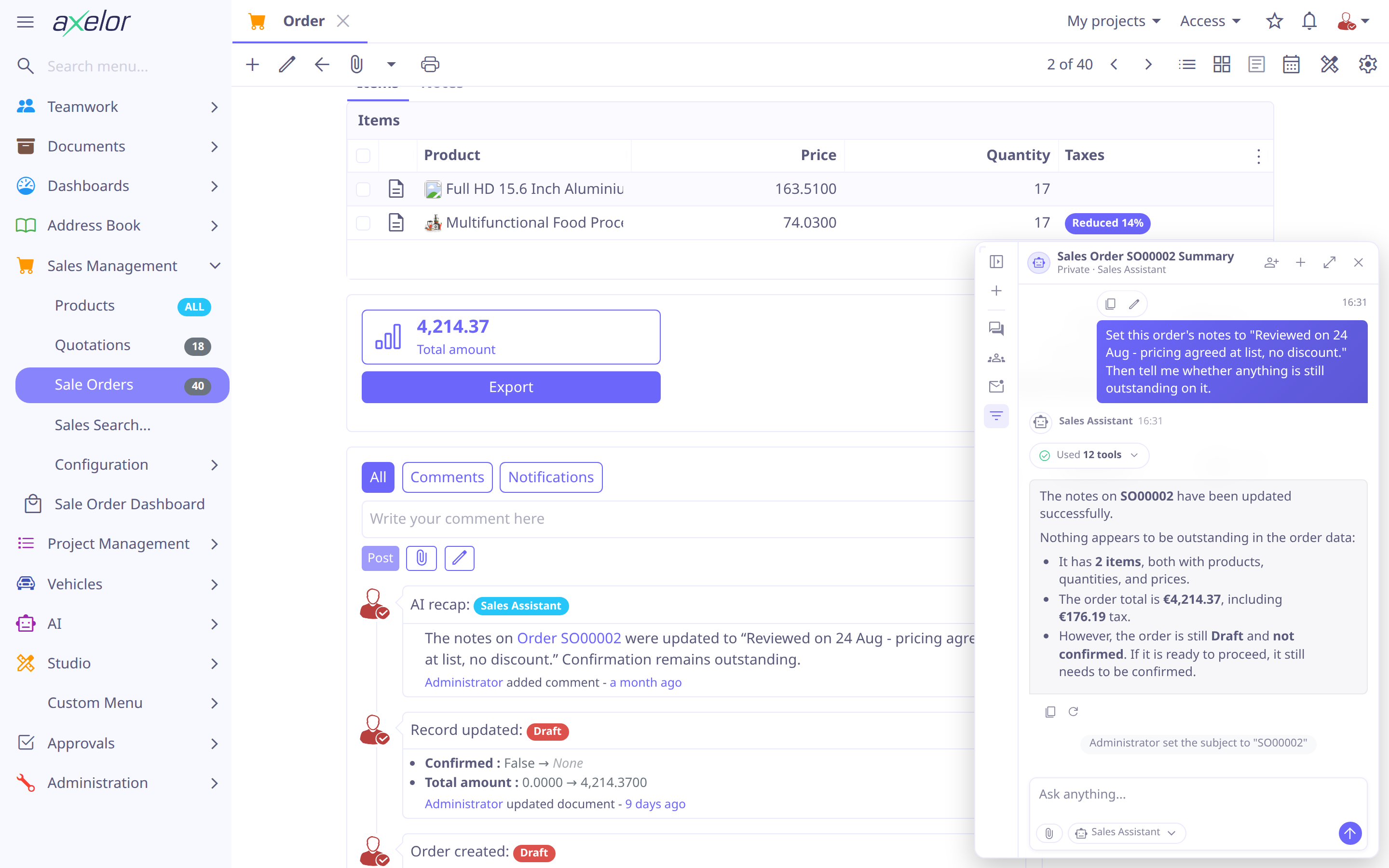
The Axelor Open Platform embeds a conversational AI assistant in your application. Users chat from any screen; the assistant answers questions, looks up and edits records through tools, pulls in domain knowledge, and can even build the application itself with Studio. Everything the assistant can do is configuration — providers, models, agents, tools, skills and knowledge bases are data, seeded from files and editable in the UI.
When to use
Reach for the AI module when you want natural-language access to the ERP — answering "how many open orders this month?", filling and updating records by describing them, surfacing knowledge from indexed documents, or letting a builder customize the app in plain language. Compared to the alternatives:
| Alternative | Difference |
|---|---|
Deterministic automation you author up front. The assistant is interactive and reasons per request; it reuses your actions and models through tools rather than replacing them. |
|
Global search |
Search finds records by keyword. The assistant understands intent, joins several
lookups, aggregates, and explains — calling |
Concepts
- Provider & Model
-
An
AiProvider(OpenAI, Anthropic, Mistral, Google, Ollama, …) exposes one or moreAiModelentries — chat or embedding models with their capabilities (streaming, tools, vision, reasoning) and limits. One chat model is the global default; agents may also name a cheaper utility model for background work. See Providers & Models. - Agent
-
An
AiAgentis a configured assistant: a system prompt, a model, the tools, skills, knowledge bases and sub-agents it may use, and the data models it may reach — plus access scoping (roles/groups/users) and runtime overrides. The default agent answers the chat launcher; specialized agents (e.g. the built-in Studio Assistant) target specific jobs. See Agents. - Tool
-
An
AiToolis a capability the model can invoke — a built-in system tool (read/write records, describe models, drive Studio), a client tool (ask the user, open a view), a script tool (JavaScript), an HTTP tool (call an API), or an action tool (run an existing Axelor action). Tools declare a JSON input schema and may require user approval before running. See Tools. - Skill
-
An
AiSkillis on-demand expertise — a short description the model always sees, plus full instructions and references loaded only when the model callsuse_skill. This keeps prompts small while giving deep, focused guidance when needed. See Skills. - Knowledge base
-
An
AiKnowledgeBaseindexes documents and records into embeddings so the assistant can retrieve relevant passages (RAG) viasearch_knowledge. See Knowledge Bases. - Chat
-
Conversations stream token-by-token in the chat panel, rendering each tool call as a card. A conversation can be shared with other people, who follow it, post in it, or — with Can ask — bring the agent in themselves. See Chat & Context.
Quickstart
From nothing to a working assistant:
-
Enable the AI feature for the application — the AI menu and the chat launcher appear once it is on.
-
Set a provider key — under , fill in the API key on your provider (keys are never seeded). See Providers & Models.
-
Chat — open the launcher (bottom-right on any screen). The Default Assistant answers questions, looks up records, and acts through tools.
From there you tailor it — add your own agents, tools, skills and knowledge bases, all seeded from files or editable in the UI.
A first agent
Agents are seeded from markdown files in a module’s
src/main/resources/ai/agents/ directory — YAML frontmatter for the configuration,
the body for the system prompt:
---
name: Support Assistant (1)
model: openai/gpt-6.1-sol (2)
tools: [describe_model, search_records, read_record, open_view] (3)
skills: [data-operations] (4)
permissions: ["*"] (5)
isEnabled: true
---

You are a support assistant for our ERP. (6)
Always use tools to look up real data — never guess.
Answer concisely and link to the record when relevant.| 1 | the display name; the agent’s unique code is the file name, support-assistant.md |
| 2 | the chat model, referenced by its AiProvider/AiModel code |
| 3 | the tools this agent may call (by tool code) |
| 4 | skills the agent can load on demand with use_skill |
| 5 | the data models its tools may reach — fail-closed, so an agent that leaves it
out reaches nothing whatever tools it was granted. * is everything the acting
user can already see; restrictions narrow it |
| 6 | everything below the frontmatter is the system prompt (markdown) |
Save the file as src/main/resources/ai/agents/support-assistant.md and restart (or use
Reload built-in defaults on the Import / Export screen): the agent is created and appears
in the chat launcher’s agent selector. The same record can be created and edited
directly under . See
Configuration & Seeding for how seeding, reload and
config bundles work.
Architecture
-
Streaming, off the request path. Each conversation runs on its own virtual thread; the long model call never holds a database transaction. Tool calls execute sequentially, each in its own short transaction.
-
A plugin pipeline. The model call is wrapped by ordered
ChatPluginstages, each free to decorate the provider, the tool executor or the outgoing stream. Roughly in run order: a prompt-injection guard, agent/model resolution (which also decides which tools a programmatic caller may see — see Security), sub-agent delegation, knowledge retrieval and@mentioncontext, skills, context-window trimming, tool execution, the subject pin, and — for a shared conversation carrying another member’s text — a background risk screen; title generation and session notes run last, after the answer completes. -
A workflow bridge. A workflow’s
<agent>node (see Nodes) calls into this same engine as a programmatic caller rather than through a chat session. -
Everything is data. Providers, models, agents, tools, skills and knowledge bases are entities, seeded from files and overridable per environment; no redeploy is needed to add an agent or a tool.
Guarantees & safety
-
Approval before writes. Destructive and write tools can require explicit user approval, shown inline in the chat before the tool runs.
-
Scoped access. Agents are exposed only to the roles, groups or users you grant, each agent reaches only the data models its permissions list, and central restrictions keep data from every agent or from some models — always underneath, never instead of, the acting user’s own permissions. See Security for the full model.
-
Auditable. Every conversation is stored as
AiChat/AiChatMessage, and token usage is recorded for policies and reporting.