Selections
A selection is a named list of value/title pairs — what a dropdown, a status bar or a set of tags offers to pick from. Selections are plain data: they deploy live with the revision and can grow new values at any time.
When to use
| Alternative | Difference |
|---|---|
Selection |
Values are configuration: statuses, priorities, categories. The record stores a simple string; colors, icons and ordering come from the selection. |
Enum (Models) |
Compiled and visible to Java code, but changing values requires a build. For entities with code-level logic on the values. |
Related model |
When the "values" carry data of their own — a Category with a manager and a budget is a model, not a selection. |
Creating a selection
-
Open the revision’s Selections tab and click New.
-
Name the selection
model.field.select— e.g.todo.status.select. -
Drag Item entries from the palette, one per value.
-
For each item set the title (displayed), the value (stored), and optionally a color and an icon. Reorder items by dragging them in the list.
-
Save.
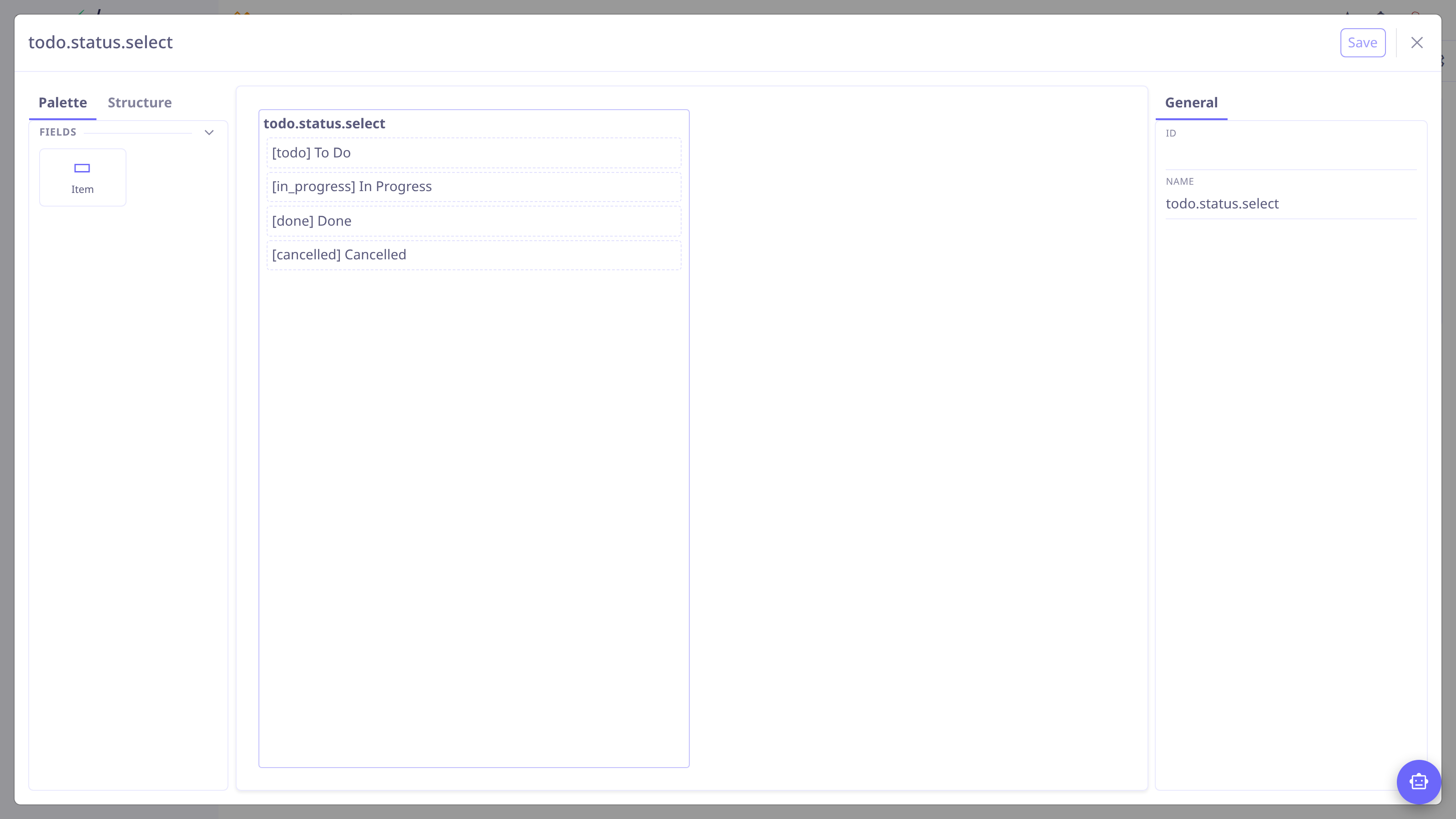
A few habits that keep selections tidy:
-
Keep values lowercase snake case (
in_progress) and titles human ("In Progress"). Values end up in the database — changing them later means migrating data. -
Give status selections colors — status fields render them as badges, and the kanban and
NavSelectwidgets pick them up.