Chat & Context
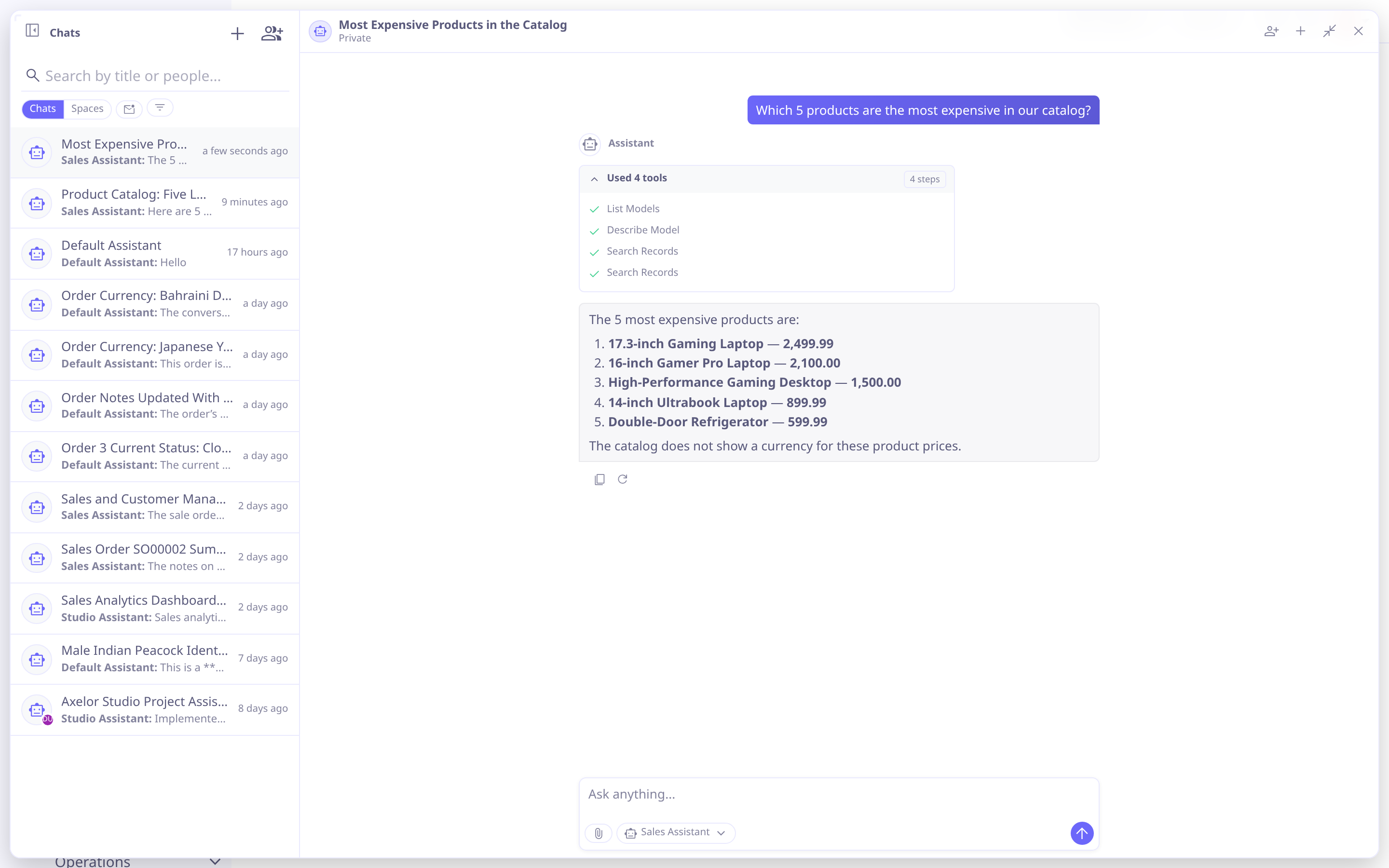
Conversations stream token-by-token in the chat panel, rendering each tool call as a card. Behind the scenes a pipeline of plugins manages long-conversation compaction, titles and session notes.
The chat panel and conversations rail
A floating launcher (also toggled with Ctrl+J / Cmd+J) opens the assistant
from any screen. In the panel the user picks an agent (the default agent is
pre-selected), types a prompt, and watches the answer stream in. The work behind
the answer — the agent’s thinking and the tools it called — collapses into one activity
line above it. While it runs the line names the step in hand (Working on {0},
Thinking: {0}). Afterwards it says what was used — the tool’s own name for one call,
{0} {1} times for a repeated one, Used {0} tools for several, Thought and used …
when the agent also thought — with · {0} approved when a person allowed a step. A
failure turns the line instead ({0} steps failed of {1}, Nothing worked). The line
opens into a timeline of every step, each thought between the calls it led to, so the
user can see what was read or written; the bubble holds only the answer, with its tables
and code blocks standing between the paragraphs.
History opens a rail of past conversations. Each row shows an avatar (the other person’s, or the agent’s), a title (falling back to who the chat is with when none is set), a one-line preview of the last activity — "Agent is answering…" while streaming, otherwise the last message — and a relative timestamp. An unread dot marks activity the user hasn’t seen yet; an unopened invitation shows an Invitation pill instead. New starts a fresh conversation; Delete is owner-only.
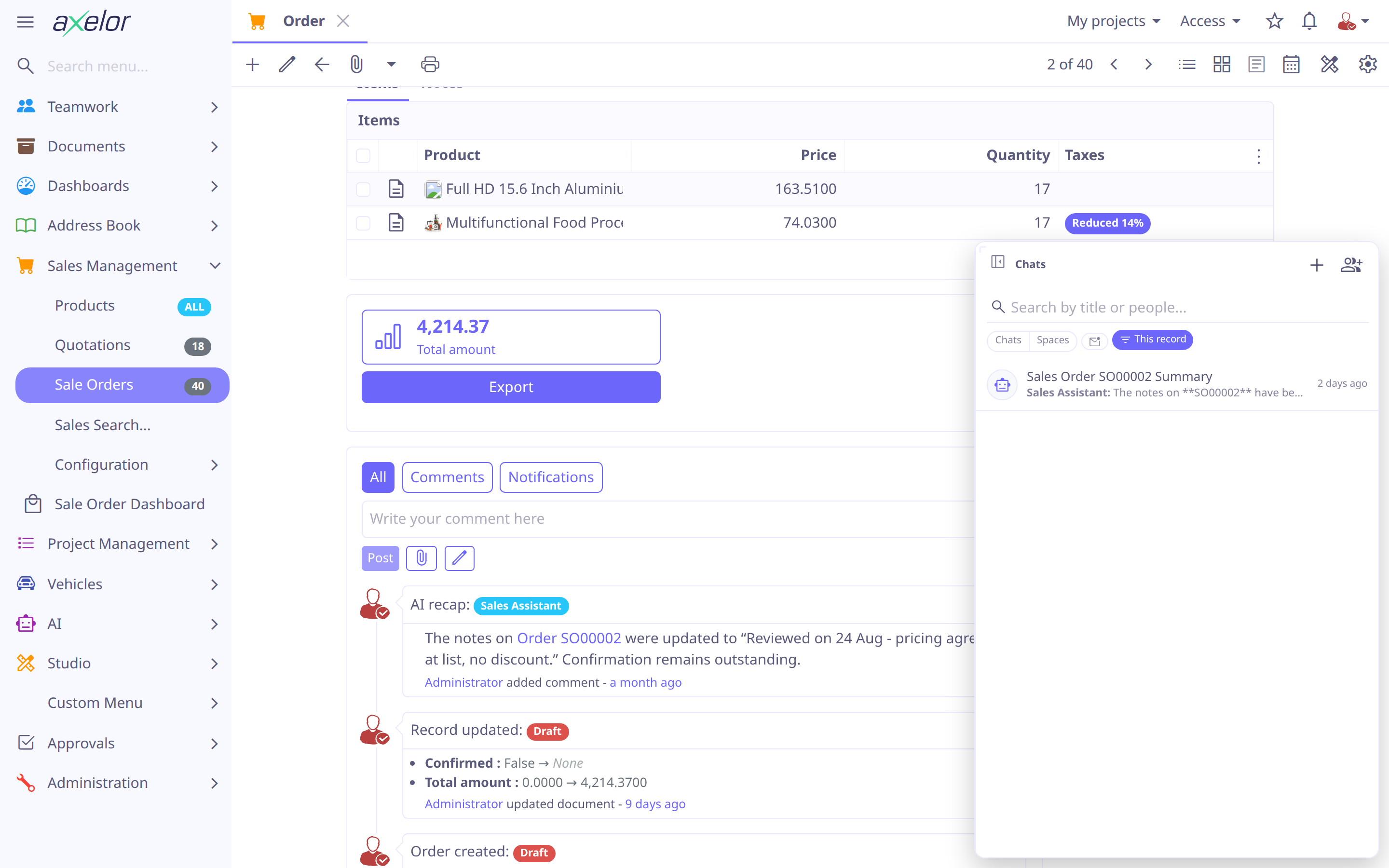
The rail opens on Chats — everything — beside Spaces and Unread, which carries the count; collapsed to a strip, those three are what it shows. One more filter sits behind the filter icon: Mine for the conversations you own, Shared for the ones shared with you, Direct for everything not marked a Space, and — once something has named a record — that record, labelled with it. Picking the filter already in force returns to Chats, and turning the record filter off lets the record go rather than leave a narrowing to a record nobody is looking at any more. The search box above the rows matches a conversation’s title, its agent, and the names of the people in it.
The launcher badges with the count of conversations waiting for attention — unread activity plus pending invitations — and clicking it opens the one waiting chat directly, or the rail filtered to Unread when there’s more than one. The same count badges the panel’s own rail-toggle icon when the rail isn’t shown alongside it.
The owner renames a conversation by clicking its title in the panel header, which turns into a plain text field — Enter commits, Escape reverts. There’s no rename affordance on the rail rows themselves.
Conversations are persisted as AiChat (one per conversation) and AiChatMessage
(user, assistant and tool turns), so they can be resumed, audited, and browsed — read-only
— under and . A chat’s record
has a Messages tab, a Usage tab with its model calls, and a Summary tab that
appears only once a long conversation has been condensed.
Streaming, disconnects & multiple tabs
Generation runs on the server, independent of the browser connection. If the tab loses its connection mid-answer, the run keeps going and completes in the background; reopening the conversation replays it — live if it is still running, or the finished answer otherwise. The same conversation open in several tabs streams to all of them at once, kept in sync over websocket, with a periodic refresh underneath as a fallback.
Because the run is no longer tied to the connection, closing a tab no longer stops a response — use Stop to cancel it instead. Stop also ends the model call in flight, so a model still writing stops costing, and the tools it had named do not run. The owner’s Stop cancels any run in the chat; a Can-ask member’s Stop cancels only a run they themselves started — it can’t cut off a run another driver is waiting on.
Attachments
The composer accepts images, PDF, DOCX and XLSX files, and plain-text-ish files (Markdown, plain text, CSV, TSV, logs), up to 5MB each. The accepted list mirrors exactly what the server can turn into model input: attaching anything else is refused before it ever leaves the browser, with a message naming what got skipped, rather than being silently dropped after upload. If a file the client didn’t reject still reaches the server unusable — a stale client, a corrupted PDF — the server drops it without surfacing an error, so a missing attachment fails quietly rather than breaking the turn.
The composer
Typing @ at the very start of a message offers a choice of mentioning a person or —
for the owner only, and only with no tool approval pending and nothing streaming —
switching the conversation’s agent; @ anywhere else in the message goes straight to
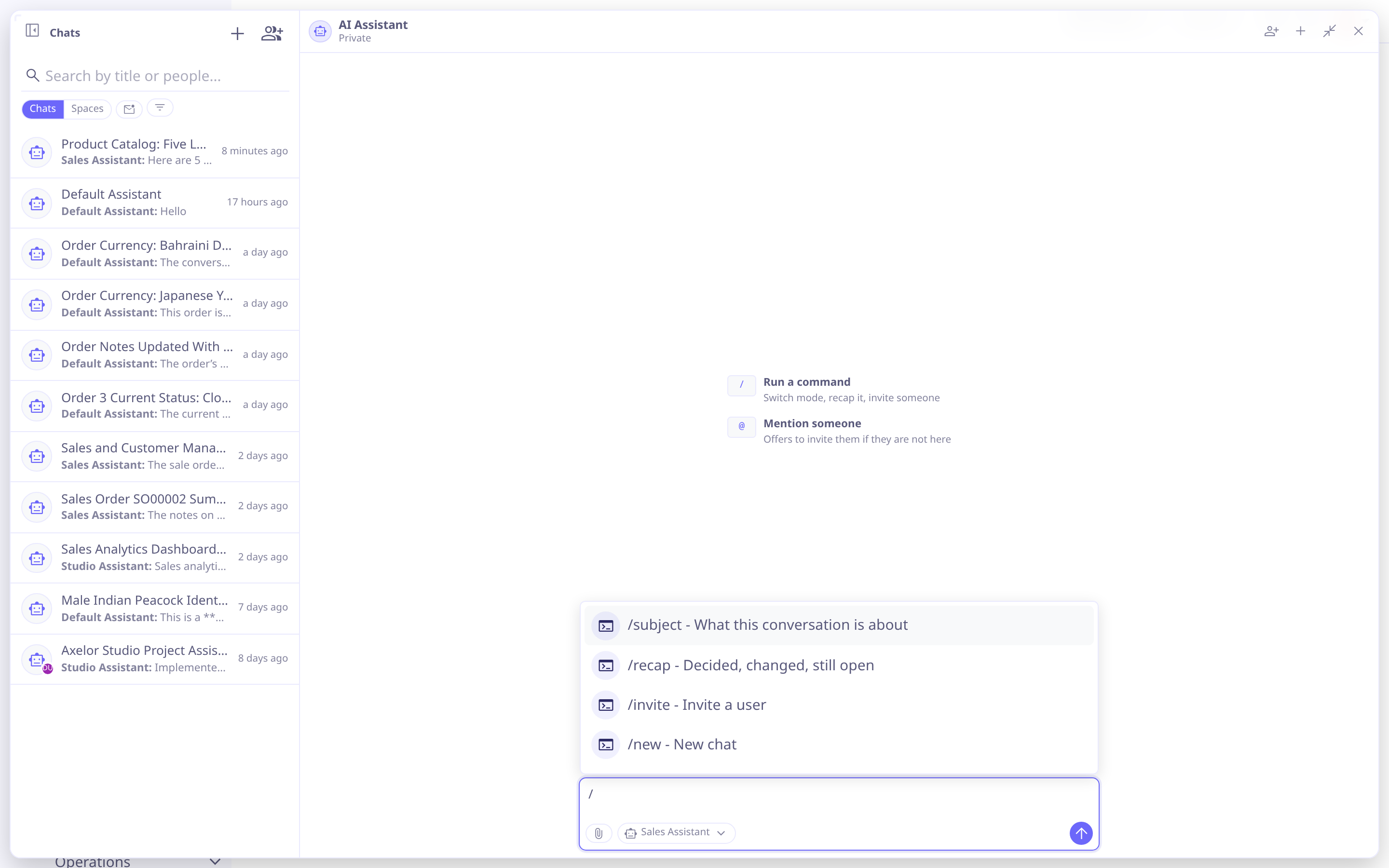
mentioning a person. A leading / opens a command picker that offers only the commands
that apply to this conversation and the sender’s role:
| Command | What it does |
|---|---|
|
Start a fresh conversation. |
|
Reload the current view, for when the assistant changed something the screen doesn’t reflect yet. |
|
Show every command available here. |
|
Bring the agent into a Discussion-mode conversation with a new prompt. Offered only in Discussion mode, to a sender who can ask. |
|
Post to the members without invoking the agent, without changing the conversation’s mode. Offered only in a shared, non-Discussion conversation. |
|
Read, pin, or unpin the record this conversation is about — see Subject and the record bridge. |
|
Summarize what happened — see Recap. |
|
Share the conversation with someone. Owner only. |
Subject and the record bridge
A conversation can pin itself to a single record — its subject — so "this record" and "update it" resolve unambiguously later. The pin is automatic and fires once: the first time a tool call actually touches the record the user had open, or failing that once the assistant judges the exchange is genuinely about it, the subject locks in and doesn’t move on its own again afterward. Starting a conversation about one record and later asking about something unrelated therefore pins nothing to the unrelated topic — the original subject holds.
The owner or a Can-ask member can override this with /subject set (pins whatever
record the active screen shows, even replacing an existing pin) or /subject clear
(unpins, re-arming the automatic pin for the next engagement). A bare /subject
reports the current pin without changing anything.
A record’s own form or grid opens the assistant scoped to it through a launcher button rather than a list of past conversations — deliberately: which conversations about a record exist is exactly what sharing controls, so a shared list would show a different set to every viewer while looking like the complete picture.
Asking about a field
To ask about a field of a record — what it means, why it holds this value, or to draft it — point at the field instead of describing it:
-
With the assistant open, click the Pick a field button in the composer, next to the attachment button.
-
The assistant steps aside and a hint takes its corner. Move over the form: the field under the pointer is outlined and named. Click it, or step through the fields with Tab and pick with Enter. Escape or the hint’s close button cancels, and the assistant comes back either way.
-
The composer now carries an About: <field> chip. Ask your question as usual: the field goes with it, like an attachment, and the message shows the chip.
To ask about several fields at once, for example to compare two of them, click Pick a field again for each one, up to five. Every pick adds a chip, and a chip’s close button removes it.
Any field of a form on screen can be picked, with or without a title, including a field of a related record opened in a popup, a field of a nested editor, or a custom field. The assistant is told only about fields you are allowed to read.
Picked fields belong to the one message you sent them with. Follow-up questions need no chip:
the assistant still sees which field and record that earlier message was about, even after
you move to another record or tab. To ask about another field, pick it for that message.
A record not saved yet has nothing to point at, so its field goes only while its form is
in front; elsewhere the chip shows not on screen and stays in the composer. In a
discussion, a field goes only with an /ask message.
A picked field belongs to the conversation on screen. Picked from the record the conversation started on, it makes that record the conversation’s subject straight away and is kept as the field the conversation started from, which the conversations rail shows next to its preview. A field picked in a popup belongs to another record, so it is never kept.
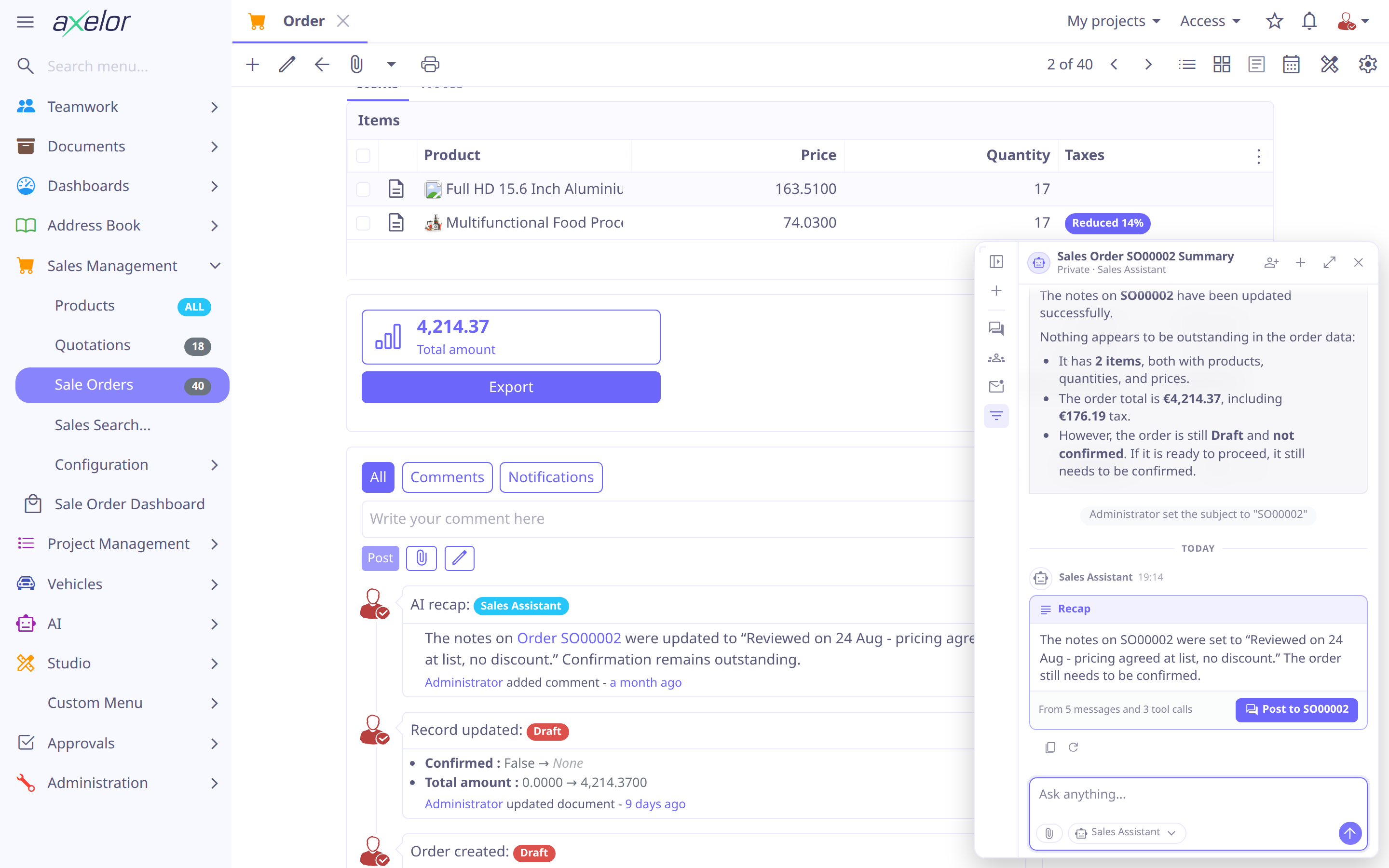
Recap
/recap writes a prose account of a conversation — what was decided, what changed,
what’s still open — for a reader catching up. A bare /recap covers what’s happened
since the reader last looked, reusing the last write-up if nothing has happened since;
/recap all covers the whole conversation and always regenerates.
The account is not free paraphrase: every record it names and links comes from the tool-call ledger — completed, actionable tool calls only — never from the model’s own recollection, so a link in a recap always resolves and a fact in it was always recorded somewhere. A conversation whose ledger has nothing to say produces no card at all.
The card can be posted as a comment on the conversation’s subject record with one click; un-posting only works on your own recap comment, and doesn’t retract the notification followers already got.
Sharing, roles & modes
A conversation can be shared with other users from Share conversation. Each invited person gets a role:
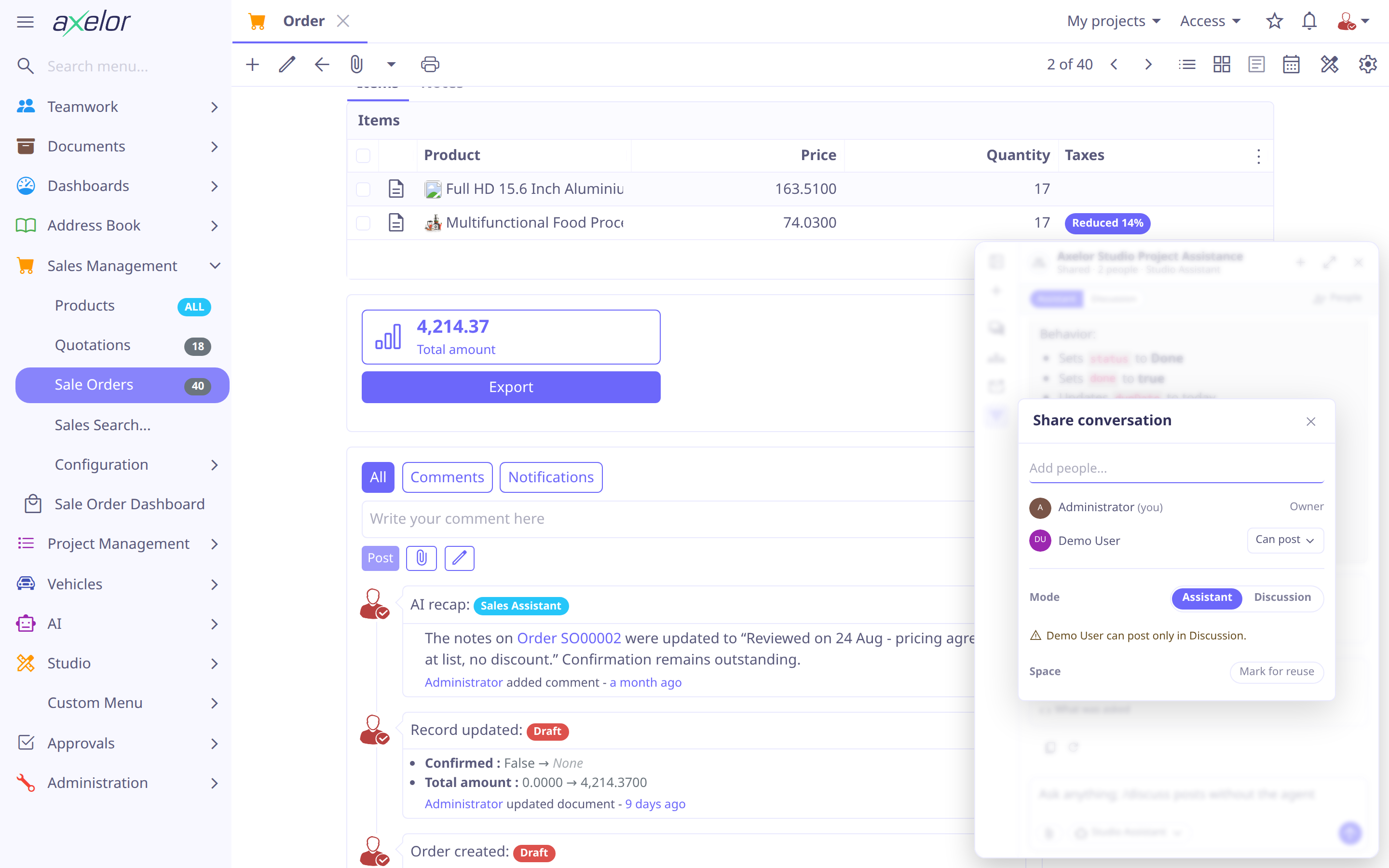
| Role | Grants |
|---|---|
Viewer |
Follows the conversation, read-only. |
Can post ( |
Also messages the other members, at any time, in either mode. Their first post while the conversation is still in Assistant mode switches it to Discussion automatically. |
Can ask ( |
Everything Can post grants, plus |
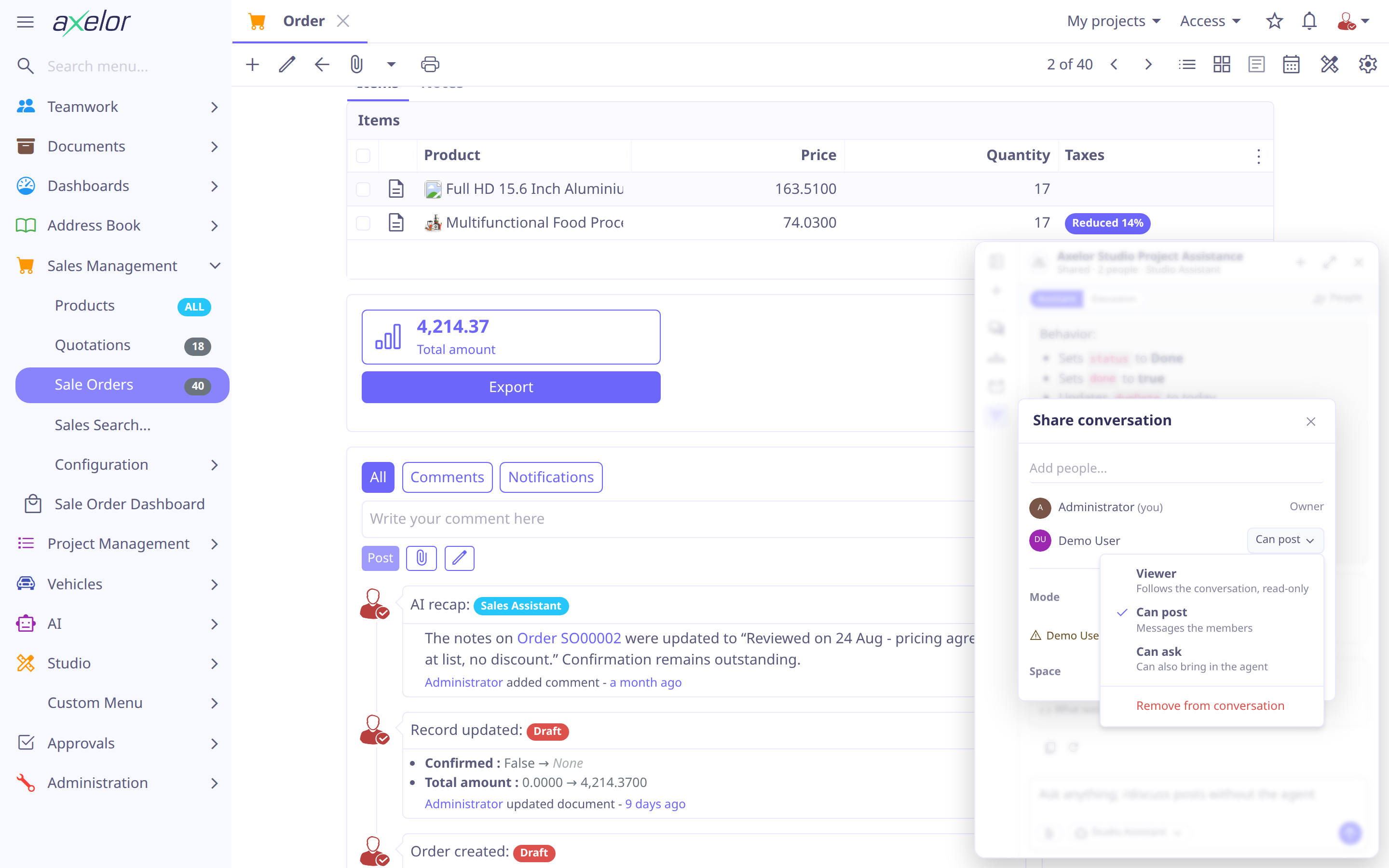
Renaming, deleting, and managing participants stay owner-only regardless of role. So is
which agent answers: the owner’s choice is recorded on the conversation, every member’s
/ask runs it whatever their own panel last showed, and a switch reaches the others
live. A member cannot leave on their own — ask the owner to remove you — and when the
owner deletes the conversation, it goes for everyone.
Mode is Assistant, Discussion, or an initial undecided state that behaves exactly
like Assistant until something forces a real choice. In Assistant mode a plain message
reaches the agent; in Discussion a plain message goes to the human members instead —
the conversation becomes a normal group chat — and /ask is what reaches the agent,
for the owner too. The owner switches either way from the control under the title —
which shows everyone the current mode and who set it — or from the share dialog before
the conversation has started; a Can-post member’s plain message flips a non-Discussion
conversation to Discussion the moment they send it, since a live conversation outranks
the owner’s default. On a conversation that hasn’t started yet, the chosen mode and
invite list apply once the first message is sent. Presence avatars and typing indicators show who is around, and
the panel wakes up over websocket when someone else posts. Where you left off is
remembered per browser, so the unread line does not follow you between devices; a
never-opened invitation is server-side and does follow you.
Once someone other than the asker has posted, expect to approve more from then on: their text is untrusted from the agent’s point of view, and every mutating tool call the agent proposes needs the asker’s own explicit approval, whether or not the tool would otherwise have asked. See Security for the full mechanism — including the background screening this triggers — and its limits.
Event chips
Invitations, removals, mode flips and subject changes each leave a small chip in the
transcript, where the conversation happened, rather than a notification that is gone by
the time anyone wonders what changed: {0} invited {1} (with the invite’s note in
quotes, when there was one), {0} removed {1}, {0} turned on discussion mode — or
Discussion mode turned on because {0} posted when a member’s own message flipped it —
and {0} set the subject to "{1}" or {0} cleared the subject.
A chip is a row of the transcript rather than a decoration on it: a USER message
carrying a typed data part and no text. Three consequences worth knowing. Nobody can
amend one — amending is for words somebody wrote. None of them ever surfaces as a
conversation’s preview line in the rail, which reads the text column they leave empty.
And the model is not told them as instructions: replay skips them, and in Discussion
mode the fold passes them as delimited context, like everything else it did not write.
Tool approval
When the model calls a tool that needs approval (a DESTRUCTIVE tool, or a WRITE
tool whose requiresApproval is set), the pending call is shown inline and the run
pauses until the user confirms or rejects it — so the model can propose a change while
a person authorizes it. See Approval & safety.
In a shared conversation the approval belongs to the member whose run paused — the person who asked, whose permissions the tool will run with. Everyone else sees the same card, naming who it is waiting on, with the buttons inactive; answering it is not something a role grants, not even to the owner. The same applies to a tool that asks for input in the browser: the form renders read-only for everybody but the asker, and only the session that started the run can return its result. Nothing is lost if that person walks away — the call expires on its own once they are no longer present, and their next message supersedes it explicitly rather than silently.
This is why Can ask is a real grant and not a convenience: everything a member’s
/ask sets in motion is charged to them, runs with their permissions, and stops for
their confirmation. Give it to people you would let run the agent unattended.
|
Spaces
Marking a shared conversation as a Space keeps it around to find and reuse, under whatever title the conversation already has; naming it is just editing that title. The flag also splits the rail’s filters: Spaces lists the marked conversations and Direct is exactly the rest. When sharing to a new set of people, the share dialog checks for a Space whose members are exactly that set (not a superset or subset) and offers to reuse it instead of starting a new conversation.
Editing and amending
Two different actions both look like "edit":
Rerun replaces the owner’s own last prompt and runs the turn again, discarding the answer that followed. It’s offered only to the owner, only on their newest message, and never in Discussion mode — the turn being replaced is one other people may have been reading.
Amend rewrites a posted message in place without re-running anything, and is open to whoever posted it, a Viewer aside. It’s only offered while the agent hasn’t yet answered that message and no turn is currently in flight; once a reply exists, the words it answered stay as they were sent.
Context management
Long conversations are kept within the model’s context window automatically:
-
Session notes — a running structured summary maintained during the conversation, so a high-quality summary is always ready.
-
Compaction — when a conversation grows large, earlier turns are replaced by that summary rather than a rushed one-shot summarization.
-
Titles — a short title is generated for each conversation for the history list.
Each turn tells the model today’s date and weekday — the user’s, in the time zone the browser sends with the message — and asks it to write date-times with that offset, so "tomorrow at 9" and an all-day event land on the day the user means.
What a request may fill is set out under maxInputTokens in
Providers & Models. The size of a conversation is estimated from
its text. What goes with every call besides — the agent’s prompt, its skills, its tool
definitions — is estimated too, and that estimate is corrected, per model, by the input
tokens its provider reports reading beyond the conversation.
The status row above the composer shows what the agent is doing besides answering — summarizing the history, a risk screen, the step limit. It shows the newest notice, and the client drops them when the next message is sent. When a model call is refused, the chat shows the provider’s own reason — a reasoning effort the model does not take, say — rather than a generic failure.
A tool result over 200,000 characters is not handed to the model: it is told the call ran and its result was withheld, and asks for less.
These run as background plugins on the agent’s utility model (see Providers & Models), off the main answer path.