Export Data
Use advanced export to create a tailored data extract or a file that can be imported again after editing.
Export a data set
-
In the model’s advanced search, apply the filters and sorting that define the export set.
-
Open the Export menu and select Export more….
-
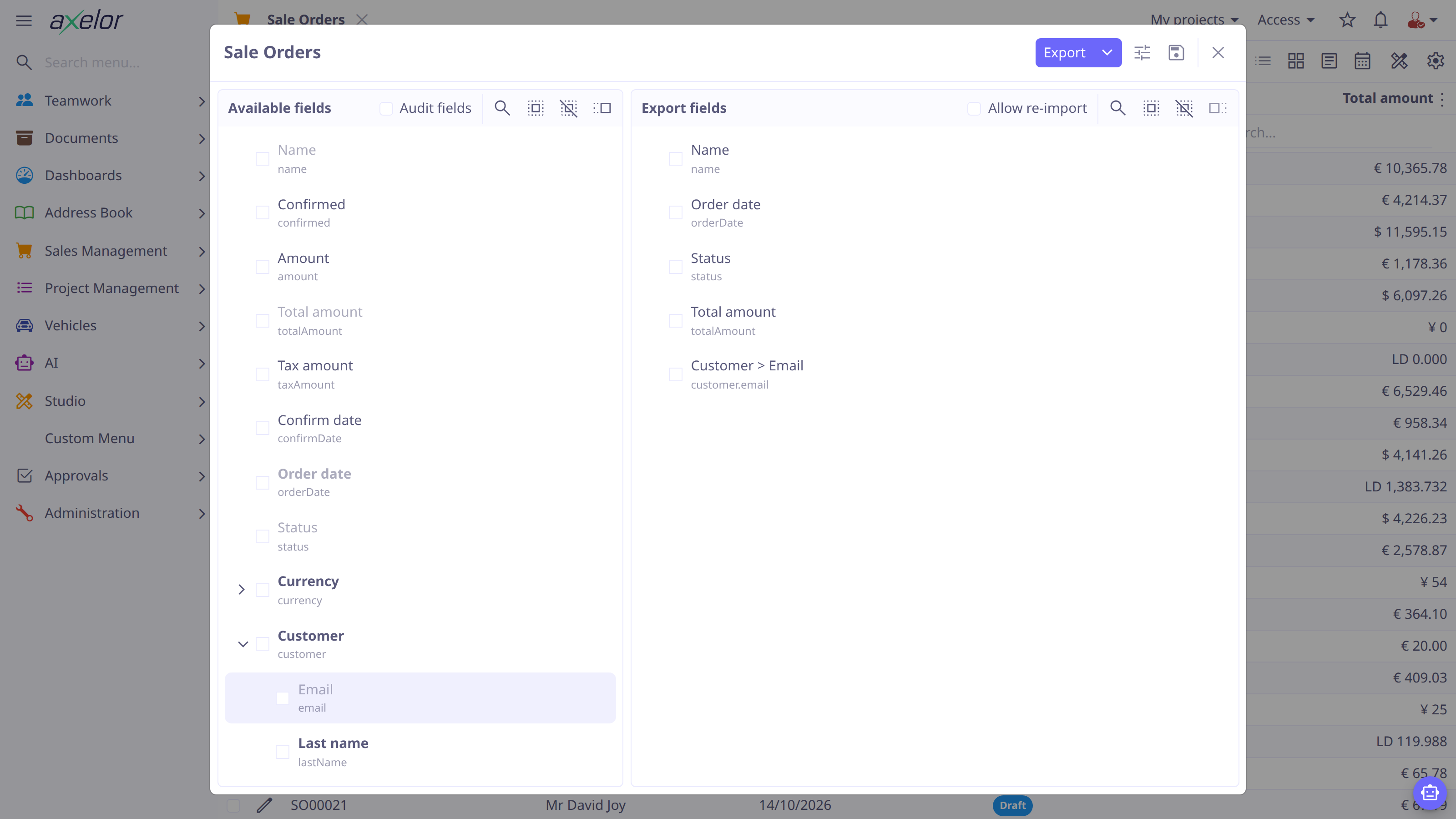
In Available fields, expand relationship fields and select the values to export. Use the arrow control or double-click to add them to Export fields.
-
Review the ordered export-field list. Open Options (the sliders icon) to choose Allow re-import, Flat export or Link sheets.
-
Select Export for Excel or choose CSV from the arrow beside it. The file is generated and downloaded; Export stays disabled until at least one field is selected.
To export one record, open its form and select .
Field paths remain visible in the selected list. Prefer explicit paths such
as customer.email over similarly named display labels, especially in a saved
configuration.
|
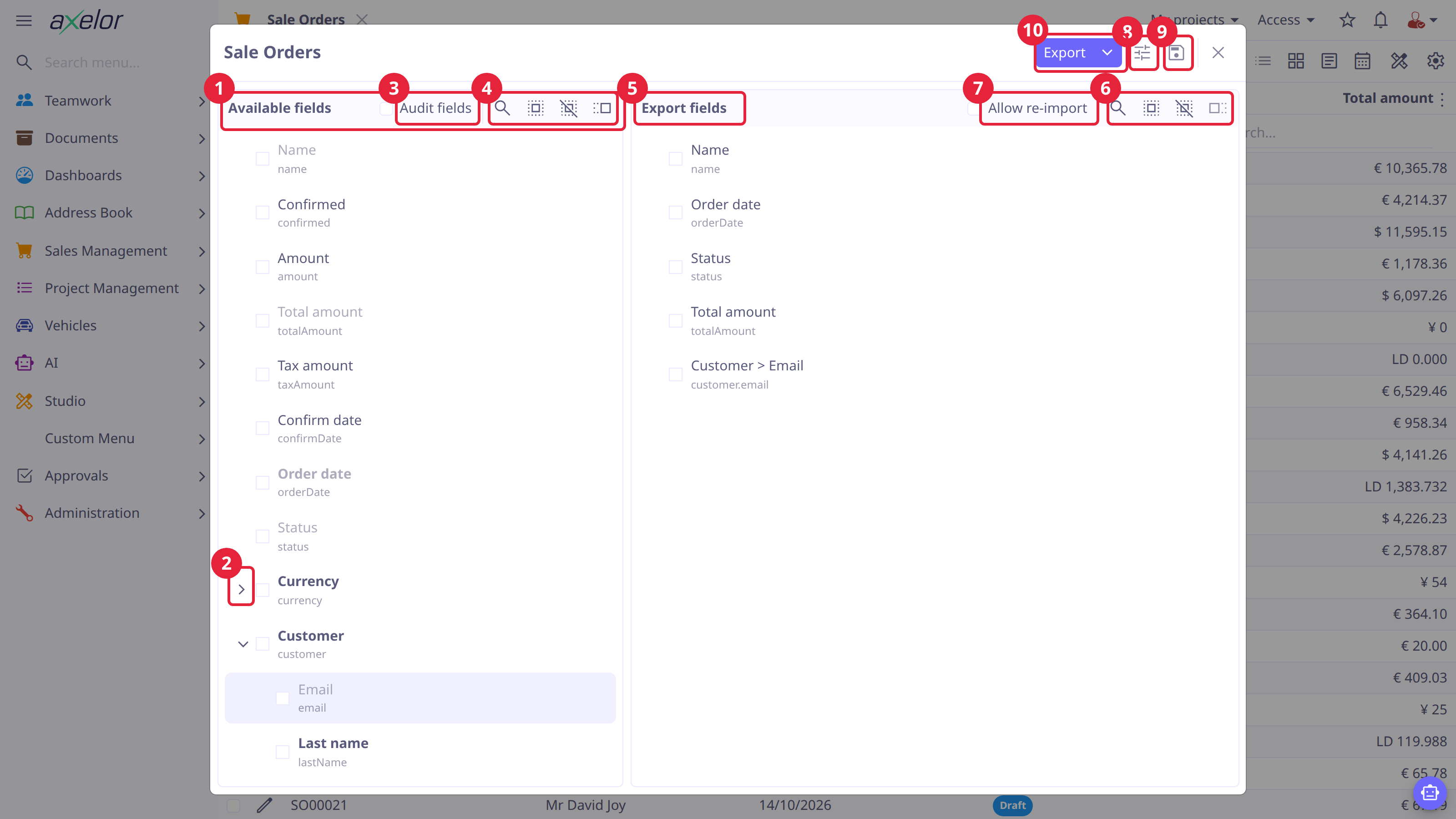
The export dialog
-
Available fields — every exportable field of the model, with its technical name below the label. Check the fields to export.
-
The expand arrow opens a relationship to pick nested fields —
Customer > Emailexports ascustomer.email. -
Audit fields — reveals
createdBy,createdOn,updatedByandupdatedOnin the list. -
Adds the checked fields to the export. The icons beside it search the list and check or uncheck all fields at once; double-clicking a field adds it directly.
-
Export fields — the resulting columns, in order.
-
Removes the checked fields from the export.
-
Allow re-import — technical headers and values plus the record keys, for files that will be imported again. The same switch is in Options.
-
Options — Allow re-import, Flat export and Link sheets. A dot on the icon shows that an option is on.
-
Saved configurations — restore or save the current field selection and options.
-
Export — one click produces Excel; the arrow offers Export as CSV… and Export as Excel….
Choose fields and options
-
Audit fields reveals
createdBy,createdOn,updatedByandupdatedOnin the available-fields list. -
Allow re-import uses technical headers and values. It is the correct setting for files that will be imported again. It also makes
idandimportIdavailable when those stable identifiers are needed for an update. -
Flat export creates one data source containing scalar fields, values from to-one relationships and the main model’s many-to-many fields. One-to-many fields, and many-to-many fields of related records, are not available in flat mode.
-
Link sheets is described under Link sheets.
Binary fields never appear in the field lists. id, importId and the audit
fields are hidden unless asked for as described above. In the Available fields
list, required fields are shown in bold, unique fields in italics and underlined; fields
already added to the export are dimmed.
What a non-technical export contains
Without Allow re-import the file is made for reading:
-
Headers are the field labels in your language, with nested fields joined by
>(Customer > Email). -
A many-to-one field is written as the related record’s name, or its key when it has no name field.
-
Selection and enum values are written as their translated labels.
-
Dates, date-times and numbers are formatted for your locale and written as text.
With Allow re-import the headers are field paths (customer.email), selection
and enum values are the stored values, and dates and numbers are native values.
A to-one reference is written as its key column (customer.code); when the key is
not the record’s name, the name follows in a second column that is only there for
reading — the importer ignores it. When the related model has no key of its own,
the generated importId (such as contact-42) is written instead, together with
the related id.
Do not use a non-technical export as an import template: translated selection labels and display values are intended for reading, not for identifying records.
Many-to-many columns
A many-to-many field, or a collection custom field, is exported as one column of
its owner. The cell lists one value per related record, separated by |:
code |
name |
tags.code |
|---|---|---|
|
Laptop |
|
With Allow re-import, the column holds each related record’s key — tags.code
above. Without it, the column holds the names instead (or the key, for a model with no
name field). Names identify records for reading only; see
How rows are matched. Unlike a many-to-one
reference, the cell never carries both. A | or \ inside a value is written as
\| or \\.
On import, the cell is the record’s complete set: remove a value to unlink that record, clear the cell to unlink all of them. A file without the column leaves the collection unchanged. If any value in the cell names no record, the row fails and its collection is left as it was.
Link sheets
Select Link sheets to export each many-to-many field as a
link sheet of its own instead, named after the owner and the field, such as
OrderLine.taxes. It has one row per link, holding the owner’s key and the
related record’s key. The option is not available for a flat export, which is
always inline.
Importing a link sheet only adds links. To remove one, import the inline column.
Export formats
| Format | Standard export | Flat export |
|---|---|---|
Excel |
One workbook with a sheet for each data source. |
One workbook containing the flat data source. |
CSV |
A ZIP archive containing one CSV file per data source. |
One CSV file. |
CSV files are UTF-8. Sheet names in Excel are limited to 31 characters: a longer
source name is shortened with a hash suffix, and a __config__ sheet at the end of
the workbook records the full names so an import still finds them. A single
Excel cell holds at most 32,767 characters; a longer value fails the export with a
message suggesting CSV, which has no such limit.
The advanced importer accepts Excel workbooks, ZIP archives and single CSV files. A flat file (Excel, or a single CSV) can therefore be edited and imported back through the same grid, so the export and import round-trip. When importing a single CSV, enable Flat import so the flattened relationship columns are resolved back to their records.
Save a configuration
Select the settings icon in the export dialog to open configurations. Choose an existing configuration to restore its fields and options, or enter a name and select Save to create or update one. Configurations are scoped to the target model, and custom-model configurations are also scoped to that custom model. Configurations are not private to a user: they are listed for everyone who opens the dialog for that model. A configuration saved without Allow re-import records that choice; one saved by an older version without the setting is loaded as a re-import export.
Save a configuration only after validating its output. A configuration stores field paths and options, not the current search filter or the records selected by it.