Projects & Resources
Everything you build with Studio lives in a project. A project is versioned as revisions, and a revision holds resources — one per custom model, view, action, menu, selection, query or workflow. Every resource opens in a visual designer.
Opening Studio
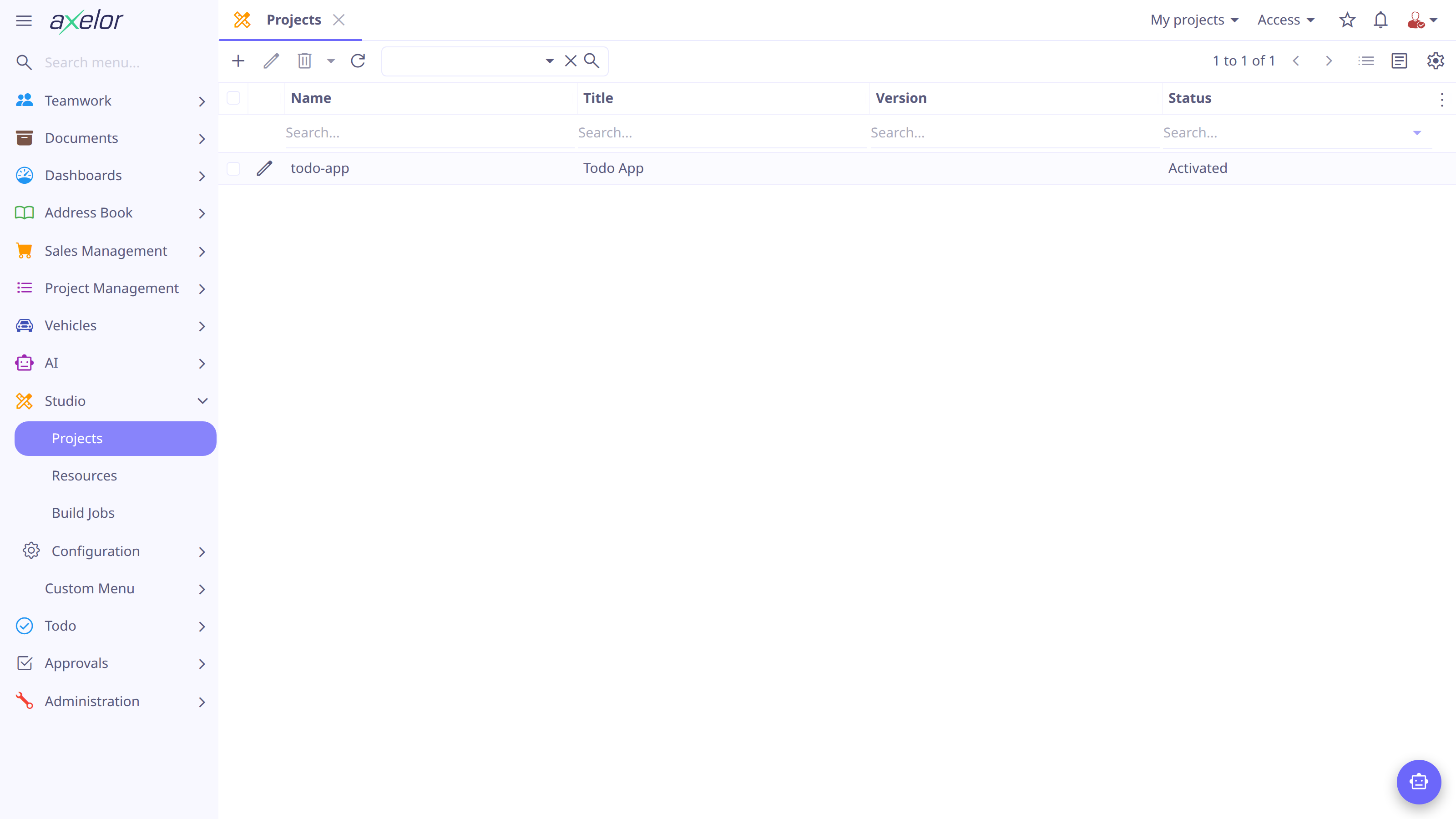
The Studio menu appears for users of the admins group when the Studio feature
is enabled with features.studio = true in axelor-config.properties. Its
entries:
- Projects
-
The projects you are building — the usual starting point.
- Resources
-
A flat, searchable list of every resource across all projects.
- Build Jobs
-
Compilation jobs — see Build Jobs & Repositories.
- Configuration → Repositories
-
Git repositories projects can sync to.
| There is a shortcut from anywhere in the application: on any view, technical users see a Studio button in the toolbar. It opens the designer directly on the view you are looking at — no need to find the resource in a project first. |
Creating a project
-
Open Studio → Projects and click New.
-
Fill in the Name (lowercase,
todo-appstyle), the Group (a package name likecom.axelor.apps), a Title and a Description. -
Save. The project starts with an initial revision.
These are the same coordinates a hand-written module would have — a deployed project behaves exactly like one.
Working in a revision
Open the project and, from its Revisions list, open the revision you are working on — day-to-day that’s the latest one. The revision is where everything happens:
-
The tabs group its resources by type: Views, Models, Fields, Selections, Queries, Actions, Menus, Workflows.
-
Each tab’s New button creates a resource and opens its designer immediately. Views and actions have a New menu instead, one entry per kind.
-
The toolbar carries the lifecycle buttons — activate, publish, export, sync, build — described in Lifecycle.
Two Options on the revision control which model kinds it may contain:
- Allow json entity
-
Shows the Models tab — custom models, live immediately on activation. Enabled by default on new projects.
- Allow entity
-
Shows the Entities and Enums tabs — compiled JPA models that require a build.
| On the Workflows tab you can also import an existing module workflow into the project. The workflow designer itself is documented in Workflow designer. |
The designer
Whatever the resource type, the designer has the same layout:
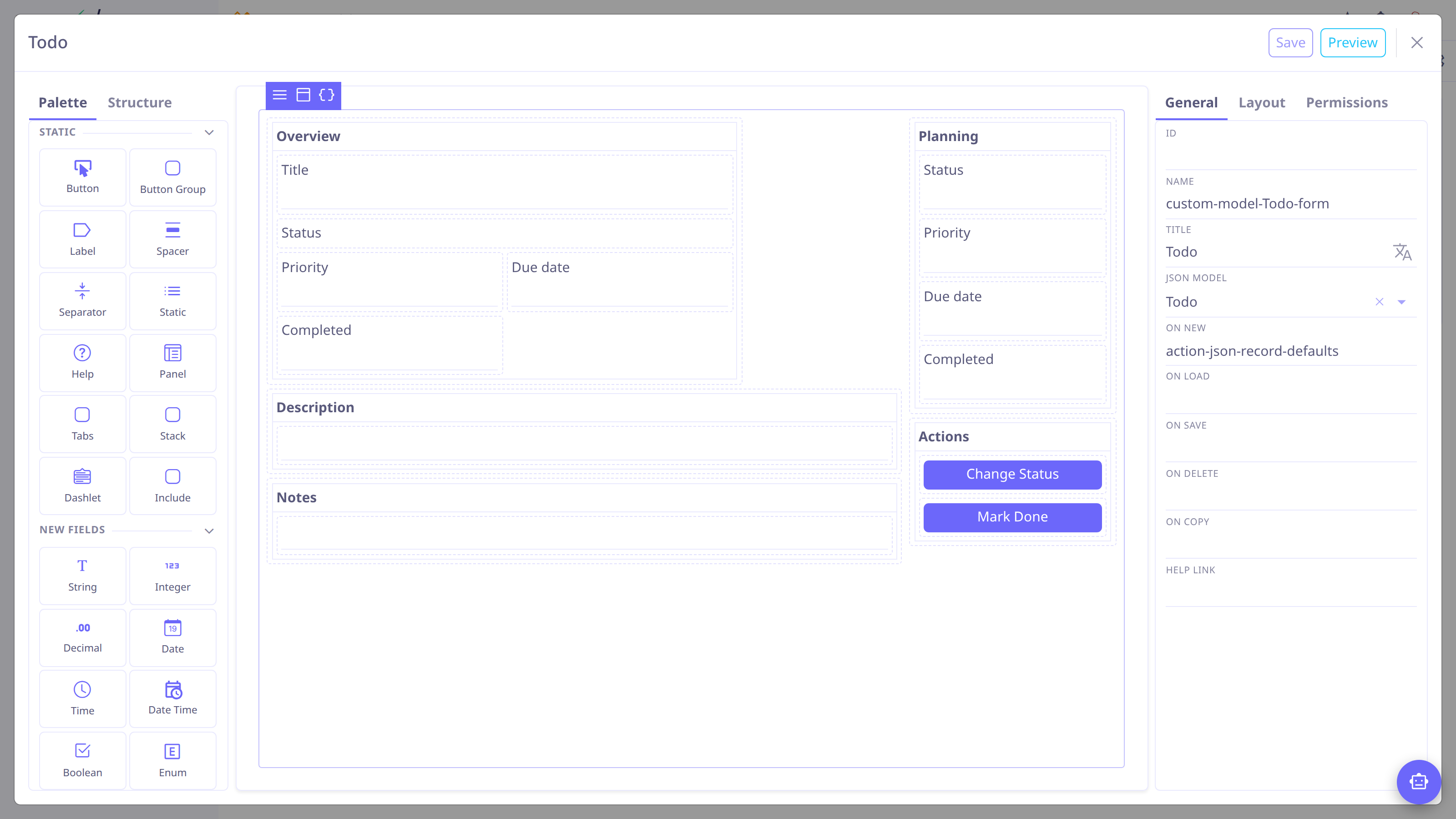
- Canvas
-
The object being built — a form layout, a field list, a menu tree.
- Palette
-
Items you drag onto the canvas: fields for a model, widgets for a form, node types for a workflow. The Structure tab shows the canvas as an outline, handy for selecting items in deeply nested layouts.
- Inspector
-
The properties of whatever is selected, edited on the right.
- Save / Preview
-
Save stores your work in the project. View designers also offer a live Preview of the view as the application will render it.
| Saving a resource in a draft revision never changes the running application. Changes go live when the revision is activated; from then on the revision’s resources go live as you save them (a workflow is deployed from its designer) — see Lifecycle. |
Finding and managing resources
-
Studio → Resources lists every resource of every project with its type, status and version — the quickest way to find one by name. Open a resource and click the designer button in its toolbar to edit it.
-
Deleting a resource removes it from the revision. To take a deployed customization out of the running application, deactivate the revision instead.