Import Data
Use advanced import to load a workbook, CSV archive or single CSV file into a model. The import dialog first inspects the file and then lets you review the mapping for every source before any records are written.
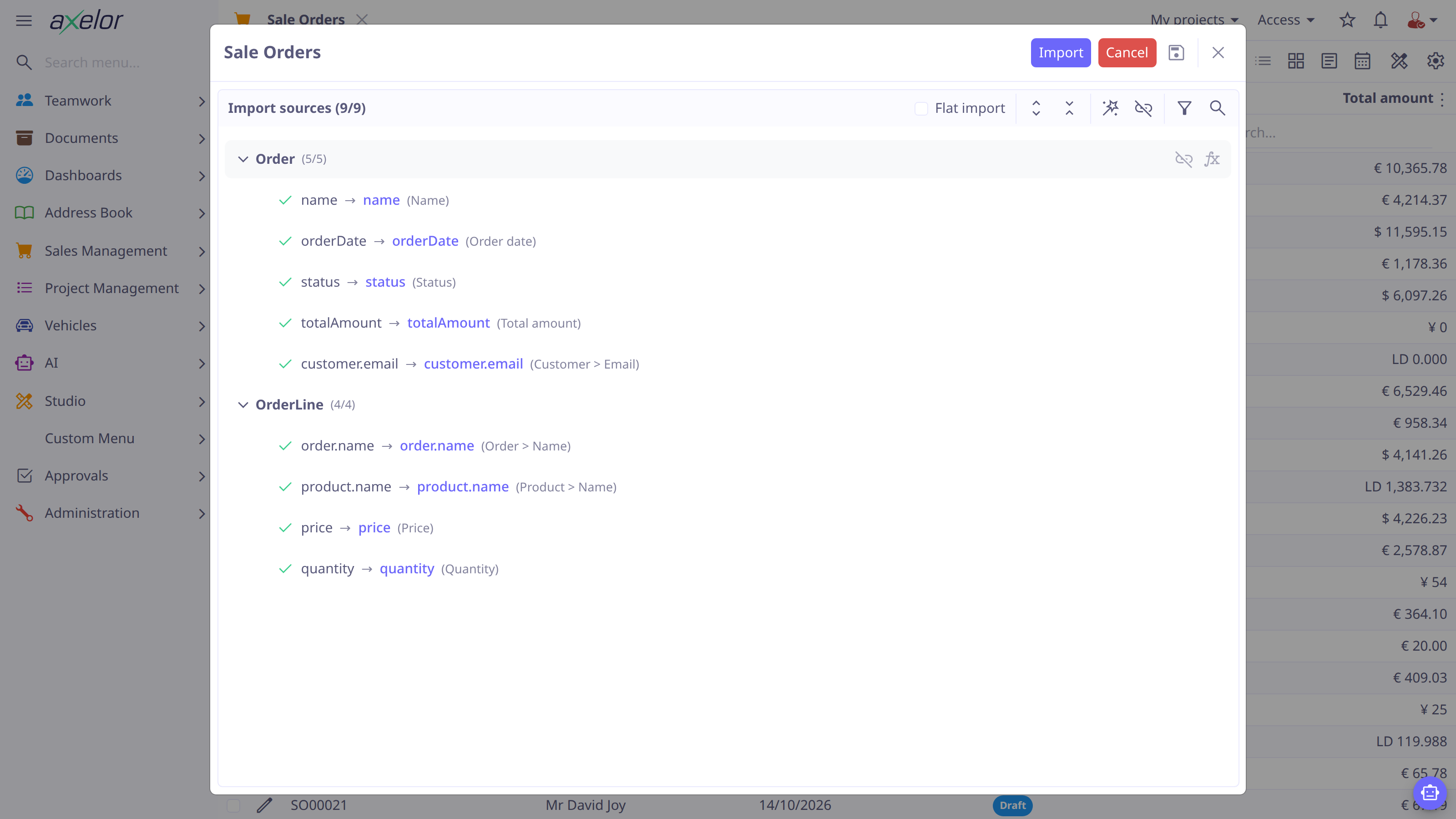
Import a file
-
In advanced search, select Import. To import from a form, select .
-
Select an
.xlsxworkbook, a.ziparchive containing CSV files, or a single.csvfile (such as a flat export of this model). -
Review each detected source and its columns. Columns whose header is a field name or a field label path (
customer.emailorCustomer > Email) are already mapped when the file is read. Use Auto-map fields to map the rest by name, then verify every mapping before importing. -
For a column, select the link control, double-click it or press Enter to choose a target field. Select the unlink control, or press Delete, to remove a mapping.
-
Select Import. The import runs while the dialog is open; when it finishes, the result workbook is downloaded.
Cancel discards the file and the mapping and returns to file selection. The importer reads the file as you upload it, so a file with a column you are not allowed to import is refused at this point — before any mapping — with the reason.
The counter beside each source shows mapped columns over total columns. If any columns remain unmapped, the confirmation identifies how many will be skipped. Unmapped columns do not stop the remaining mapped columns from being imported.
The field picker does not offer binary fields, id or version; importId is
offered.
| Sheets or CSV files that do not match a known model are skipped silently — they simply do not appear among the detected sources. A single CSV file is the exception: its source is the model you are importing into, regardless of the file name, so a flat export can be edited and imported back through the same grid. Enable Flat import so its flattened relationship columns are resolved. |
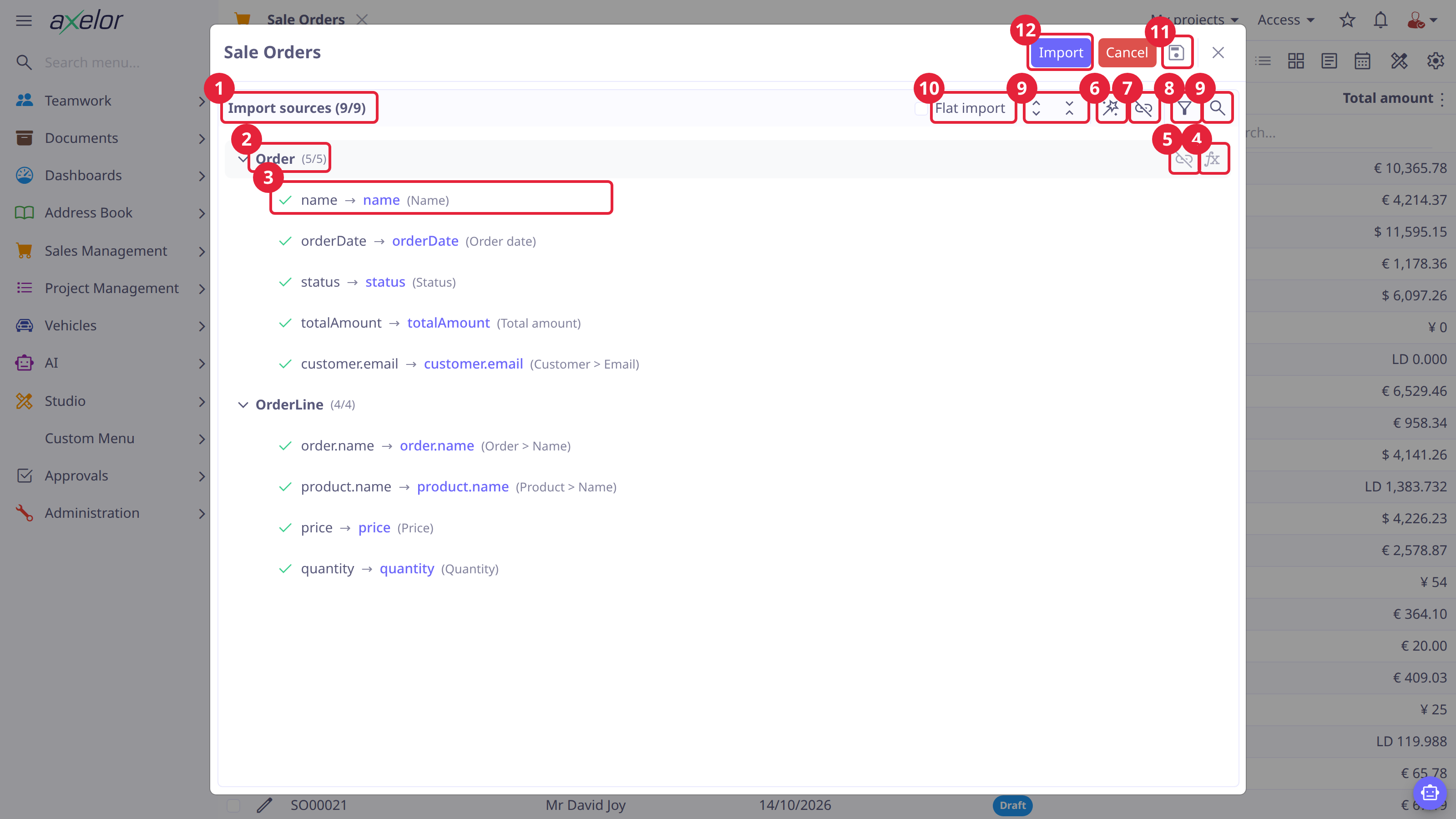
The import dialog
-
The detected sources, with the overall mapped/total column counter.
-
One source per sheet or CSV file, with its own counter.
-
A mapped column: the file column, the target field it maps to, and the field’s label. The green check marks a mapping; Link and Unlink controls appear when hovering the row.
-
Toggle compute — re-save this source’s successful records once all sources are imported (also toggled by double-clicking the source).
-
Unlink all on a source — clear that source’s mappings.
-
Auto-map fields — map the columns still unmapped in all sources, by field name or label (ignoring case, spaces and underscores).
-
Unlink all — clear the mappings of every source.
-
Show unmapped only — hide mapped columns to focus on what remains.
-
Expand or collapse all sources, and search the sources.
-
Flat import — dotted to-one columns find or create the related record and attach it. Selected automatically for a single CSV file.
-
Saved mappings — load or save an import configuration.
-
Import — start writing records; unmapped columns are skipped after a confirmation.
Source controls
Each source exposes controls that affect only that source:
-
Toggle compute re-saves its successful records after all sources have been imported. Use it when model logic needs a final save after related data exists.
-
Flat import (a setting of the whole file, not of one source) treats dotted fields for to-one relationships as values of the related record. It finds that record by its key, creates it when missing and attaches it to the main record, instead of failing with "Relation not found." Only the related record’s key columns — its unique field,
importIdandid— are used; its other columns are ignored. Many-to-many columns import the same way in either mode — see Many-to-many columns.
Advanced import never fires workflows, the final compute save included, since imported records can be partial.
Use Show unmapped only to focus on incomplete mappings. The search, expand, collapse and unlink-all controls are useful for large workbooks.
Saved mappings
After a file has been parsed, select the settings icon to load or save an import configuration. A saved configuration includes the column-to-field mapping and per-source compute and flat-mode choices. It does not store the uploaded file. Mappings are listed for everyone who imports into that model.
How rows are matched
For each row the importer looks for an existing record, in this order: the model’s
key column — a required unique field such as code, email or a *Seq field,
else importId — then importId, then id, whichever of those columns are
mapped. The first hit is updated; with no hit a new record is created. Only
columns that are mapped are used.
The same applies to a reference: the value is looked up by the referenced model’s
key, then by the importId and id columns of that reference. A reference that
matches nothing fails the row with "Relation not found." The key must be a field
that identifies one record; the name column that a re-import export writes beside
a key is for reading and is ignored on import. For the same reason a
many-to-many column of names, as written by an export without Allow re-import,
can be imported only if the name is itself required and unique.
A generated key such as contact-42 matches the record with that id only while
the record has no importId of its own.
Values are read in your locale — the formats the export writes — or as ISO dates
(2026-10-15). A value that cannot be read, or that fails the model’s validation
(required fields, size limits, constraints), rejects its row. Selection values must
be the stored values, not translated labels.
Rows are saved in batches, directly through the persistence layer: audit fields
are set, but the model repository’s save logic does not run. Use Toggle compute
when that logic must run, once, after all sources are loaded. Workflows are never
run.
Review the result workbook
Every import downloads an Excel result workbook. Review it even when the import completes without an alert:
-
Statistics reports successful and failed rows by source.
-
Errors identifies the source, column, submitted value, line — the data row number, not counting the header — and validation or conversion error.
-
Each failed source has a sheet containing the original rejected rows.
Correct the rejected source rows and import a new file. Do not re-import successful rows unless the file retains the stable identifiers needed to update them.
A row can name records the same file creates, later in its sheet or in another sheet; those references are set once every source has loaded. One that still names no record is listed in Errors, while its row counts as imported. See Records the same file creates.