Building with the AI Assistant
The AI assistant can drive Studio for you: describe what you want in chat and it creates the resources in your project, opening the designer as it works so you review everything visually. Its output is ordinary project resources — you can always continue by hand in the designers.
Building by describing
-
Click the AI Assistant button (bottom right, on any screen — including inside the designers).
-
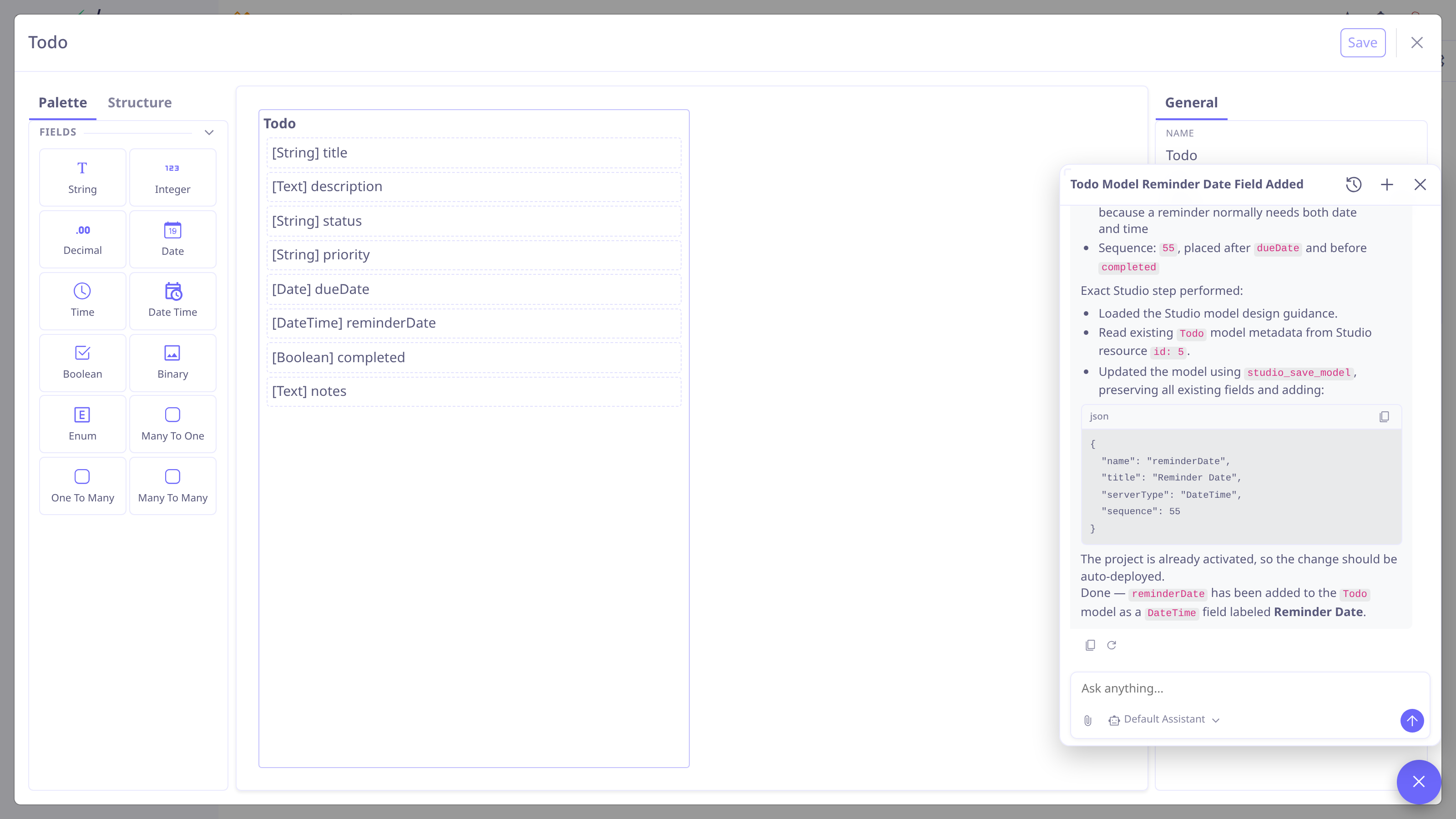
Describe what you want: "Add a reminder date field to the Todo model", or "A Todo app with statuses, priorities and a due date".
-
The assistant creates or updates the resources and tells you exactly what it did; the designer opens or refreshes on the changed resource.
-
Inspect the result. Adjust in words ("make the due date required") or directly in the designer.
-
Activate (if it is still a draft) and publish the revision when you’re happy — Lifecycle.
| The assistant works in the active project’s revision. When no project is active, an implementation request makes one and activates it, and in an activated revision a saved resource goes live as it is saved — a workflow excepted, which is deployed from its designer (see Lifecycle). It publishes a revision or creates a new version only when you ask. Ask it for a review or a design first if you want to look before anything goes live. |
| Setup — providers, models, enabling the assistant — belongs to the AI module: see Configuration & Seeding. |
What it can build
Everything the designers edit:
-
Custom models, custom fields, JPA entities and enums — and it initializes or refines the model’s views.
-
Selections, actions, menus.
-
Saved queries and analytics dashboards — it can test a query against live data before saving it, and draw a chart or table in the chat to show how it will look.
-
Workflows (Workflow designer).
-
Translations for the titles and labels it creates.
-
Project operations: creating a project, listing and deleting resources, creating revisions, activating, deactivating and publishing a revision, checking a project’s consistency.
Asking for whole features
For multi-step features, ask for the outcome — the assistant knows the build recipes and creates each piece as a reviewable resource:
- Status workflow
-
"Give Todos a status flow with an approval step" → a status selection, the field with its default, transition buttons and validations, a status bar on the form — optionally a workflow automating the transitions.
- Master–detail
-
"An order form with lines and a computed total" → parent and line models with the relation, an editable lines panel, computed totals.
- Computed fields
-
The
onChangescript actions and readonly result fields for derived values. - Dashboard
-
Queries with column metadata, the dashboard view, the action and menu to reach it.