Menus
Menus put your app into the application’s navigation. Navigation is a tree: a root menu is a top-level section (title and icon, no action); a leaf entry carries an action that opens a screen when clicked.
Creating a menu
For a new app section you typically create two entries:
-
Open the revision’s Menus tab and click New.
-
Create the root: set the Name (
menu-todo), Title ("Todo"), an Icon and icon background, and an Order. Leave Action and Parent empty. -
Create the leaf the same way: set Parent to the root menu, and set Action to the action view that opens your screen (Actions).
-
Save and activate the revision — the section appears in the navigation.
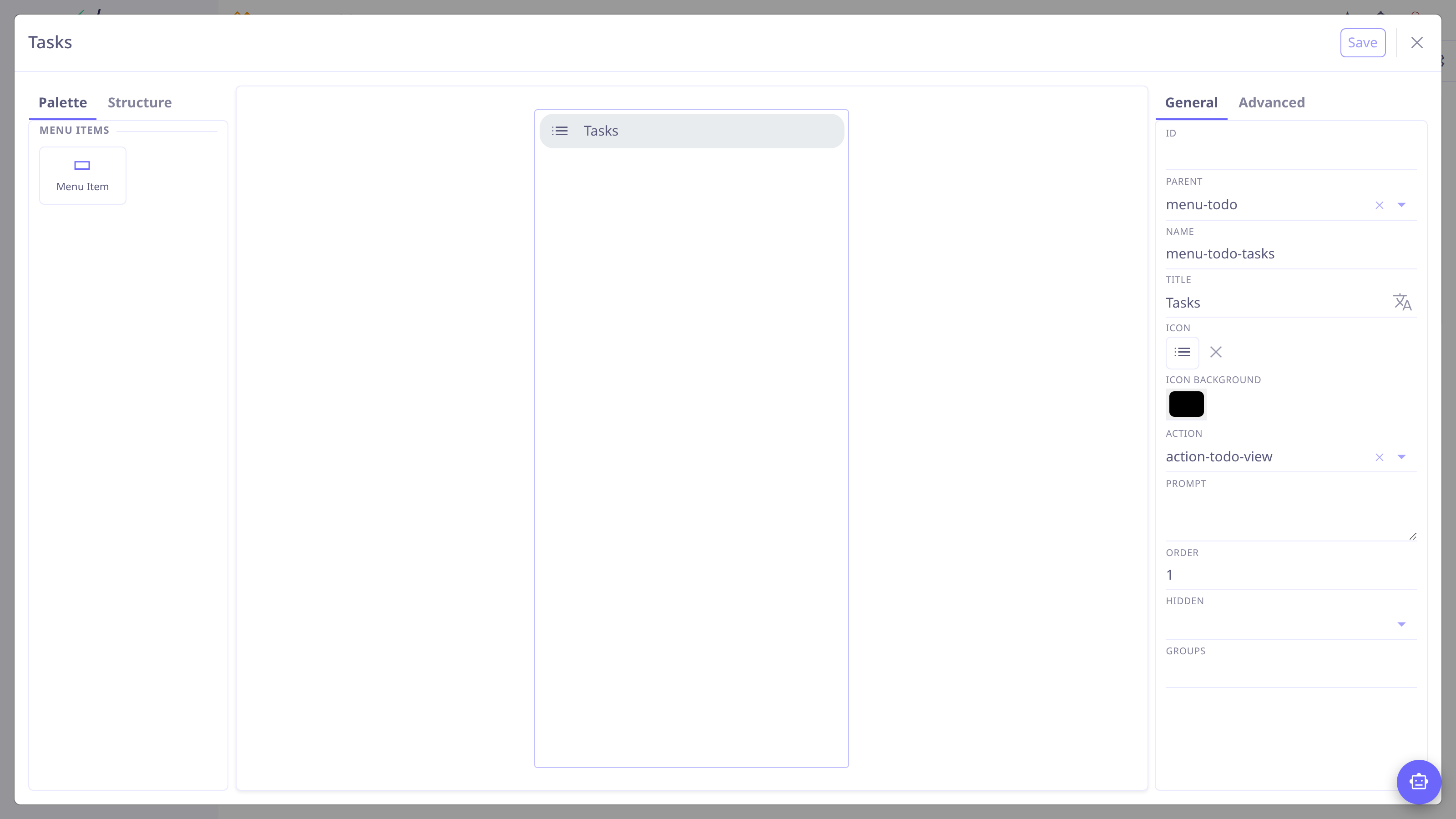
| You can parent your entry onto an existing application menu instead — pick the standard menu as Parent to slot your entry among the app’s own. |
| A leaf without an action does nothing — that’s the most common reason a new menu "doesn’t work". |
More entry options in the inspector:
- Order
-
Position among siblings (lower first — leave gaps: 10, 20, 30).
- Hidden, groups
-
Hide the entry, or restrict it to user groups.
- Badge
-
A tag on the entry — static text, a record count, or a value computed by an action, each with a style (info, success, warning, important).
The Todo example, complete
With this page you can finish the running example — three resources make the app reachable:
Activate the revision and Todo → Tasks appears in the navigation.
Menubar and toolbar
Grids and forms carry their own button bars: the toolbar (buttons) and the menubar (dropdown menus whose items run actions). Edit them inside the view designers with the same item-and-action mechanics — see Views.