Models
Studio offers three ways to shape data, plus enumerations. Pick the right kind first — it matters more than anything else on this page.
Choosing a model kind
| Kind | When to use it |
|---|---|
Custom model |
A new business object, live immediately on activation — no build, no restart. The default for Studio work. |
Custom fields on an existing model |
You don’t need a new object — just extra fields on Product, Order, Partner… |
JPA entity |
A compiled Java entity. Choose it when you need real database columns and constraints, Java code against the model, or a distributable module. Requires a build, so iteration is slower. |
Enum |
A fixed, compiled value set for JPA entities. For custom models, use a selection instead — selections can evolve without a build. |
Creating a custom model
-
Open your project revision and go to the Models tab.
-
Click New. The model designer opens.
-
In the inspector, set the Name (PascalCase, e.g.
Todo) and a Title. -
Drag field types from the palette onto the model — String, Date, Boolean… — and reorder them by dragging.
-
Select each field to edit its properties (see below).
-
Mark one String field as the name field — this is how records show up in lists and references.
-
Click Save.
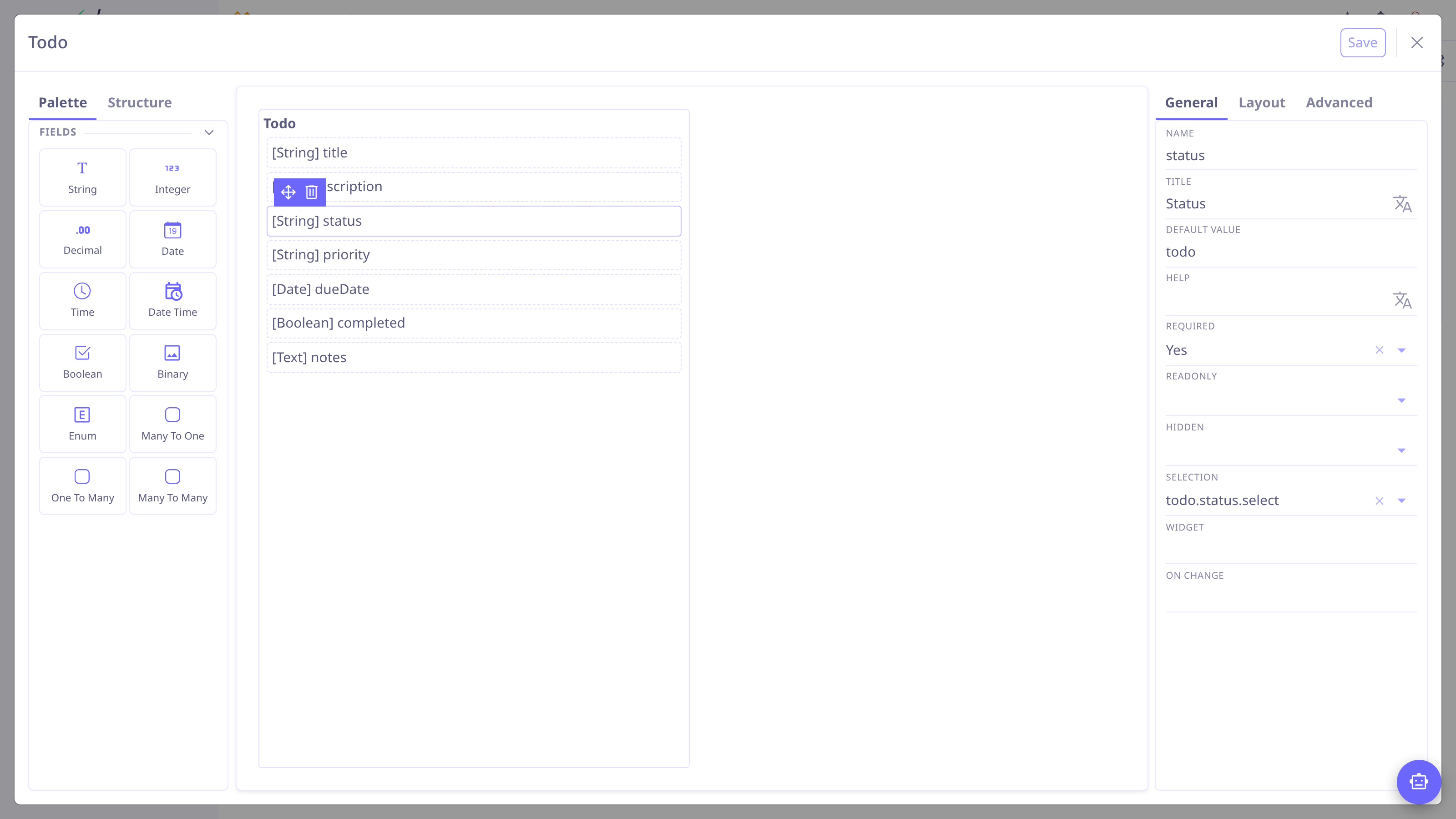
| Create your selections first (Selections) so you can bind status and priority fields while designing the model. |
| When the revision is activated, the model automatically gets a default form and grid. Add a menu entry to open it — see Menus — and adjust the generated views in the view designers. |
Field properties
The essentials, all edited in the inspector:
- Title, help
-
The label and the tooltip.
- Required, readonly, hidden
-
Behavior flags; each also has a conditional variant (required if, readonly if, show/hide if) taking an expression over the record’s fields, e.g.
status == "done". - Default value
-
The initial value for new records.
- Selection
-
Binds a String field to a named value list — see Selections.
- Widget
-
Overrides how the field renders (image, HTML editor, tag list…) — see Views.
- On change
-
An action to run when the value changes — see Actions.
- Domain
-
For relation fields, a filter restricting which records can be picked, e.g.
self.isActive = true. - Min/max size, precision, scale
-
Length and numeric constraints.
Relations — ManyToOne, OneToMany, ManyToMany — can target another custom model or
an existing JPA entity (e.g. com.axelor.auth.db.User).
Adding custom fields to an existing model
-
Go to the revision’s Fields tab and click New.
-
Pick the target model (e.g.
Product). -
Add fields exactly as in the model designer.
-
Save, then activate the revision — the fields appear on the model’s existing views, in their own panel by default.
| To place the new fields precisely on the form, open that form with the toolbar Studio button and drag them where you want them. |
Storage details are described in Custom fields and Custom models.
Entities and enums
The entity designer looks like the model designer but produces a compiled JPA
entity: fields get real database columns, and the palette adds entity-only options —
OneToOne relations, unique constraints, mappedBy/orphanRemoval on
collections, and enum-typed fields. Entities carry a Java package name (e.g.
com.axelor.invoice.db) because they generate code.
Enums are a named list of items, optionally with explicit numeric values.
To use them:
-
Enable the Allow entity option on the revision (Projects & Resources).
-
Create entities and enums from the Entities and Enums tabs.
-
Build the project — activation alone is not enough for compiled resources. See Build Jobs & Repositories.
| When in doubt, start with a custom model. You keep the fast iteration loop and can graduate to an entity when a hard requirement appears. |