Analytics
Studio builds analytics two ways: classic chart views, and data dashboards — custom views composing the data widgets over saved queries. Prefer data dashboards for new work; a chart view is still the right tool for a single chart embedded as a dashlet.
Creating a chart
-
Open the revision’s Views tab, click New and pick Chart View.
-
In the Data Set section, write the query that returns the figures.
-
Set the Category (the x-axis field) and add one or more Series — each with its field, chart type (bar, line, pie…) and optional aggregate.
-
Optionally add search fields (user filters), actions and config entries.
-
Save, and use Preview to see the rendered chart.
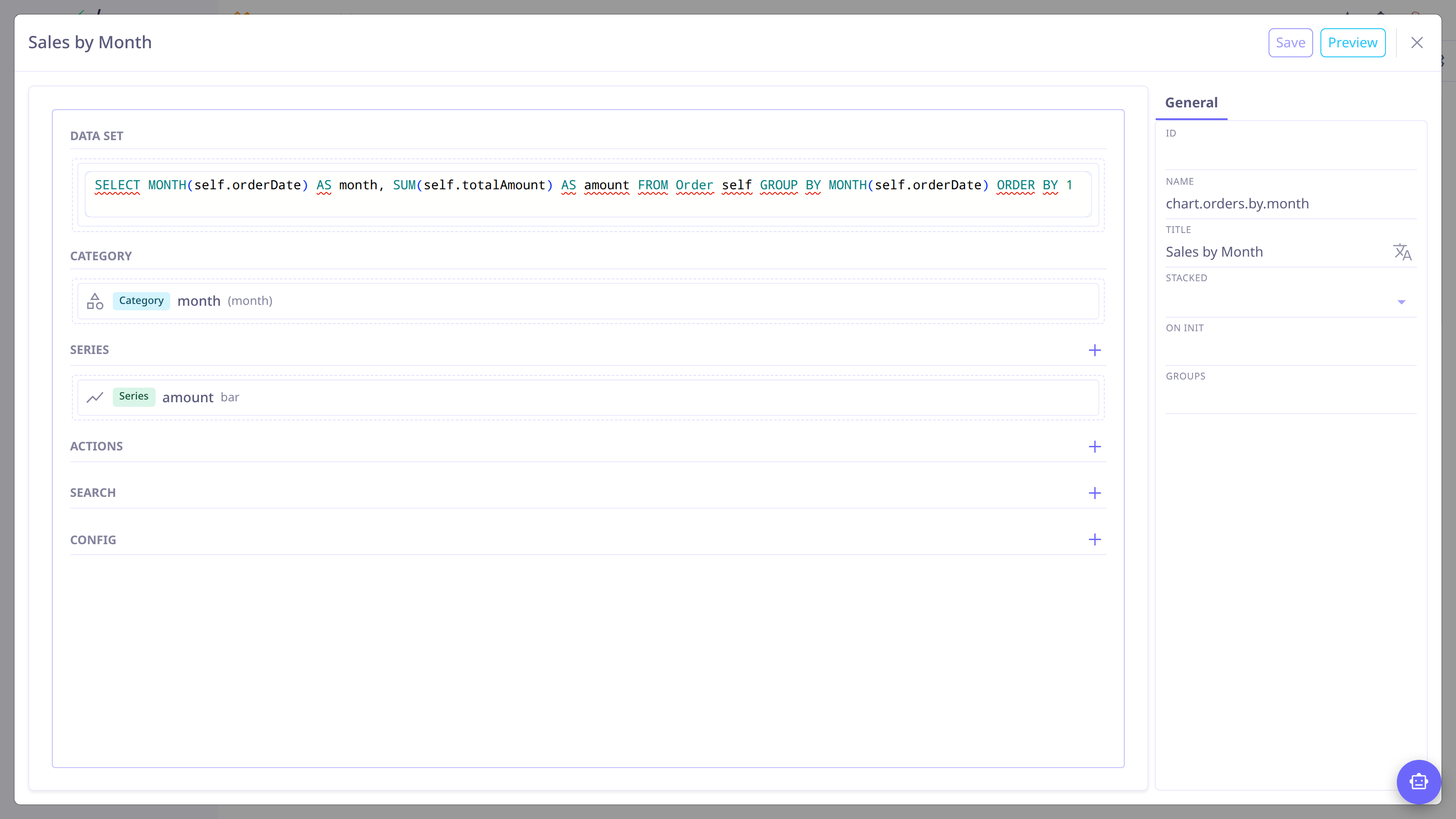
Chart views embed anywhere a dashlet fits — dashboards and form panels alike. The full attribute reference is in Charts.
Building a data dashboard
A data dashboard is a custom view whose template composes
the data widgets — DataDashboard as the 12-column container, one DataDashlet
per figure bound to a saved query, and a visualization inside: DataChart,
DataKPI, DataTable, DataPivot, DataProgress, DataList, DataFlow…
Each dashlet hands its query result to the widgets inside it as data, and the
widgets bind to the query’s columns by name.
Build it in this order:
-
Create the queries — one per figure, with column metadata filled in so titles and formats render properly. See Queries.
-
Create a Custom View and compose the template; the designer edits it with syntax highlighting and previews the result live.
-
Add an action view that opens it, and a menu entry — Actions, Menus.
For filters shared by the whole page (a date range, a status), declare them
once on the DataDashboard — they propagate to every dashlet as query parameters.
|
The complete component catalog with props and examples is in Data widgets.
Making dashboards readable
-
Lead with a KPI row — the 3–5 numbers that answer "how are we doing".
-
One question per dashlet; a chart comparing two measures beats two charts the reader must correlate.
-
Match the component to the shape of the data: trends → line or bar, pipeline → flow, top-N → ranked list, drill-down → table, cross-tab → pivot.
-
Give charts explicit heights (roughly 350–400px); KPIs and cards size themselves.
-
Make column spans total 12 per row — four span-3 KPIs, two span-6 charts, one span-12 table.