Advanced Import & Export
Advanced Import & Export is an interactive data-exchange tool for business users. It exports selected records, fields and relationships to an Excel workbook or CSV archive, and imports an Excel workbook or CSV archive after the columns have been mapped to model fields.
It is separate from Data Import, which is the XML-based
data-transformation framework for application developers, and from
action-import and
action-export.
Accessing the tool
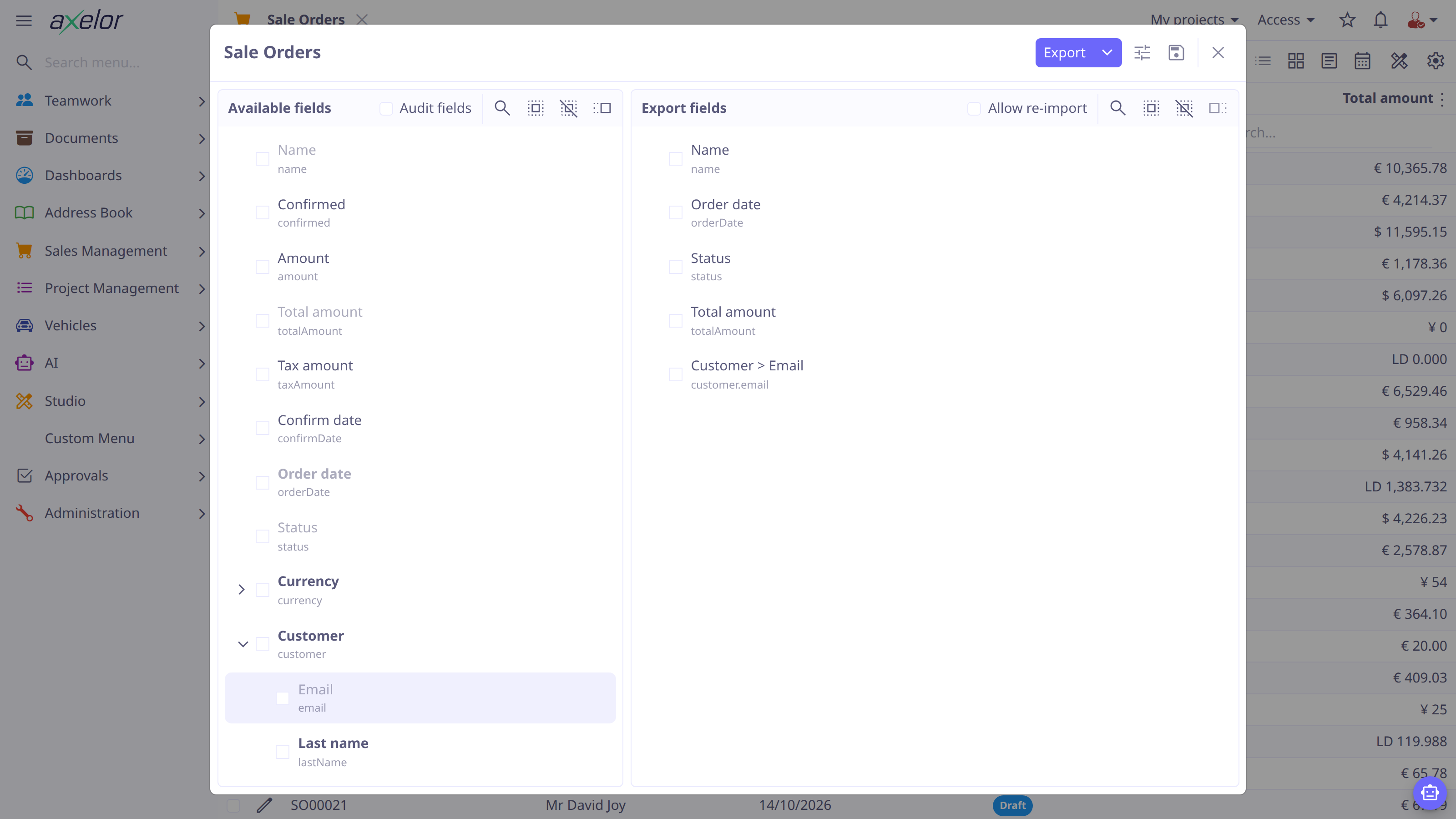
Open a model’s advanced search, apply the filters that define the records to work with, and select Import, or open the Export menu and select Export more…. The export uses the current search filter and ordering, and every record the filter matches is exported — not only the rows loaded in the grid. Export more… is the advanced export. It sits in the same menu as the standard Export and Export full entries, which export the columns of the grid.
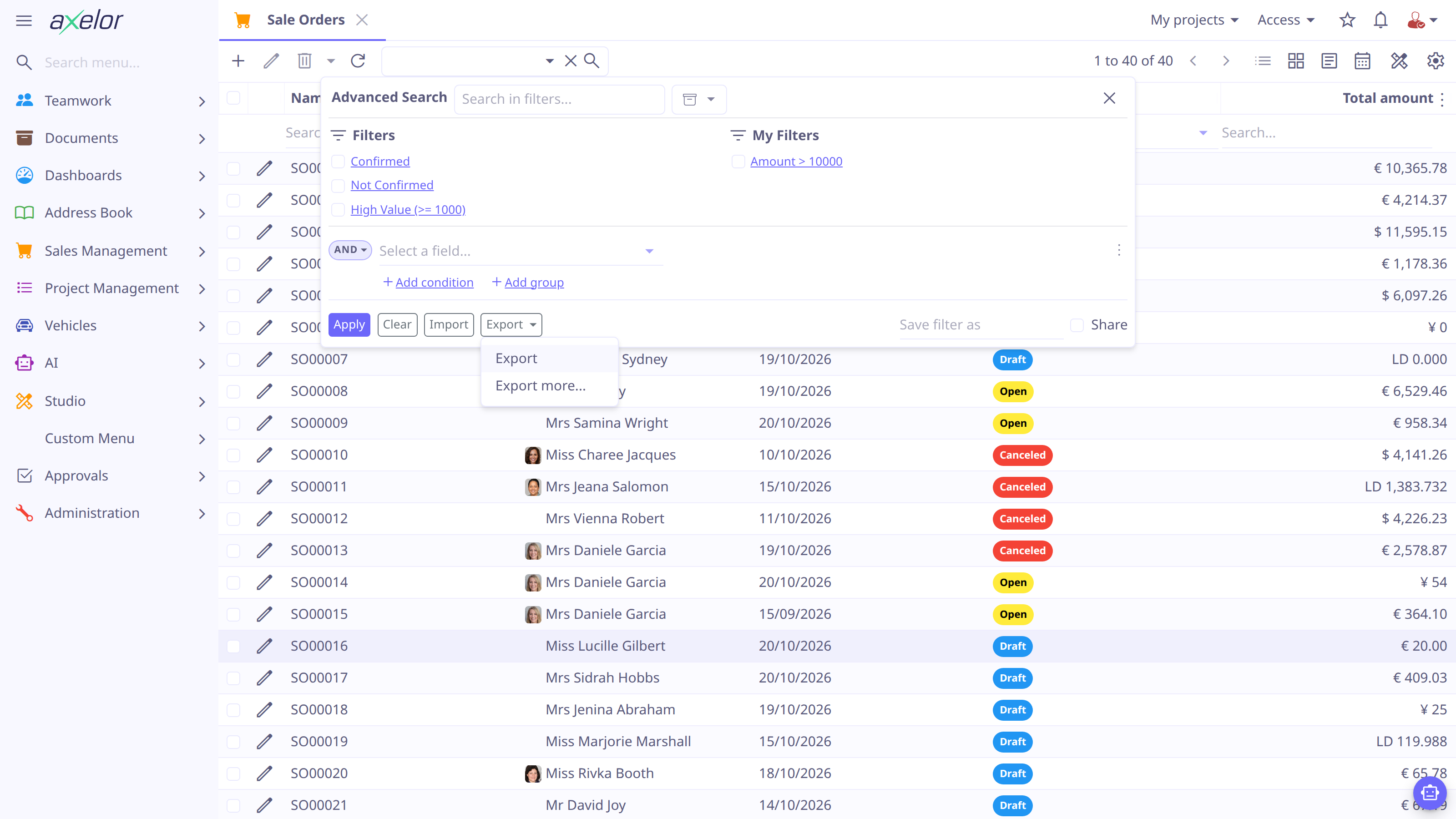
From a form view, select to import into that model, or to export the current record. Form export is limited to that record. The form entries appear when the form’s toolbar allows them, and Export… only for a saved record.
Custom models and custom fields are supported too: their fields appear in the field lists as extra groups, and export and import use the same dialogs.
Choose an exchange mode
| Mode | Use it when |
|---|---|
Standard |
You need a relationship-aware exchange. The export includes the main source and any selected related sources; one-to-many children get their own source, and many-to-many values are listed in a column of their owner. This is the appropriate mode for a full round trip. |
Flat |
You need one row per main record for analysis or for updating scalar, to-one
and many-to-many values. Nested fields use dotted paths such as |
Round-trip updates
For a file that you will edit and import again, enable Allow re-import when
exporting. The output uses technical field names and values, and includes the key
used to find existing records. Keep that key unchanged. When a business key must
change, also include id or importId so the importer can still locate the
existing record.
The importer updates a matching record and creates a record only when it cannot find one. A mapped column with an empty cell clears that field on an existing record, so delete columns you do not want to touch instead of blanking them. Always test a new mapping with a small, representative export first.
Advanced import never fires workflows, and rows are saved in batches: a rejected row does not stop the others. See Review the result workbook.
Related documentation
-
Export Data explains field selection, formats and saved export configurations.
-
Import Data explains mapping, source controls and the result workbook.
-
Reference & Administration covers files, permissions, limits and server configuration.