User Tasks & Approvals
A task node parks the workflow until a
person decides. This page covers the approval screens built on it and the task
lifecycle underneath.
Acting on a task
-
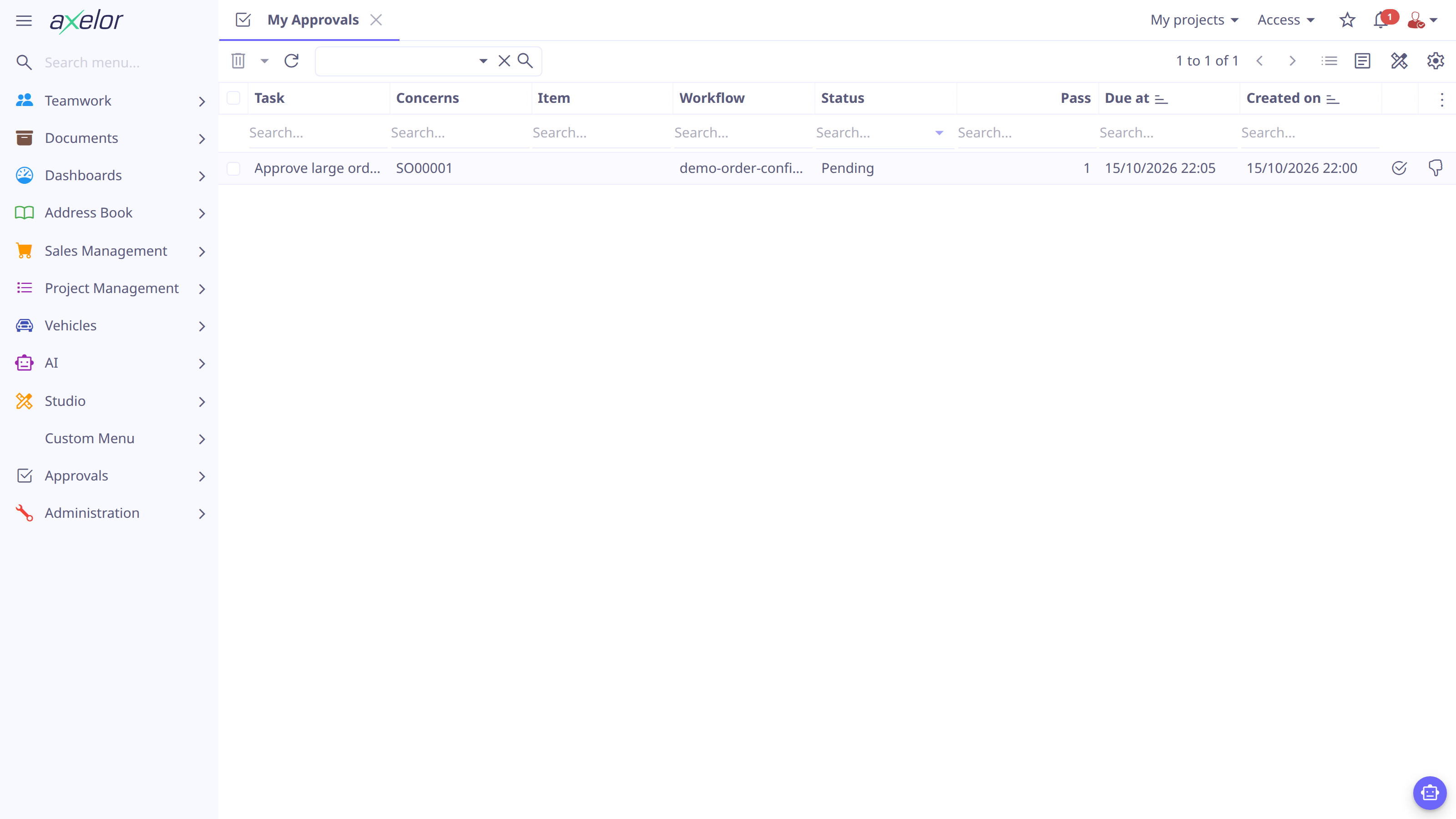
Open Approvals → My Approvals — everything actionable by you: tasks assigned to you, claimed by you, or sitting unclaimed in a role/group pool you belong to. (Admins additionally get Pending Approvals — every pending task.) The number of approvals waiting on you also shows beside My Approvals in the application header.
-
Open a task. Open record shows the business record it is about.
-
If the task sits in a pool, Claim it first — you cannot act on a task another member holds.
-
Approve or Reject it (an administrator opening the same task under Workflow Tasks sees Approve as Complete). A comment dialog opens only when the node’s
commentrequires a comment for the action you took — it may namecomplete,reject,alwaysor neither (none) — and the comment is then required. An action that needs no comment is taken on the spot.
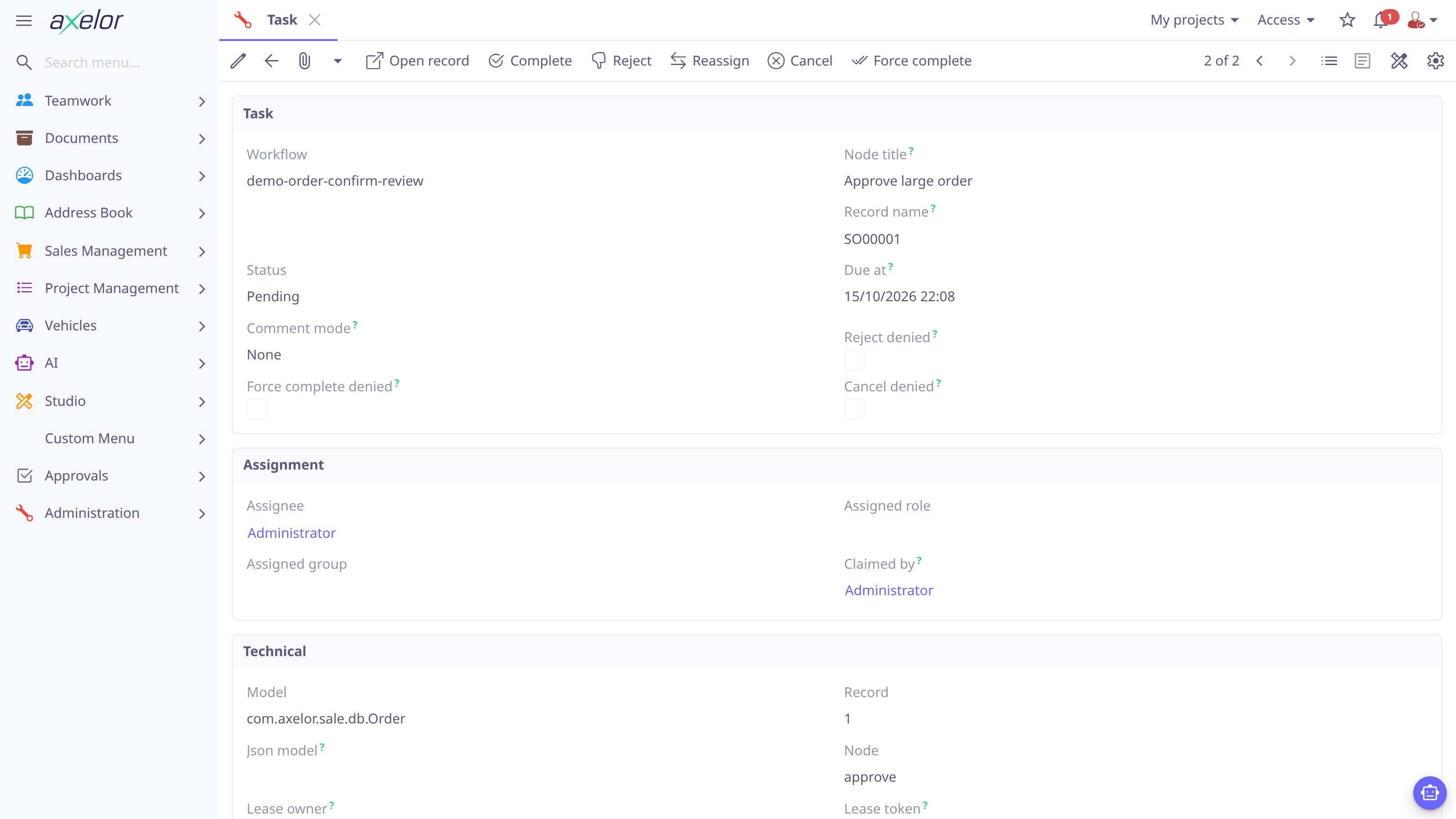
Admins can also Reassign, Cancel or Force complete any task. A node may
withdraw any of three actions for its own tasks — allowReject="false" refuses
a Reject, allowForceComplete="false" a Force complete, and
allowCancel="false" a Cancel, the last two even from an admin. A withdrawn
action’s button is not offered; the refusal still stands behind it for a stale
screen or a direct call — see
Restricting how a task may be
closed.
Approvals on the record
A record with pending tasks shows an Approvals button with a count badge on the right of its form toolbar. It is record-centric — "this record is waiting on approvals" — so it counts all pending tasks on the record, whoever they are assigned to; what each viewer can do with a task is still decided per task. The button opens the record’s pending task list.
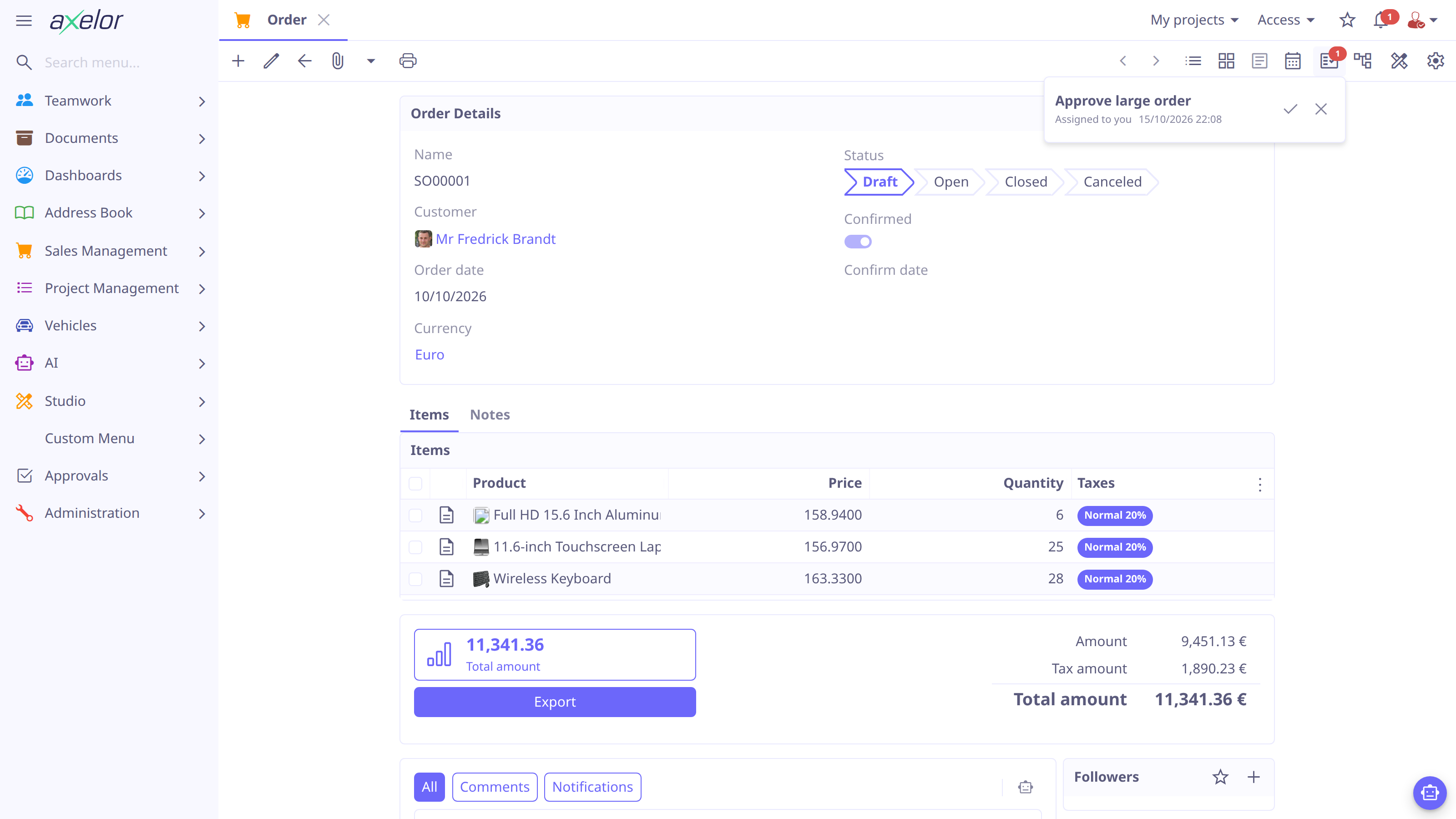
| The badge updates in realtime — task changes are pushed to clients viewing the record over the built-in websocket. Clustered deployments with the redisson cache provider relay pushes across nodes automatically; without it, cross-node updates fall back to a periodic re-count. |
Who gets the task
Assignment follows the node’s attributes:
-
An assignee (
assigneeexpression oruserlogin) gets the task assigned and auto-claimed. -
A candidate pool (
roleand/orgroup) makes the task visible to all members; a member must claim it before acting. -
Both may coexist.
| At least one of them must resolve to somebody, otherwise the run fails loudly instead of parking a task nobody can see. |
Task lifecycle
Reaching a task node creates a pending task carrying the workflow
identity, the business record, the assignment and the deadline. At most one task
is open per (record, node): if a repeat trigger re-reaches the node while its task
is still pending, the existing task is reused rather than duplicated. A node
whose when is already true, with autoComplete set, is the one exception —
the task is created already completed, with no assignment, so it never becomes
pending at all; see Gating approval on
a condition.
A pending task closes exactly once — completion is race-safe, the first decision wins:
| Outcome | Meaning |
|---|---|
|
approved; the run resumes through the node’s |
|
refused (comment requirement set by |
|
nobody decided — with |
cancelled |
a cancelling |
An approval closed by a cancelling <boundary> (the default) is withdrawn, not
answered: nobody decided, so the run leaves by the boundary’s own edge rather than
the node’s next. Why it closed is still recorded — a timer boundary leaves
outcome as timeout and sets timedOut — so a missed deadline stays
distinguishable from an approval somebody cancelled.
A boundary declared with cancel="false" does not close the approval at all: the
task stays open for the assignee while the run starts a separate escape branch
from the boundary’s next. See Boundaries.
Routing on the outcome
After the task closes, the run resumes from the node’s next with the task
binding available to conditions and scripts:
<task id="approve" role="sales.manager" comment="always" next="after"/>

<boundary id="chase" host="approve" on="timer"
          delay="3" unit="day" next="escalate"/> (1)

<split id="after" mode="one">
  <flow id="f1" when="task.rejected" next="cancelled" title="Rejected"/>
  <flow id="f2" default="true" next="confirm"/>
</split>| 1 | a deadline needs no split: an unanswered approval leaves by the boundary’s
own edge, so escalate is reached without anything downstream having to test
for it. |
task carries outcome (complete, reject or condition), the booleans
completed / rejected / timedOut, the comment, the visit (which pass over
the node this approval was), and completedBy (the
deciding user’s login; empty when a boundary closed the approval, or when
outcome is condition — nobody decided either way).
Security
A task references its business record polymorphically, so record-level security is enforced per operation: opening, counting, claiming, completing or reassigning a task all require read access to the underlying record under the caller’s own row-level rules. A user who can reach a task through a candidate pool but cannot read the record can act on none of it — including the toolbar badge, which shows nothing for records the viewer cannot read.