Workflow Designer
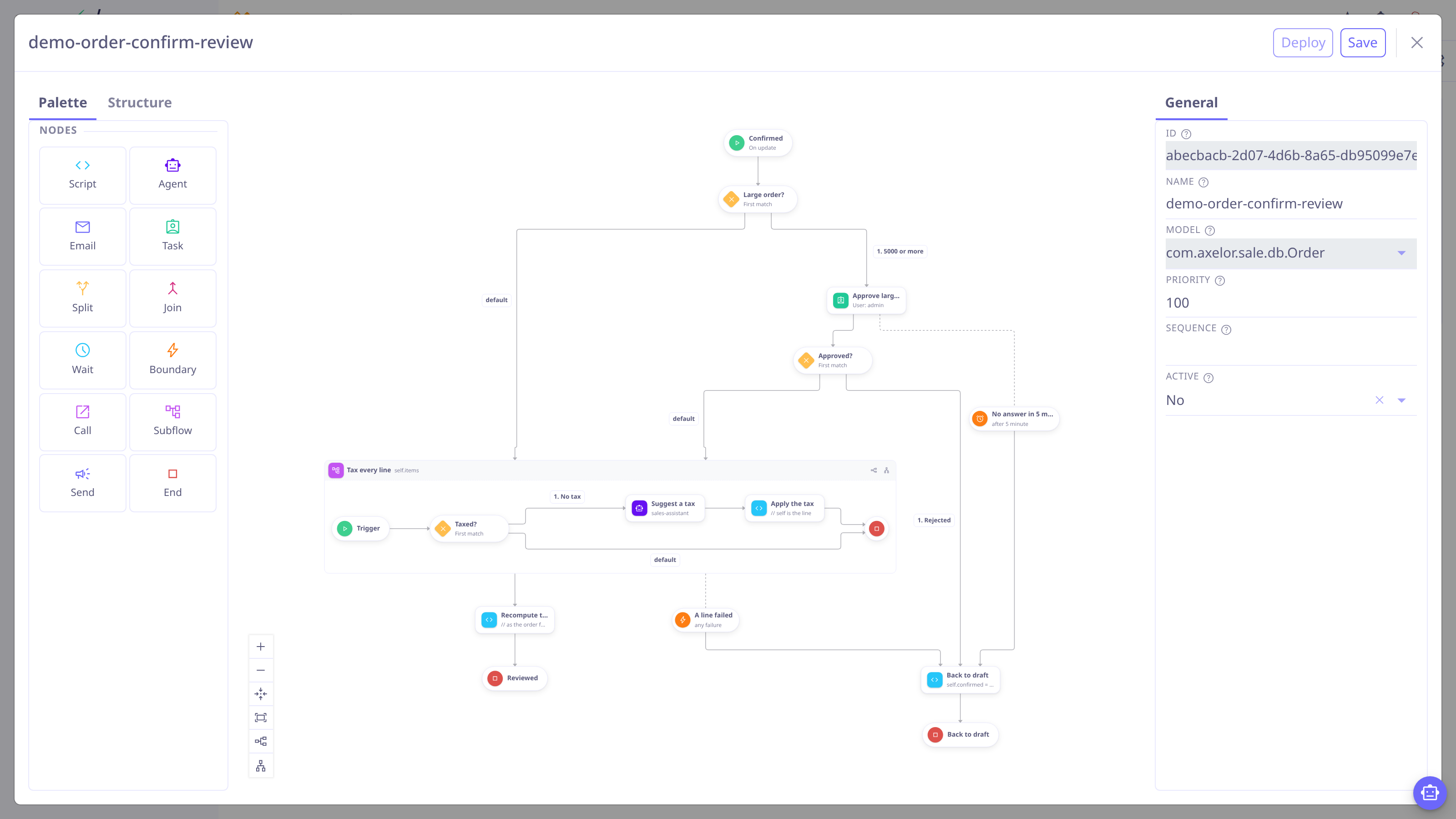
The Studio workflow designer builds the same workflow definitions visually. Designed workflows and XML workflows are one format: what the canvas edits is exactly the DSL described in Definitions and Nodes, and both deploy through the same validation gate.
Creating a workflow
-
Open Studio → Projects, open your project and its working revision (Projects & Resources).
-
On the Workflows tab, click New. The designer opens on a full-screen canvas with the start node in place.
-
Configure the trigger on the start node: the model, the trigger (On create, On update, On message, On timer or Manual), watched fields, condition and repeat policy. Fields the chosen trigger does not take are hidden, and the ones the engine requires — a message name, a timer’s delay and unit, an update’s condition — are marked as required.
| An existing module workflow can be brought into the project with the Import button on the same tab, then edited on the canvas. |
Building the graph
-
Palette — drag any node type onto the canvas: script, agent, email, call, subflow, task, wait, send, split, join, boundary, end. Split and Join are two separate elements, each with its own required properties: a split says how it chooses among its branches, a join says which split it is for and what it waits for.
-
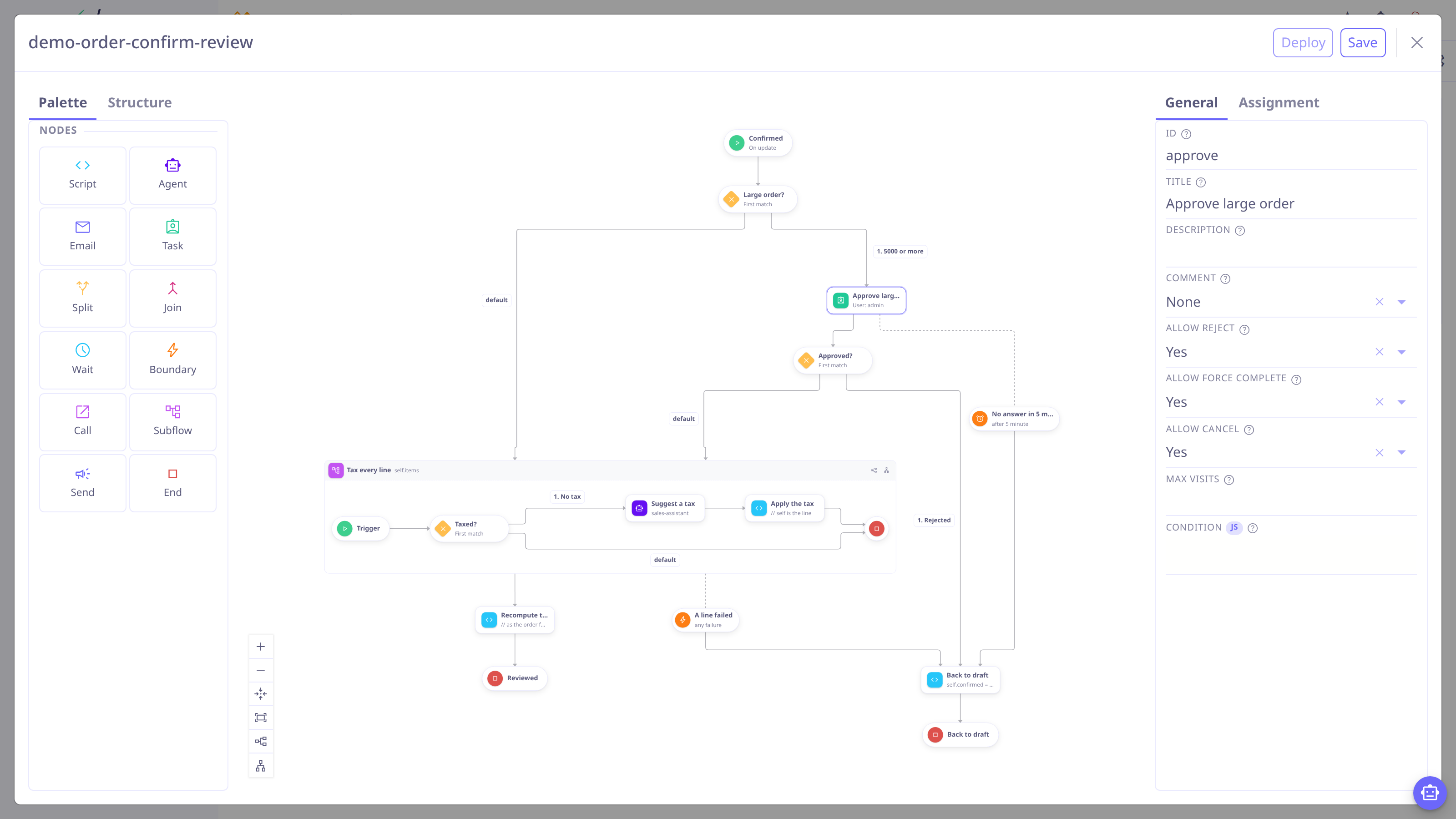
Subflow regions — a subflow is not a node you open; it is drawn in place, as a titled box holding its own nodes. Drop nodes inside the box to add them to the body, and use the two buttons in its header to arrange that body on its own, horizontally or vertically, independently of the document around it.
-
Edges — connect a node’s output handle to the next node; a split grows one edge per flow, labelled with the flow title or its condition.
-
Boundaries — a boundary is attached by drawing an edge from the wait, the approval, the single-call or the subflow region it watches into it (the context menu of each of those four node types also offers Attach boundary, since only a node that parks can be timed or watched; a script, agent or email offers it too, and gets an error boundary, since those are the nodes that can fail). That edge is dashed and carries no arrow head, because it is not a step the run takes: it says which park the boundary is racing. The boundary’s own outgoing edge is where the run goes when it fires. Its Trigger is picked from what the host allows — a timer, a condition, a message or a signal on a node that parks, an error on one that runs — and an error boundary’s Error code may be left empty to catch any failure. A "Cancels the host" checkbox on its properties, checked by default, decides whether firing closes the park or leaves it open; unchecked, the badge draws a dashed second ring — BPMN’s own glyph for a non-interrupting boundary.
-
Inspector — select a node to edit its properties: the script body, the split’s Mode (the first match ✕, every match ○, every branch +), the join’s Waits for split and Wait (every branch, the first arrival, or enough arrivals — which reveals its own Arrivals field), the task assignment (assignee expression or user, role/group candidate pool), and so on. A branch’s condition is edited by selecting its arrow, and is hidden on a parallel split, which takes every branch without testing anything. Expressions open in an expression editor.
-
Per-node options — a script, agent or email has a Run in background toggle (on by default for an agent or email, off for a script). An email picks its Template from the templates configured for the workflow’s model, and an agent picks its Agent and declares the Answer it must give, field by field, with allowed values for a string field. A wait or boundary has one Trigger list — Timer, Condition, Message or Signal — and a send chooses whether it Sends a message or a signal, with its Correlation key, Payload, Expect and Keep offering for (seconds).
-
Edge menu — right-click a split’s arrow to Make default, Make conditional, Move earlier or Move later, or any edge to Delete it. A branch that still needs its condition is marked.
-
Badges — a split’s badge is its mode and a join’s is its
wait:+for a join that waits for every branch, and the count for one that continues on the first arrival (or the first N) and cancels the rest. So the two halves of a race are legible without opening either inspector. -
Auto-layout — arrange the graph horizontally or vertically with one click. Positions and edge routes are kept in the definition’s
<layout>block, which the engine ignores, so the diagram reopens as you left it. A definition without one is laid out when it opens.
Validating and deploying
Click Save: the definition is validated server-side — the same validator that
guards XML loading (every next resolves, all nodes reachable, trigger coherence,
node essentials). A refused save lists its problems over the canvas, each naming
the node it concerns (select one to bring that node into view); there are no
client-side rules that could drift from the engine.
To put the workflow live the first time, activate the Studio revision
(Lifecycle). It deploys as an active MetaWorkflow,
indistinguishable from one shipped in a module — including
priority overrides. The
project export includes workflows as regular workflow XML.
Once the revision is activated, Deploy puts a later edit live on its own. Saving never does: an author can leave work half-finished without it becoming the definition new runs start on. Deploy is enabled once there are no unsaved edits, because it deploys what is stored rather than what is on the canvas.
Each deploy that really changes the definition mints a new revision, and runs already in flight stay on the one they started (When a definition changes under a parked run). If the deploy leaves runs parked on the revision it just replaced, the mover opens on the new one so you can bring them forward — or close it and decide later, which changes nothing either way.
AI assistant
You can also describe the workflow in chat: the AI assistant saves the definition through Studio and opens (or lets you reload) the designer on the result — so generated workflows are reviewed on the canvas before deployment.