Views
The view designers build the same views a module ships as XML — one format, same capabilities. This page covers the designers; each view type’s full reference lives in the Views chapter.
Creating or editing a view
From the project:
-
Open the revision’s Views tab.
-
Click New and pick the type: form, grid, cards, kanban, calendar, tree, chart, custom or dashboard.
-
The designer opens; pick the target model and build the view.
From the running application:
-
Navigate to the screen you want to change.
-
Click the Studio button in the view toolbar (visible to technical users).
-
The designer opens directly on that view — including the generated views of a custom model.
Use Preview in the designer at any time to see the view exactly as the application will render it, and Save when done.
Form designer
The form designer is the one you’ll use most.
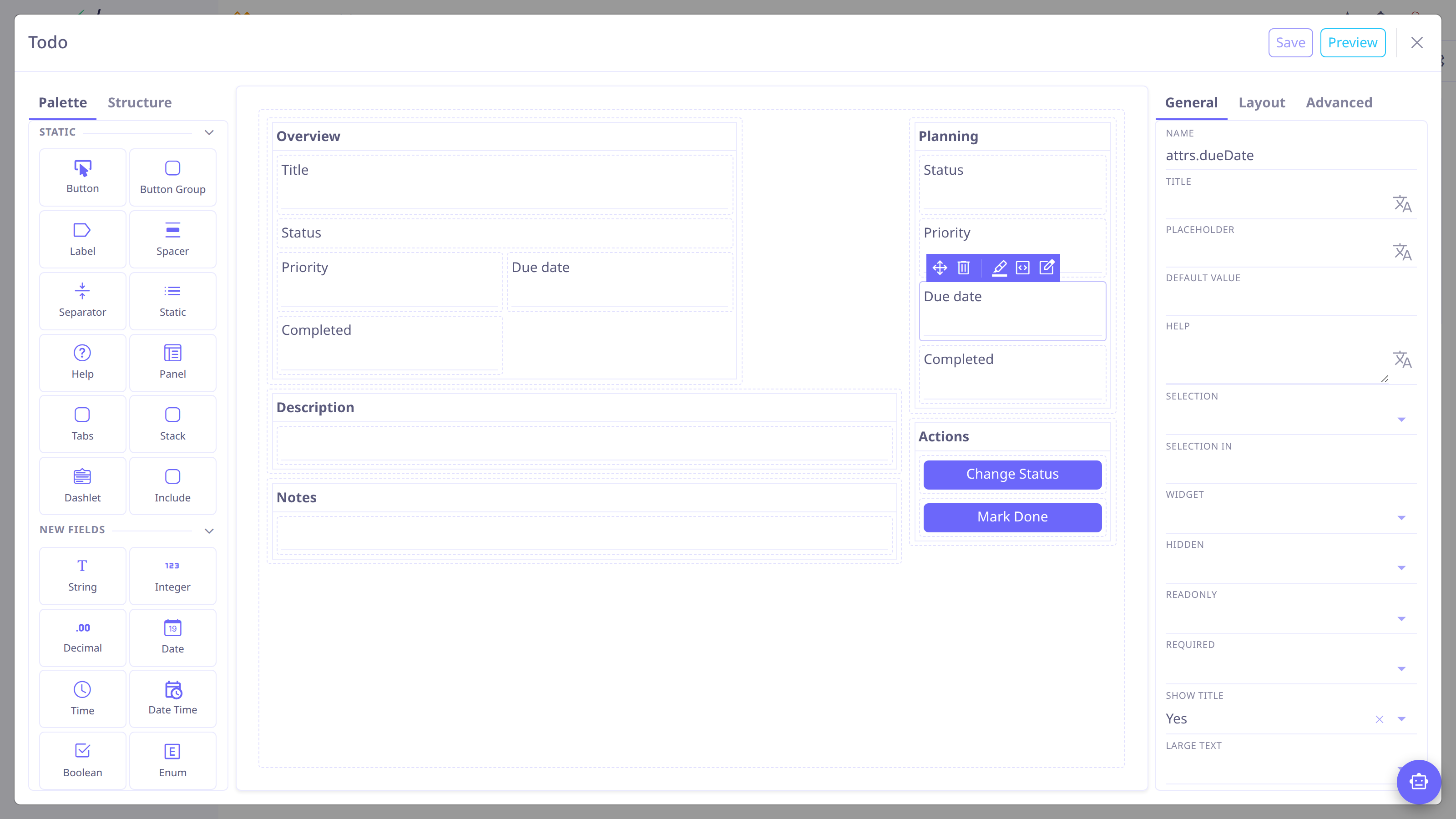
To lay out a form:
-
Drag panels from the palette — a form is a 12-column grid of panels; fields never sit at the root.
-
Drag fields into the panels. Pair short fields side by side (span 6 each), give identifiers and long text the full width.
-
For a right-hand sidebar (status, dates, action buttons), use a narrow panel of span 3.
-
Select any item to edit it in the inspector: title, span, visibility conditions (show/hide/readonly/required if), widget, and events.
-
Add buttons where users trigger actions, and wire the form’s own events —
onNew,onLoad,onSave— to actions (Actions).
Other palette items: tabbed panels for secondary content, separators and labels, a related records panel that embeds an editable grid for a OneToMany/ManyToMany field (how master–detail forms like an order and its lines are built), dashlets and view includes.
| The Structure tab beside the palette shows the whole layout as a tree — the easiest way to select something buried in nested panels. |
Widgets
Every field type has a default rendering; set the widget property to override it. The ones you’ll actually reach for:
- Status & selection
-
NavSelectshows a selection as the horizontal status bar on top of workflow forms;RadioSelect,MultiSelect,TagSelectandInlineCheckboxcover the other shapes. - Text & content
-
Text(multi-line),Html(rich text),CodeEditor. - Number & date
-
Duration,Progress,Rating. - File & media
-
Image,Binary,BinaryLink. - Relational
-
SuggestBox(default ManyToOne autocomplete),TagSelectfor ManyToMany,MasterDetailfor editing a collection next to its grid.
The full catalog is in the Form view reference.
Grid designer
Pick and order the columns, set default sorting and grouping, mark the grid editable for inline editing, and add buttons. Grids also carry their own toolbar and menubar — edited here with the same mechanics as menus.
Other view types
- Cards
-
A tile per record — pick the fields and the card template.
- Kanban
-
Cards in columns driven by a selection field, draggable between columns.
- Calendar
-
Records as events — set the start/stop date fields (or a default duration), a color-by field and the initial mode (month, week, day).
- Tree
-
Hierarchical records — set the parent relation and the columns.
Each designer exposes exactly the attributes documented on the type’s reference page.
Dashboards
A dashboard view is a grid of dashlets, each embedding another view — typically charts and filtered grids. Design the content views first, then compose them. For charts and data components, see Analytics.
On custom-model views, field names are bound through the model’s JSON storage
(attrs. prefix). The designers handle this for you when you drag fields; it only
matters when typing expressions by hand — there, custom fields are attrs.status
while real record fields like id stay unprefixed.
|