Subprocesses
Introduction to BPMN Subprocesses
In the Business Process Model and Notation (BPMN) standard, a subprocess is a compound activity that is included within a process. It contains a set of activities, gateways, events, and sequence flows that are part of the parent process. Subprocesses provide a way to organize and manage complexity in BPMN diagrams by grouping related activities together.
Types of Subprocesses
BPMN defines several types of subprocesses, each with its own specific behavior and use cases:
Embedded Subprocess
An embedded subprocess is a subprocess that is embedded within the parent process. It is represented by a rounded rectangle with a plus sign in the bottom center.

Embedded subprocesses are useful for organizing and grouping related activities within a process. They can have their own start and end events, and can contain any BPMN element that can be used in a process.
Call Activity
A call activity is a subprocess that calls another process. It is represented by a rounded rectangle with a bold border.

Call activities are useful for reusing processes across different business processes. They allow you to call a process that is defined elsewhere, passing data between the calling process and the called process.
Event Subprocess
An event subprocess is a subprocess that is triggered by an event. It is represented by a rounded rectangle with a dashed border.

Event subprocesses are useful for handling exceptional situations or events that can occur at any time during the execution of a process. They can be triggered by events such as errors, messages, signals, or timers.
Transaction Subprocess
A transaction subprocess is a subprocess that represents a transaction. It is represented by a rounded rectangle with a double border.

Transaction subprocesses are useful for grouping activities that must be completed as a transaction. They support compensation and can be rolled back if an error occurs.
Ad Hoc Subprocess
An ad hoc subprocess is a subprocess that contains activities that can be executed in any order. It is represented by a rounded rectangle with a tilde (~) in the bottom center.

Ad hoc subprocesses are useful for representing activities that can be executed in any order, based on the decision of the process participants.
Configuring Subprocesses
General Configuration
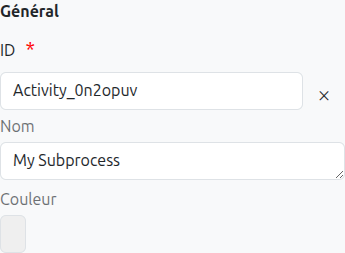
The general configuration for subprocesses is similar to other BPMN elements:
-
Id (1): Unique ID auto-generated by the system when the node is inserted, it can be manually modified by direct input or by clicking on the cross.
| It is strongly discouraged to change the ID of a process element after the first deployment to avoid generating migration errors. |
-
Name (2): Name of the subprocess, it can be modified at any time.
-
Color (3): Allows defining the color of the subprocess, it is used to differentiate subprocesses on the diagram.
Technical Configuration
The technical configuration for subprocesses depends on the type of subprocess:
Embedded Subprocess
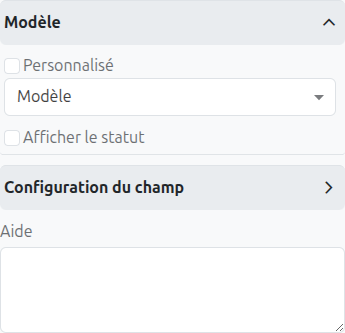
For embedded subprocesses, you can configure:
-
Asynchronous (1): If checked, the subprocess will be executed asynchronously.
-
Exclusive (2): If checked, the subprocess will be executed exclusively.
-
Multi-Instance (3): If checked, the subprocess will be executed multiple times, based on the multi-instance configuration.
Call Activity
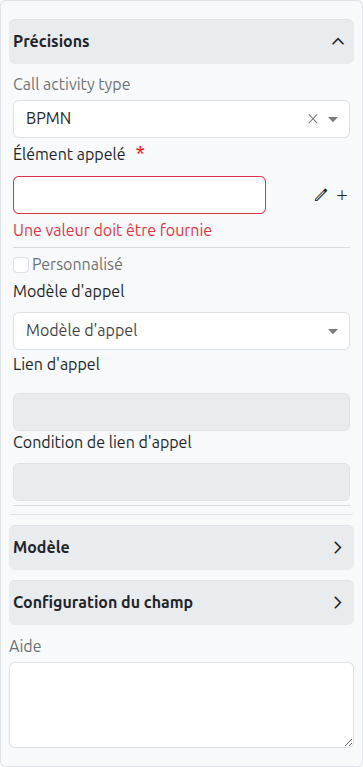
For call activities, you can configure:
-
Called Element (1): The ID of the process to be called.
-
Business Key (2): The business key to be used for the called process.
-
Input Variables (3): The variables to be passed to the called process.
-
Output Variables (4): The variables to be returned from the called process.
Axelor Studio Call Activity Features
In Axelor Studio, the Call Activity provides enhanced features for managing process composition:
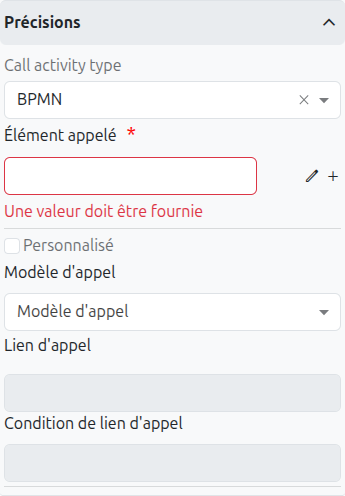
Call Activity Type (1)
Select the type of called element:
-
BPMN: Call another BPMN process definition
-
CMMN: Call a CMMN case definition
Called Element with Model Browser (2)
Instead of typing the process ID manually, Axelor Studio provides a dialog to browse existing BPM models:
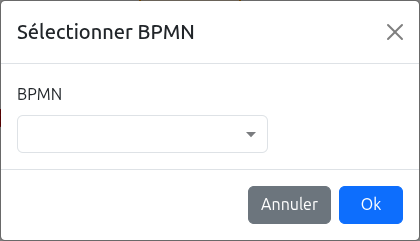
-
Click the browse button to open a list of all deployed BPM models
-
Select the target process from the list
-
The process ID is automatically populated
Create New BPM Model (3)
You can create an entirely new BPM model directly from the Call Activity properties:
-
Click Create to generate a new BPM model with a default start event
-
A unique process ID is auto-generated (with
Process_prefix) -
The new model opens in a separate editor tab for immediate editing
|
Use the "Create" feature when designing top-down: define your main process first, then create sub-processes as needed directly from Call Activity nodes. |
Open in Editor (4)
Click to open the called process in a new BPM editor tab. This allows you to navigate between the calling and called processes.
Custom Toggle (5)
Switch between standard models (MetaModel) and custom models (MetaJsonModel) for the call model configuration.
Call Link (7)
Define the parent path (field path) that links the calling record to the called process context. Use the FieldEditor dialog to select the appropriate field path.
Call Link Condition (8)
Define a condition using the QueryBuilder that determines when the call link is active.
Event Subprocess
For event subprocesses, you can configure:
-
Triggering Event (1): The event that triggers the subprocess.
-
Interrupting (2): If checked, the parent process will be interrupted when the subprocess is triggered.
View Attributes
Embedded subprocesses, call activities, and subprocesses include a View Attributes tab, which allows you to define how the associated model’s form view behaves when the process is at this node. This is the same functionality as documented for user tasks.
View attributes allow you to control field visibility, read-only state, required state, and other properties of form fields based on the current BPM workflow state. For detailed configuration instructions, refer to the User Task View Attributes documentation.
Menu/Actions
Embedded subprocesses, call activities, transaction subprocesses, and ad hoc subprocesses include a Menu/Actions tab, which allows you to associate actions, email notifications, and menu entries with the node. This is the same functionality as documented for user tasks.
For detailed configuration of actions (TeamTask creation), email notifications, and menu entries, refer to the User Task Menu/Actions documentation.
Translations
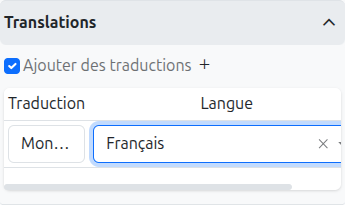
It is possible in BPM to indicate translations directly in the properties for the name of the nodes:
-
Translations (1): Allows adding translations for the name of the node. Translations are added by clicking on the + button.
-
List of translations (2): List of translations added for the node. They can be deleted by clicking on the cross on the right.
-
Language (3): Language of the translation.
Listeners
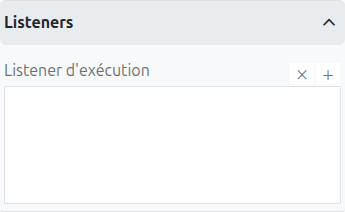
It is possible in a BPM model, regardless of the configurable element, to define listeners via the appropriate tab.
Execution Listener
An execution listener is created by clicking the plus + button in the list of concerned listeners in the tab.
It applies its Groovy script at the activation or the completion (depending on the user’s choice) of the subprocess. The script can be written with or without the script builder.