Studio Dashboards
Overview
Studio Dashboards allow you to combine multiple charts, data grids, and custom views into a single overview page. Each dashboard is composed of configurable dashlets that can be arranged in a multi-column layout.
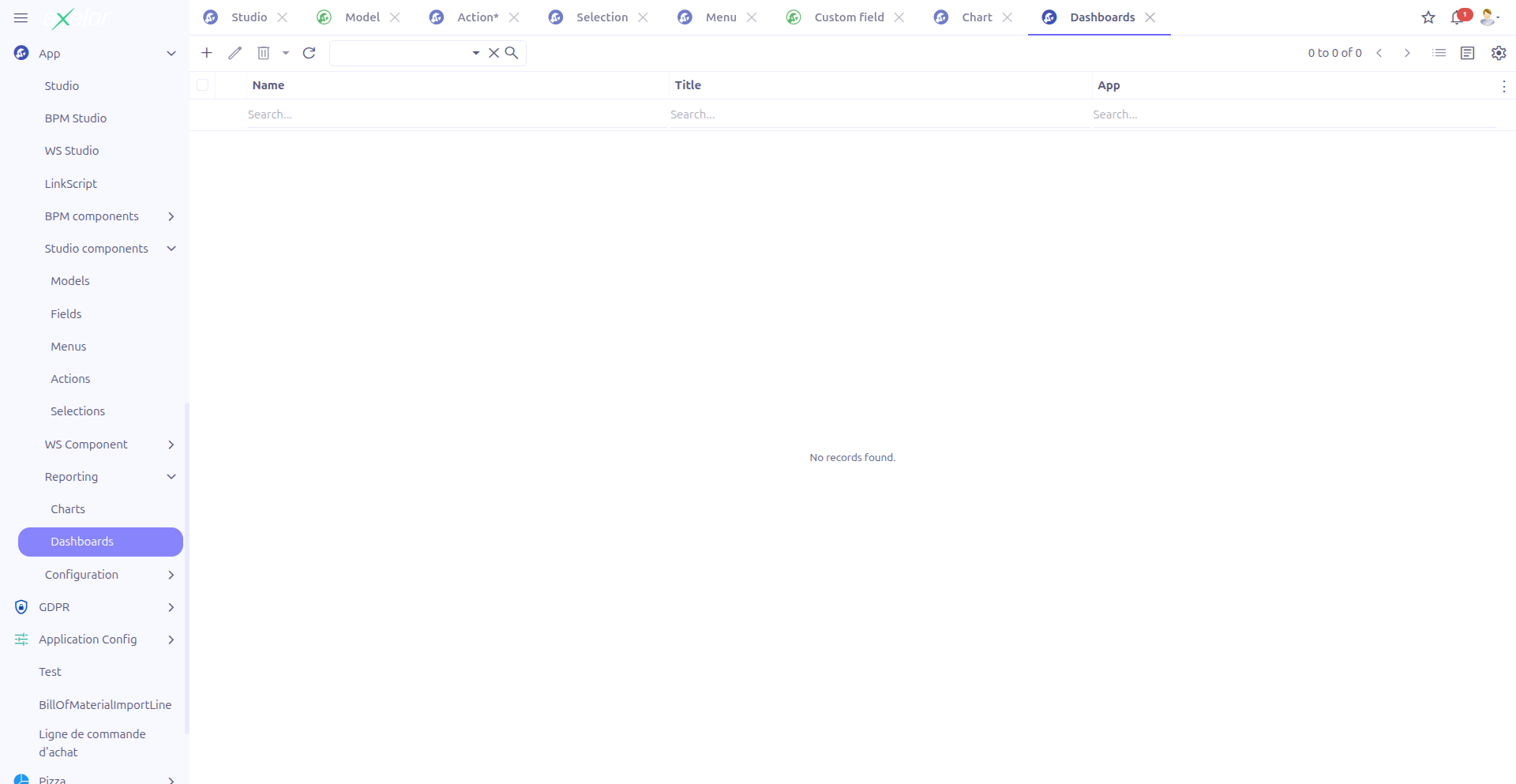
Dashboards are managed from App > Reporting > Dashboards.
Creating a Dashboard
Navigate to App > Reporting > Dashboards and click New.
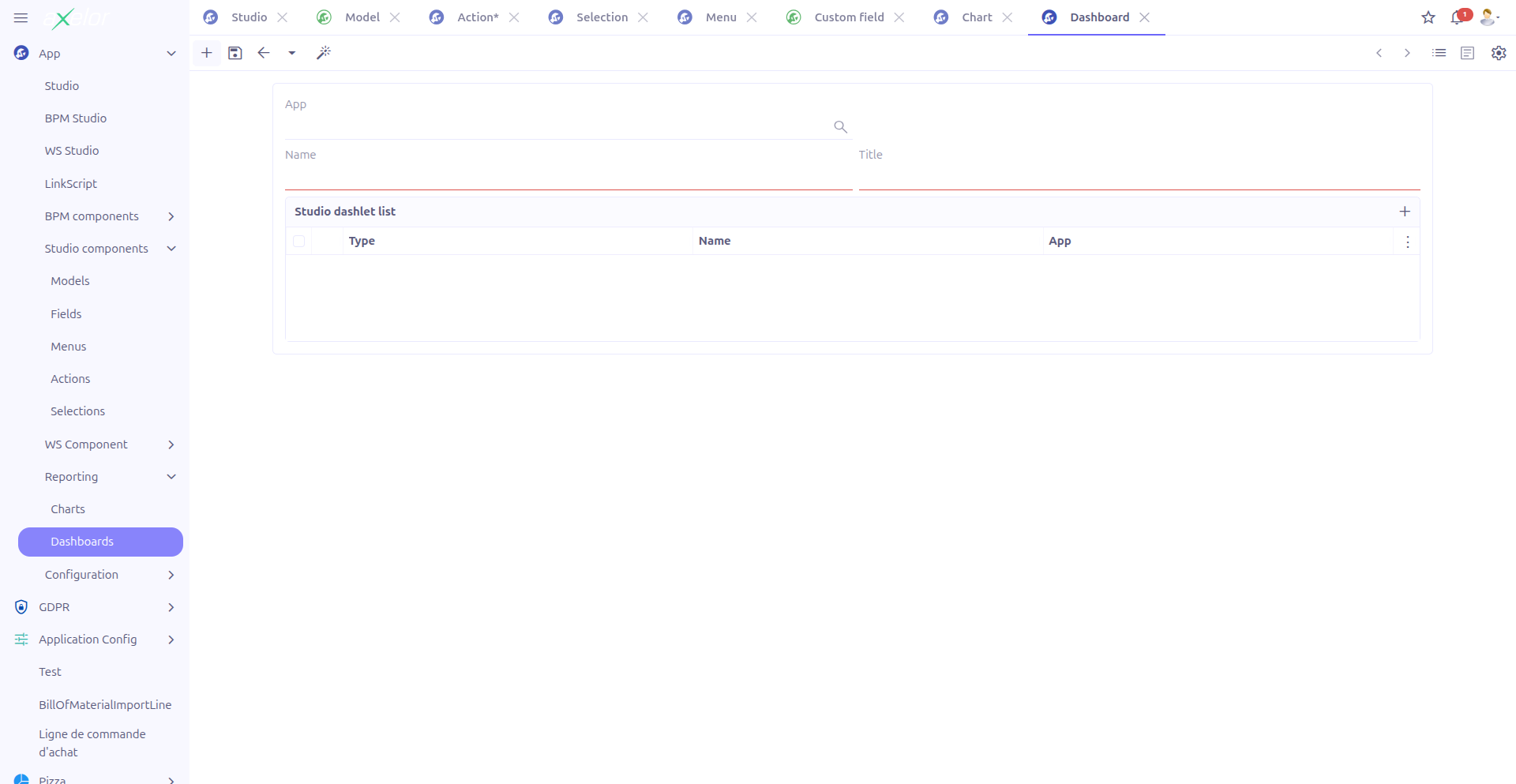
Dashboard Fields
| Field | Required | Description |
|---|---|---|
Name (1) |
Yes |
Unique technical name of the dashboard. Must not contain spaces. The name is validated and normalized automatically. |
Title (2) |
Yes |
Display title shown as the dashboard page header. |
Studio App (3) |
No |
Associates the dashboard with a Studio App for packaging. Only visible when |
Dashlets
The Dashlets panel defines the content blocks displayed on the dashboard. Dashlets are listed in an editable grid with drag-and-drop reordering (canMove).
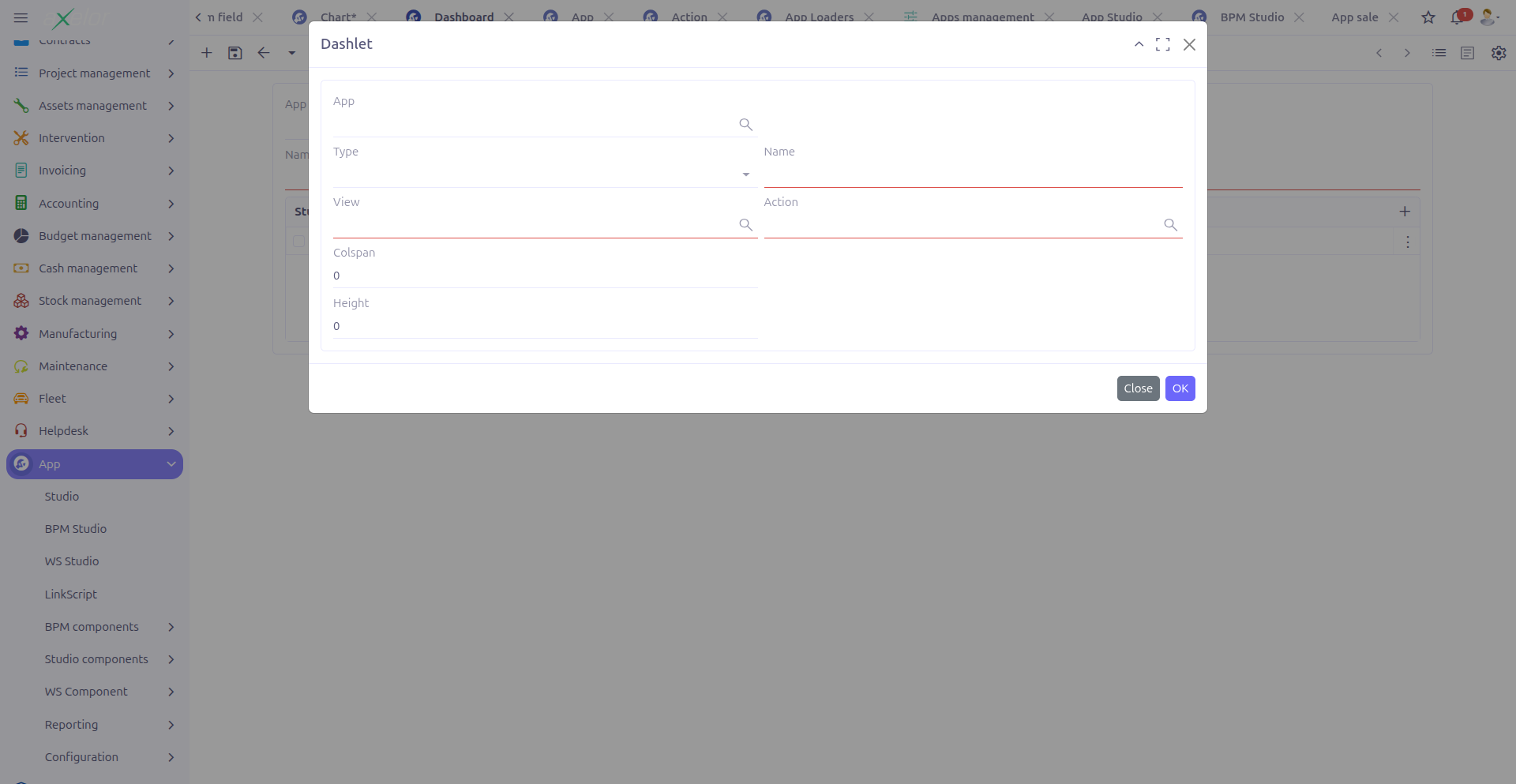
Dashlet Configuration
| Field | Required | Description |
|---|---|---|
Name |
Yes |
Technical name of the dashlet. Must be unique within the dashboard. |
View type |
No |
Type of content displayed. Restricted to three options: chart, grid, or custom. |
Meta view |
Conditional |
Reference to an existing view ( |
Action |
Conditional |
Reference to an action ( |
Colspan |
No |
Width of the dashlet in grid columns (out of 12). Default: 6. Maximum: 12. |
Height |
No |
Fixed height of the dashlet in pixels. Default: 350 when set to 0. |
Can search |
No |
Whether the dashlet includes a search bar. Only shown for grid-type dashlets. |
Pagination limit |
No |
Number of records shown per page. Only shown for grid-type dashlets. |
Sequence |
No |
Display order of the dashlet on the dashboard. Dashlets are ordered by ascending sequence. |
| A dashlet must have either a Meta view or an Action — not both. The form enforces mutual exclusion: when one field has a value, the other is hidden. |
Layout Guidelines
Use the Colspan property to create multi-column layouts:
| Colspan | Layout |
|---|---|
|
Full-width dashlet (one per row) |
|
Half-width dashlet (two per row) |
|
Third-width dashlet (three per row) |
|
Quarter-width dashlet (four per row) |
|
Combine charts and data grids on a single dashboard to create comprehensive overview pages. For example, place a sales trend chart (colspan=8) next to a top customers list (colspan=4). |
Dashlet Types
Chart Dashlet
Displays a Studio Chart or any chart-type MetaView. Use this to embed visual data representations.
View Generation
When a dashboard is saved, Studio automatically generates the following runtime metadata:
-
A
MetaViewof typedashboardcontaining the<dashlet>XML definitions -
One
MetaActionof typeaction-viewfor each dashlet that references a MetaView (dashlets using existing actions reuse them directly)
The generated view and actions are stored in the metaViewGenerated and generatedActions fields of the dashboard entity.
| If all dashlets are removed from a dashboard, the generated MetaView is automatically deleted on save. |
Import and Export
Dashboards support import/export as part of Studio App packaging:
-
Export: Produces XML data with dashboard name, title, model, studioApp reference, and dashlet definitions
-
Import: A two-step process — first imports the dashboard data, then triggers a rebuild to regenerate the MetaView and MetaActions
The rebuild is triggered by a secondary import configuration that calls ImportService.importAppStudioDashboard(), which saves each imported dashboard to invoke the generation logic.
Technical Details
Dashboards are stored in the StudioDashboard entity (com.axelor.studio.db, cacheable).
Key entities:
| Entity | Description |
|---|---|
|
Dashboard definition with title, name, dashlet list |
|
Individual dashlet definition with view type, layout, and data source |
Key services:
-
StudioDashboardServiceImpl.build()— Iterates dashlets, generates action-views using thedashboardActionView.tmpltemplate, creates the dashboard MetaView -
StudioDashboardRepo.save()— Triggersbuild()on every save to regenerate the view -
StudioDashboardRepo.remove()— Cleans up the generated MetaView before removal
The StudioDashlet entity has a unique constraint on (name, studioDashboard), ensuring no duplicate dashlet names within a dashboard.
Related Pages
-
Charts — Create charts to embed in dashboards
-
Studio Apps — Package dashboards in apps
-
App Loaders — Import/export dashboards across environments
-
Studio Overview — Complete feature overview