DMN Import and Export
Introduction
Axelor Studio provides several mechanisms for importing and exporting DMN data:
-
Excel export/import: Transfer decision table rules as Excel spreadsheets
-
DMN XML upload/download: Transfer the complete DMN diagram as XML
-
AppLoader data import/export: Include DMN models in application data packages
Excel Export
Click the Export button in the DMN model form toolbar (or the "Export" button in the editor toolbar) to export all decision tables as an Excel file (.xlsx).
Export Format
The generated Excel file follows this structure:
-
One sheet per decision table: Each sheet is named with the decision ID
-
Header row: Uses the format
{Label}({Id})for both input and output columns, plus an "Annotation" column at the end -
Data rows: Each row contains the input entry values, output entry values, and the rule description (annotation)
-
Column sizing: All columns are auto-sized for readability
| Age(Input_1) | Risk Level(Output_1) | Annotation |
|---|---|---|
< 25 |
High |
Young driver |
[25..65] |
Medium |
Standard |
> 65 |
High |
Senior driver |
| All input and output columns must have labels defined before exporting. Missing labels will cause an error: "Missing input label" or "Missing output label". |
Excel Import
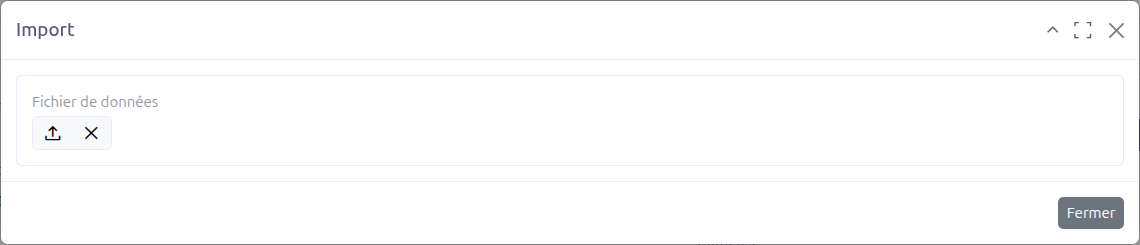
Click the Import button in the DMN model form toolbar (or the "Import" button in the editor toolbar) to import decision table data from an Excel file.
Import Steps
-
Click the Import button to open the import dialog
-
Upload an Excel file (.xlsx or .xls) using the file selector
-
Click Import to process the file
Import Format Requirements
The Excel file must follow the same format as the export:
-
Sheet names: Must match existing decision IDs in the DMN model
-
Row 0: Title row (ignored during import)
-
Row 1: Header row with format
{Label}({Id})matching existing input/output columns -
Row 2+: Data rows containing rule values
Import Behavior
|
Importing data completely replaces all existing rules in the matched decision tables. This operation cannot be undone. |
-
Each sheet is matched to a decision table by decision ID (the sheet name)
-
All existing rules in the matched decision table are removed
-
New rules are created from the import data
-
All imported entries use the Groovy expression language
Import Validation
The import process validates the following:
| Validation | Error Message |
|---|---|
File must be .xlsx or .xls format |
"Data file must be excel file" |
Headers must match existing input/output columns |
"Header is invalid in import file" |
Output columns cannot be empty |
"Output columns can’t be empty in import file" |
DMN XML Upload/Download
The DMN editor toolbar provides raw XML operations for transferring complete diagrams.
Download
Click the download icon in the editor toolbar to export the current diagram as a .dmn XML file. This includes the complete DRD structure, all decision tables, rules, and configuration.
Upload
Click the upload icon in the editor toolbar to upload a .dmn XML file. This replaces the entire current diagram with the contents of the uploaded file.
| Uploading a DMN XML file replaces the entire diagram. Any unsaved changes will be lost. |
| Use XML upload/download for transferring complete DMN models between environments (e.g., from development to staging). Use Excel import/export for bulk editing of decision table rules. |
AppLoader Data Import/Export
DMN models can be included in AppLoader data packages for application deployment and migration.
Data Export Format
The AppLoader exports DMN models as XML with the following structure:
-
Root element:
<wkf-dmn-models> -
Per model: name, description, diagramXml (wrapped in CDATA), metaModel references (by name), jsonModel references (by name), studioApp reference (by code)
Data Import
When importing via AppLoader, DMN models are matched by name (self.name = :name). If a matching model exists, it is updated; otherwise, a new model is created.
The import resolves:
-
MetaModel references by name
-
MetaJsonModel references by name
-
StudioApp references by code
| After importing DMN models via AppLoader, you must deploy each model to make the decisions executable by the Camunda engine. |