Custom Fields
Overview
Custom fields allow you to add new data fields to both custom models and existing standard models. Each field has a data type, display widget, validation rules, and visibility conditions.
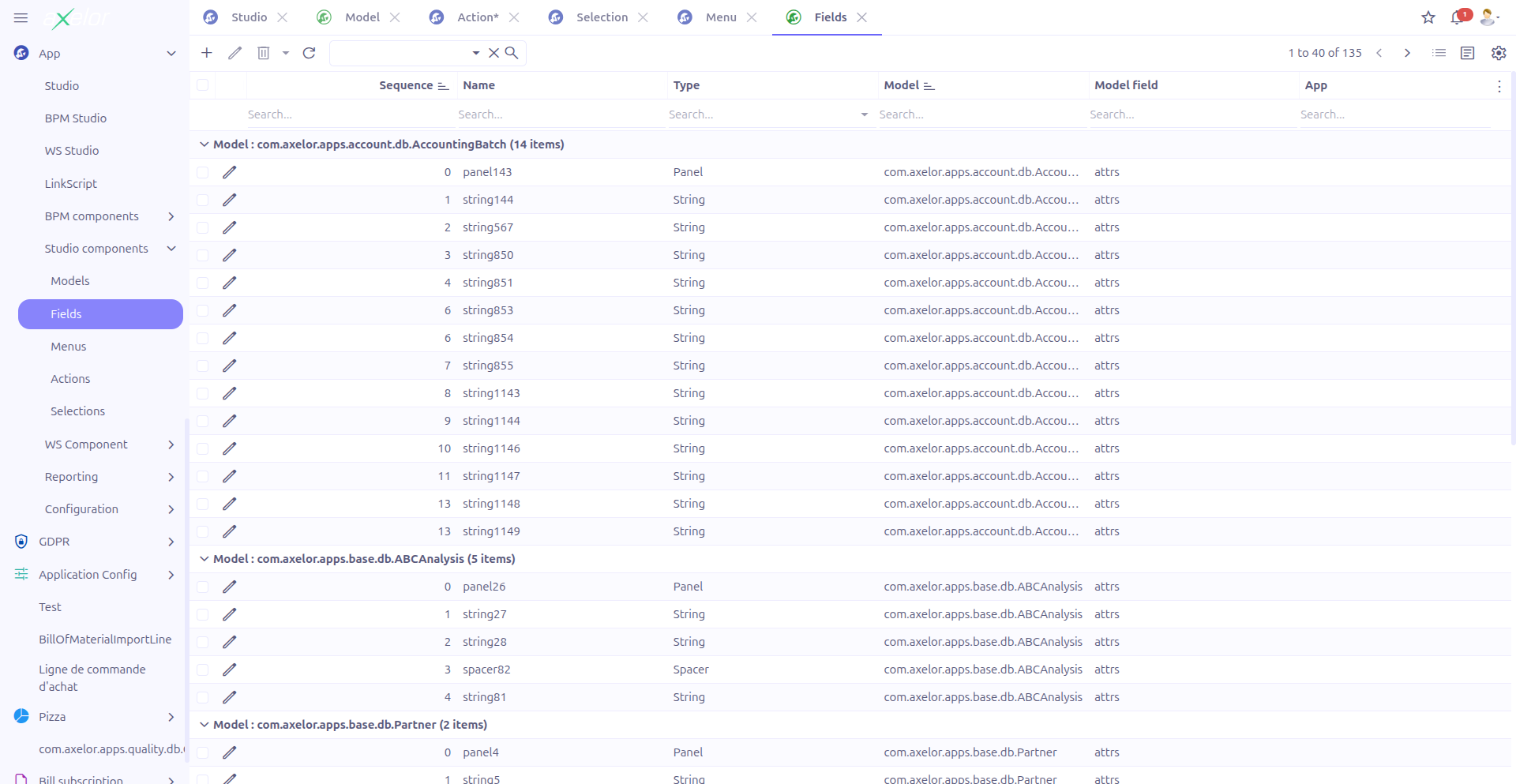
Custom fields are managed from App > Studio components > Fields.
|
The Fields list under Studio components shows only standalone custom fields (those not belonging to a custom model). Fields that belong to a custom model are managed directly from the Custom Model form or the View Builder. |
Field Form
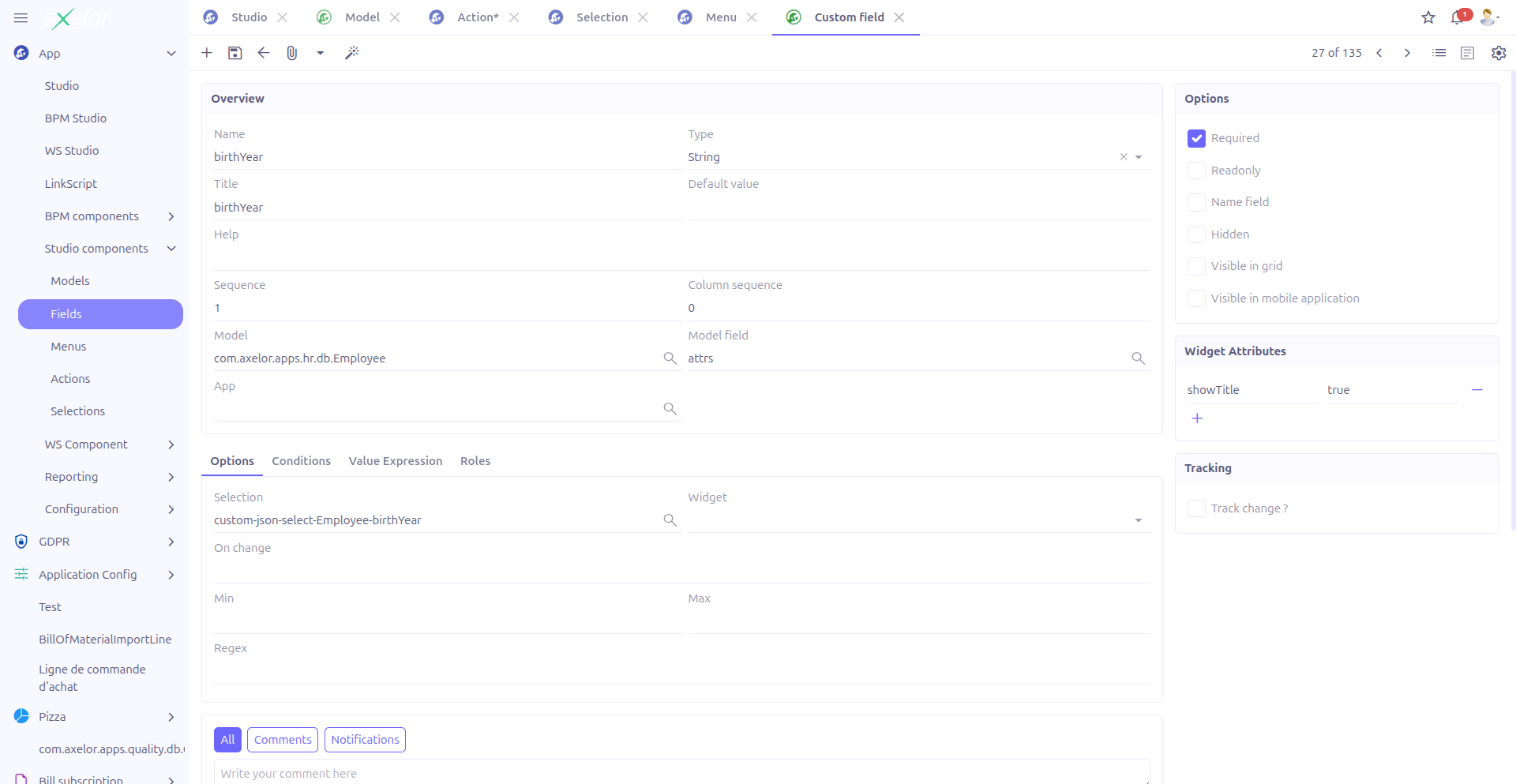
The field form provides the following configuration options:
Basic Properties
| Field | Required | Description |
|---|---|---|
Name (1) |
Yes |
Technical name of the field. Must start with a letter and be unique within its model. The name is automatically normalized (special characters removed, camelCase formatting applied). |
Title (2) |
No |
Display label shown to users. Supports translation. |
Type (3) |
Yes |
Data type of the field. See Field Types below. |
Default value (4) |
No |
Value pre-filled when creating a new record. |
Help (5) |
No |
Tooltip text displayed when the user hovers over the field. |
Sequence (6) |
No |
Order of the field in the form and grid views. |
Studio App
-
Studio App: Associates the field with a Studio App for packaging.
This field is only visible when enableStudioApp is enabled in the configuration.
Field Types
Studio supports the following data types for custom fields:
Basic Field Types
| Type | Description | Available Widgets |
|---|---|---|
String |
Single-line or multi-line text |
Text (default), Email, URL, Password, HTML, CodeEditor |
Integer |
Whole numbers |
Integer (default), Duration, Progress |
Decimal |
Decimal numbers with configurable precision |
Decimal (default), Currency |
Boolean |
True/false checkbox |
Boolean (default), Boolean-switch, InlineCheckbox |
Date |
Date without time |
Date (default) |
DateTime |
Date with time |
DateTime (default) |
Time |
Time without date |
Time (default) |
Relational Field Types
| Type | Description |
|---|---|
Many-to-One (M2O) |
Reference to a single record of another model. Requires a target model to be specified. |
One-to-Many (O2M) |
List of records from another model that reference this record. Requires a target model and a relationship field. |
Many-to-Many (M2M) |
Multiple references to records of another model. Creates a join table between the two models. |
For relational fields, the following additional properties are available:
-
Target model: The model being referenced. When changed, the Form view and Grid view are automatically set to the default views for the target model.
-
Form view / Grid view: Specific views to use when displaying related records. The view selectors are filtered to only show views that match the selected target model.
-
Domain: A filtering expression to restrict selectable records
When you set the field type to String, the Visible in grid property is automatically set to true. For other types, you can manually enable it.
|
Selection Field Type
The Selection type creates a dropdown field backed by a selection list.
-
Selection: Reference to a
MetaSelectorStudioSelectiondefining the available options -
Widget: Choose between
Select(default dropdown),NavSelect(horizontal tabs),RadioSelect(radio buttons),MultiSelect(multi-select),CheckboxSelect(checkboxes), orImageSelect
Validation and Constraints
Min/Max Values
For Integer and Decimal fields, you can set minimum and maximum value constraints:
| Property | Description |
|---|---|
Min size |
Minimum allowed value. Records with values below this threshold will fail validation. |
Max size |
Maximum allowed value. Records with values above this threshold will fail validation. |
|
Use min/max constraints to enforce business rules. For example, set min=0 on a quantity field to prevent negative values, or set max=100 on a percentage field. |
Decimal Precision
For Decimal fields, configure the number format:
| Property | Description |
|---|---|
Precision |
Total number of significant digits (before and after the decimal point). |
Scale |
Number of digits after the decimal point. |
For example, a field with precision=10 and scale=2 can store values like 12345678.90.
Required and Read-only
-
Required: When checked, the field must be filled before the record can be saved.
-
Read-only: When checked, the field is displayed but cannot be edited.
These can also be set dynamically using conditional expressions (requiredIf, readonlyIf).
Visibility and Conditions
Custom fields support conditional visibility and behavior through expressions:
| Property | Description | Example |
|---|---|---|
Show if |
Field is visible only when the expression is true |
|
Hide if |
Field is hidden when the expression is true |
|
Required if |
Field becomes required when the expression is true |
|
Read-only if |
Field becomes read-only when the expression is true |
|
See Conditional Expressions for the complete syntax reference.
Event Handlers
Advanced Properties
Widget Attributes
The widgetAttrs property accepts a JSON object for configuring additional widget-specific attributes that are not exposed as standard form fields.
Example:
{"showBars": true, "max": 100}Visibility in Grid
The Visible in grid checkbox controls whether the field appears as a column in grid (list) views. By default, new fields are visible in the grid.
Name Field
The Name field checkbox marks this field as the record’s display name. When a record of this custom model is referenced from another model (M2O), this field’s value is shown.
Context Fields
Context fields allow you to create conditional sub-forms where certain fields are only visible based on a parent field’s value:
-
Context field: The parent field whose value determines visibility
-
Context field target: The target model of the context field
-
Context field target name: The display field of the target model
-
Context field value: The specific value that triggers visibility
Technical Details
Custom fields are stored in the MetaJsonField table. The Studio module extends this entity with additional fields:
| Field | Type | Description |
|---|---|---|
|
M2O: StudioApp |
Studio App grouping |
|
M2O: MetaSelect |
Linked selection definition |
|
Large String |
Inline selection definition text |
|
Boolean |
Whether this field uses a selection |
|
Computed |
Computed unique model identifier |
A unique constraint is enforced on the combination of name and uniqueModel (computed field), ensuring that field names are unique within a given model.
The MetaJsonField entity tracks over 30 fields for change auditing, including name, title, type, defaultValue, widget, help, all condition properties (showIf, hideIf, requiredIf, readonlyIf), and relational configuration (targetModel, gridView, formView).
Related Pages
-
Visual View Builder — Add fields visually with drag and drop
-
Custom Models — The models that contain custom fields
-
Selections — Selection lists used by dropdown fields
-
Conditional Expressions — Show if, hide if, required if syntax
-
Actions — Actions triggered by onChange and onClick