Apps Management
Overview
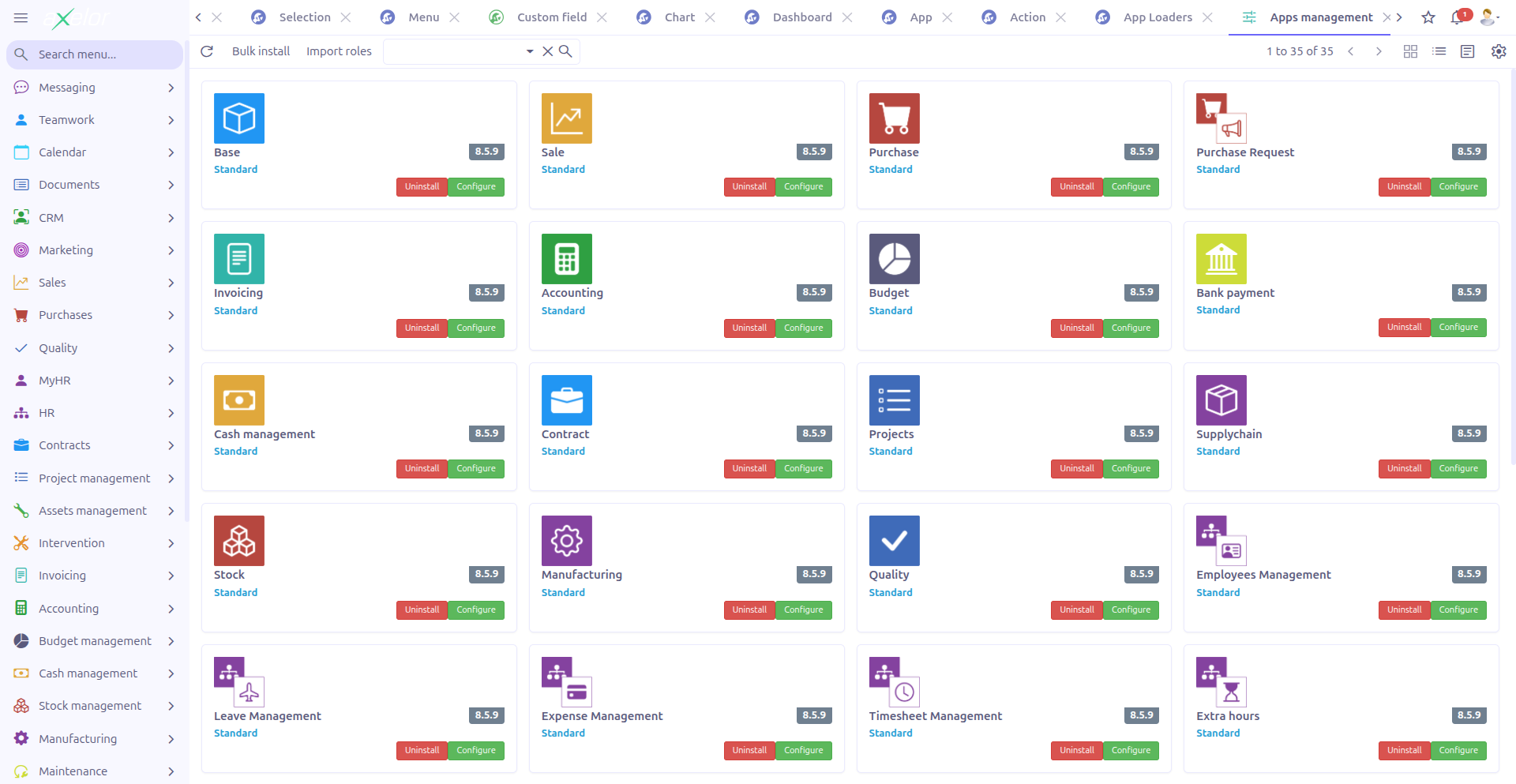
The Apps Management screen is the central hub for managing all applications in your Axelor instance — both standard applications (delivered with the platform) and custom applications (created through Studio Apps). It provides install, uninstall, configure, and data import capabilities.
Apps Management is accessed from Administration > Apps management.
|
Custom Studio Apps appear in this list only when their Show in app view ( |
App Views
Cards View
The default view displays apps as cards with visual type badges:
| Badge Color | App Type |
|---|---|
Blue |
Standard |
Orange |
Addons |
Brown |
Enterprise |
Red |
Pro |
Purple |
Custom |
Gray |
Others |
Each card shows the app image, name, code, description, and current status (installed or not).
Available buttons on each card:
-
Install — Installs the app (shown when not active)
-
Configure — Opens the app-specific configuration form (shown when active)
-
Export — Exports the app (shown when active, for Studio Apps only)
-
Uninstall — Uninstalls the app (shown when active)
-
Delete — Deletes the app (shown when not active, for Studio Apps only)
The cards toolbar provides:
-
Bulk install — Install multiple apps at once
-
Import roles — Import roles for all installed apps
Install and Uninstall
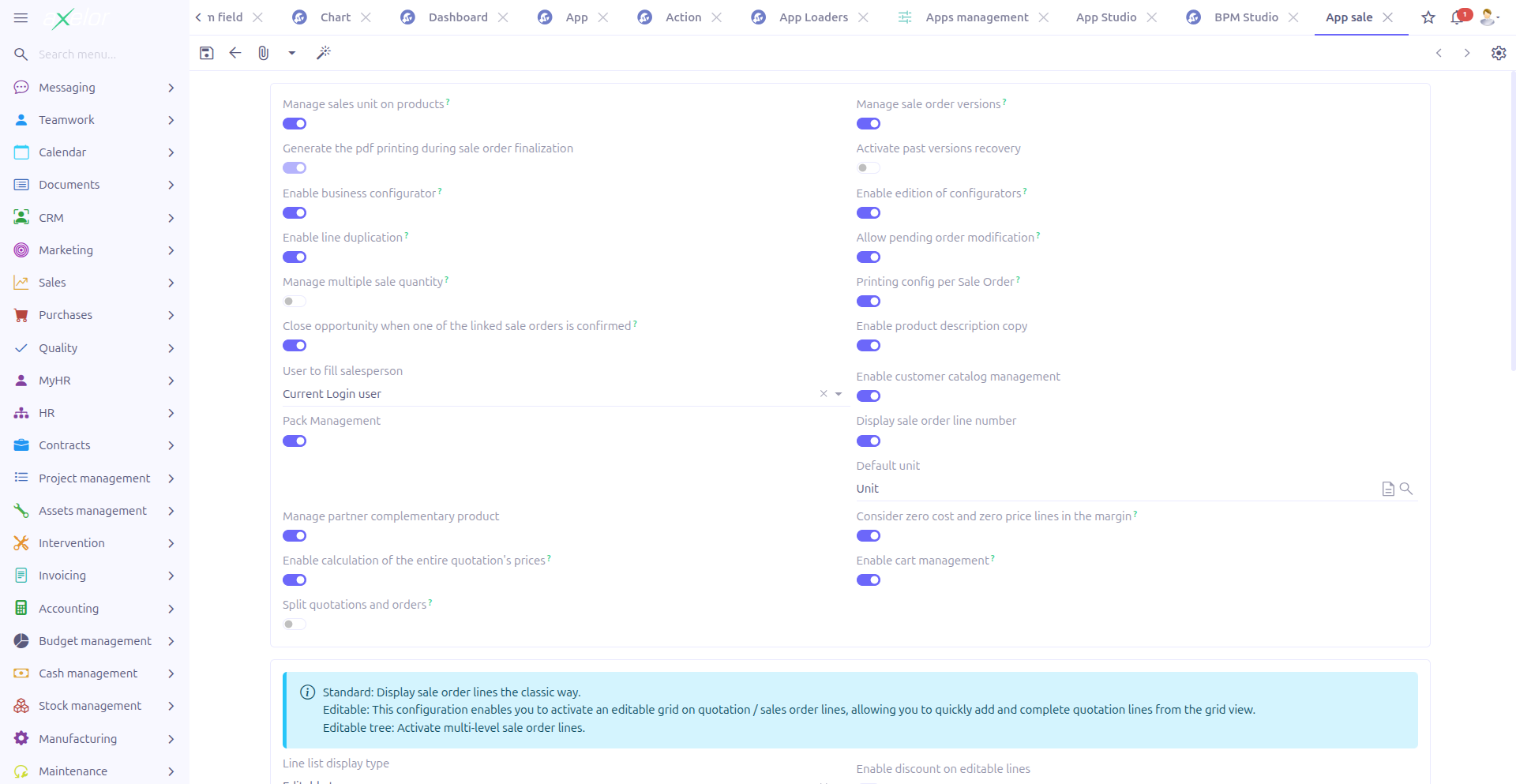
Configure
The Configure button opens the app-specific configuration form. Each app type has its own configuration entity and form:
-
Studio →
AppStudioconfiguration (see Configuration) -
BPM →
AppBpmconfiguration -
Other apps may have their own configuration forms
The Configure button is only available when the app is installed (active).
Bulk Install
The Bulk install button in the cards toolbar opens a dialog for installing multiple apps at once:
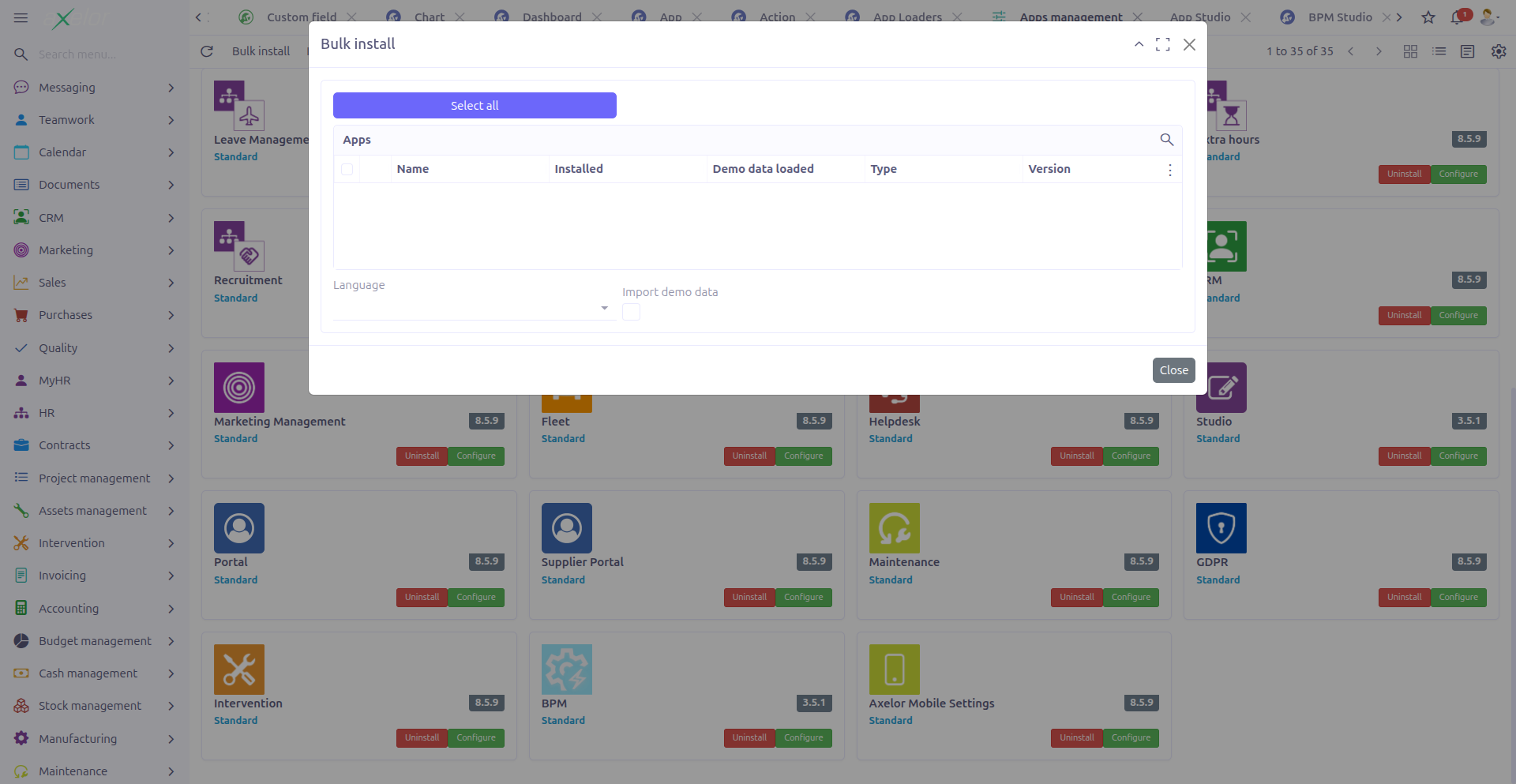
| Field | Description |
|---|---|
Apps |
Select multiple apps to install (M2M selector) |
Language |
Language for the installed apps (selection: |
Import demo data |
When checked, demo data is imported during installation |
Click Install in the dialog to start the bulk installation process.
Demo Data Import
The Import demo data button imports sample/reference data for the app. This is useful for testing and evaluation purposes.
Demo data import is only available in non-production environments (application.mode != 'prod'). This button is hidden in production mode.
|
Roles Import
Two options for importing application roles:
-
Import roles (form sidebar) — Imports roles for the current app
-
Import roles (cards toolbar) — Imports roles for all installed apps
Role import loads predefined role and permission configurations associated with the app.
Technical Details
Apps are stored in the App entity (com.axelor.studio.db):
| Field | Type | Description |
|---|---|---|
|
String (required) |
Display name (translatable) |
|
String (required, unique) |
Technical identifier |
|
Boolean |
Whether the app is currently installed |
|
String (selection) |
App type: standard, addons, enterprise, pro, custom, others |
|
String |
Application version |
|
Boolean |
Whether created through Studio |
|
Boolean |
Marks experimental apps |
|
String (selection) |
Preferred language |
|
Boolean |
Whether initial data has been loaded |
|
Boolean |
Whether demo data has been loaded |
|
Boolean |
Whether roles have been imported |
|
M2M: App (self-referencing) |
Required dependencies |
|
Integer |
Installation priority order |
|
Boolean |
Whether to show in Apps Management (for custom apps) |
The domain filter for the Apps Management view:
self.isCustom = null OR self.isCustom = false OR (self.isCustom = true AND self.isInAppView = true)This ensures only standard apps and custom apps with isInAppView=true are displayed.
Key backend services:
-
AppController.installApp()— Installs the app with dependency resolution -
AppController.uninstallApp()— Uninstalls the app -
AppController.configure()— Opens the app-specific configuration form -
AppController.importDataDemo()— Imports demo data (non-prod only) -
AppController.bulkInstall()— Installs multiple apps -
AppController.importRoles()/importAllRoles()— Imports role configurations
Related Pages
-
Studio Apps — Create custom apps through Studio
-
Configuration — Studio-specific configuration
-
App Loaders — Import/export apps as files
-
Studio Overview — Complete feature overview