Custom Models
Overview
Custom Models (also called JSON models) allow you to create entirely new data entities through the Studio interface, without writing any Java or XML code. Each custom model gets its own form view, and optionally a menu entry for navigation.
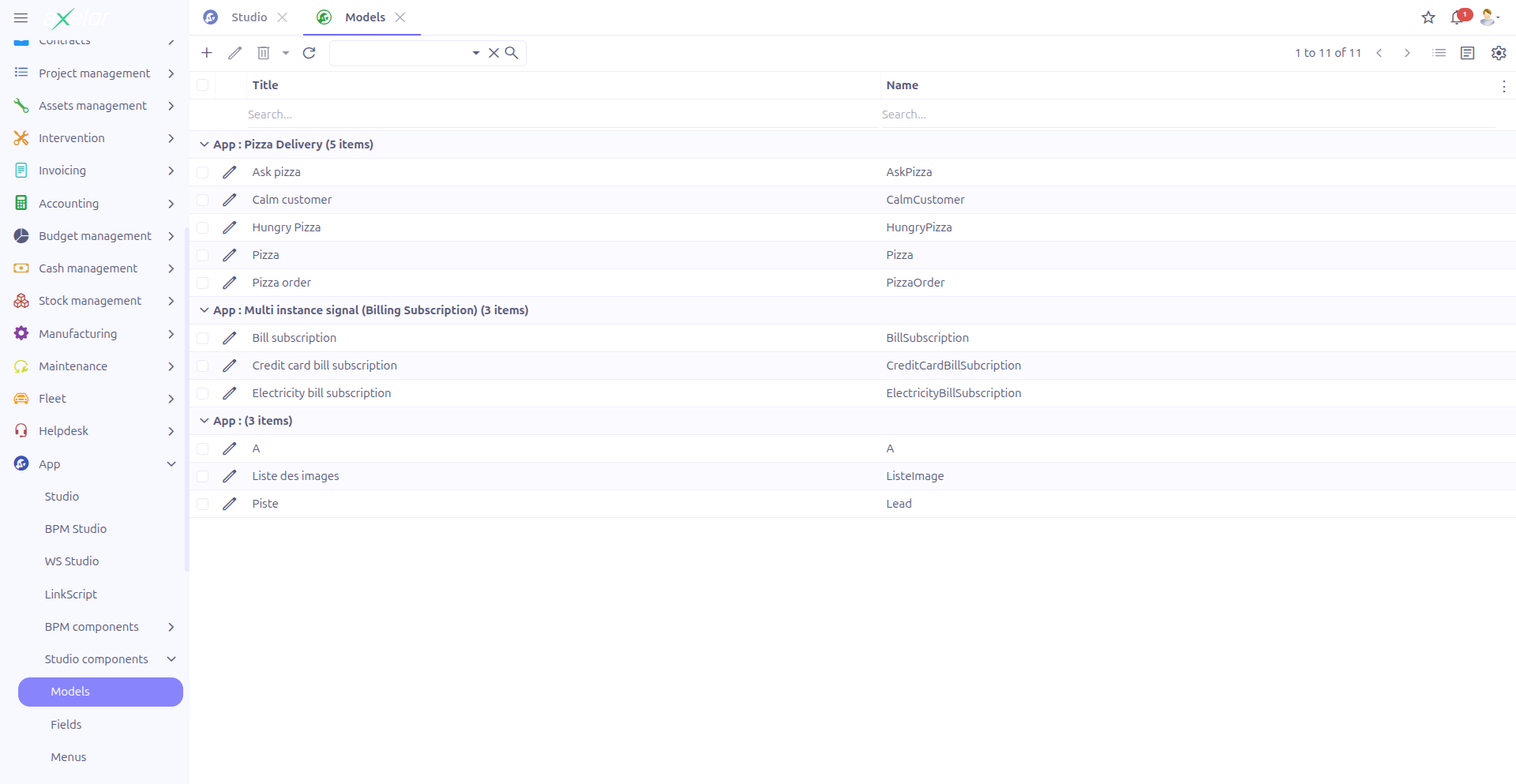
Custom models are managed from App > Studio components > Models.
Creating a Custom Model
Using the Models List
Navigate to App > Studio components > Models and click New to create a model directly from the list view.
Using the View Builder
Alternatively, open the Visual View Builder (App > Studio), ensure you are in Custom Model mode, and click New in the toolbar.
Model Form
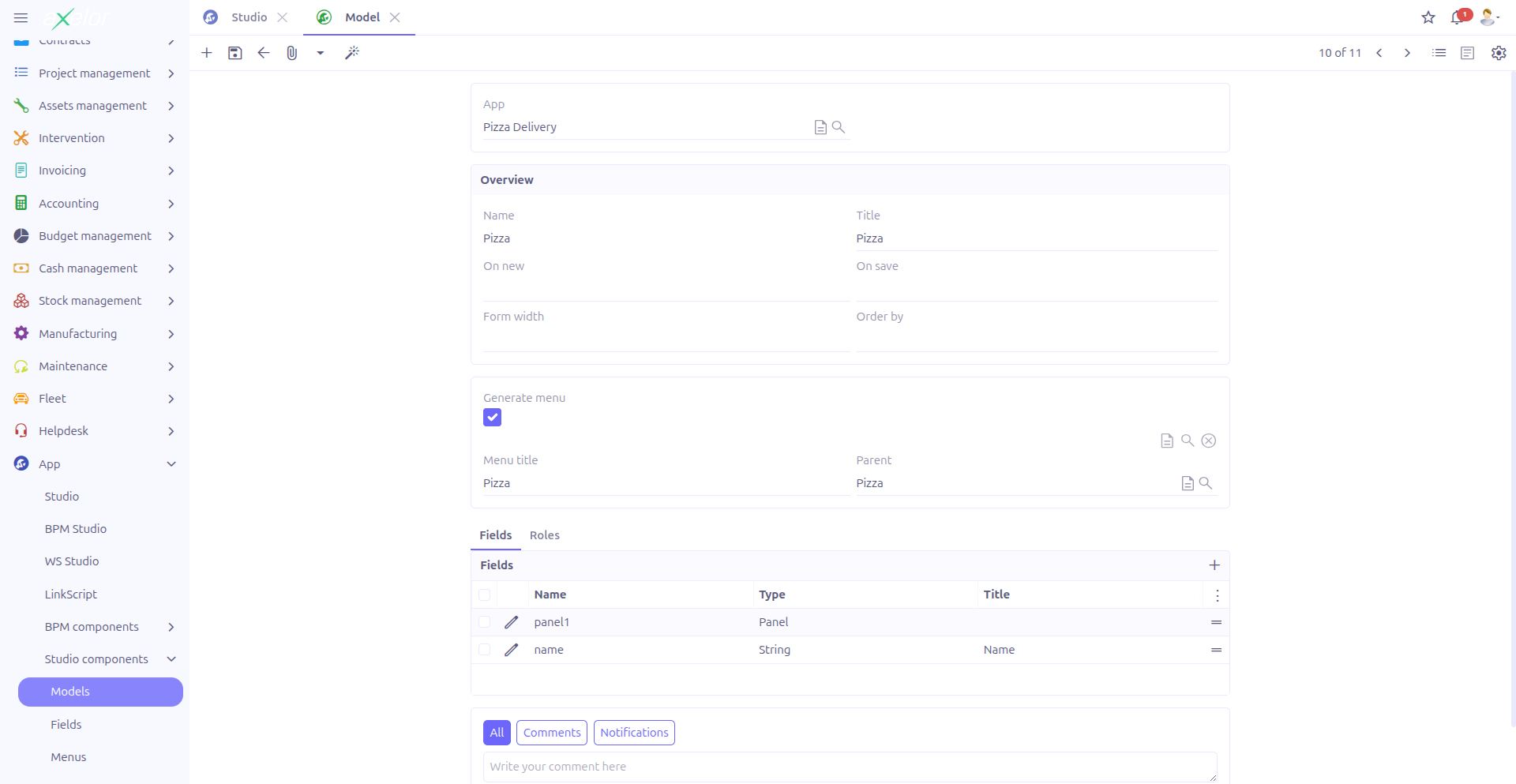
The custom model form contains the following fields:
Basic Information
| Field | Required | Description |
|---|---|---|
Name (1) |
Yes |
Technical name of the model. Must start with an alphabetic character. Validated by |
Title (2) |
No |
Display name shown to users in the interface. Supports translation. |
Form width (3) |
No |
Width of the generated form view (e.g., |
Order by (4) |
No |
Default sort order for records in the grid view. |
On new (5) |
No |
Action executed when creating a new record of this model. |
On save (6) |
No |
Action executed when saving a record of this model. |
| The model name must start with a letter (a-z or A-Z). Names starting with numbers or special characters are rejected by the validation. |
Studio App Grouping
-
Studio App (7): Associates the model with a Studio App for packaging purposes.
|
The Studio App field is only visible when the |
Menu Generation

-
Generate menu (8): When checked, a menu entry is automatically created for this model, allowing users to access it from the navigation.
-
Menu title (9): Title displayed in the menu (visible when Generate menu is checked).
-
Parent menu (10): Parent menu under which the generated menu entry is placed.
When you uncheck Generate menu, the associated StudioMenu record is automatically removed.
Fields
The Fields panel displays the list of custom fields belonging to this model.
-
Fields are ordered by their sequence number
-
You can reorder fields by dragging them (canMove is enabled)
-
Click New to add a field directly from the model form, or use the View Builder for a visual approach
Naming Rules
Custom model names follow strict validation rules:
-
Must start with an alphabetic character (a-z or A-Z)
-
The name is processed through
JsonFieldService.checkName()for sanitization -
Must be unique across all custom models
|
Use descriptive, PascalCase names for your custom models (e.g., |
Technical Details
Custom models are stored in the MetaJsonModel table, which is an extension of the standard Axelor meta framework.
| Entity Field | Type | Description |
|---|---|---|
|
String |
Technical name of the model |
|
String |
Display title (translatable) |
|
Boolean |
Whether a menu entry is auto-generated |
|
M2O: StudioMenu |
The associated menu entry (when menu generation is enabled) |
|
M2O: StudioApp |
The Studio App this model belongs to |
|
String |
Form view width setting |
|
String |
Default grid sort order |
|
String |
Action triggered on record creation |
|
String |
Action triggered on record save |
|
Boolean |
Whether to display BPM process tracking on this model |
Custom model data is stored as JSON in the attrs field of standard Axelor records, with the field definitions in MetaJsonField.
Related Pages
-
Visual View Builder — Design forms visually
-
Custom Fields — Field types, widgets, and validation
-
Menus — Menu management for custom and standard models
-
Studio Apps — Packaging models into applications