Process Instance Modification
Introduction
This feature allows administrators to manually modify the state of a running process instance using a YAML-based script. It is useful for handling exceptional situations where instances need to be moved to different activities, restarted, or cancelled.
See also the Camunda documentation for more details on the underlying engine capabilities.
Access
Navigate to: Application Builder > BPM components > Technical monitoring > Process instance modification
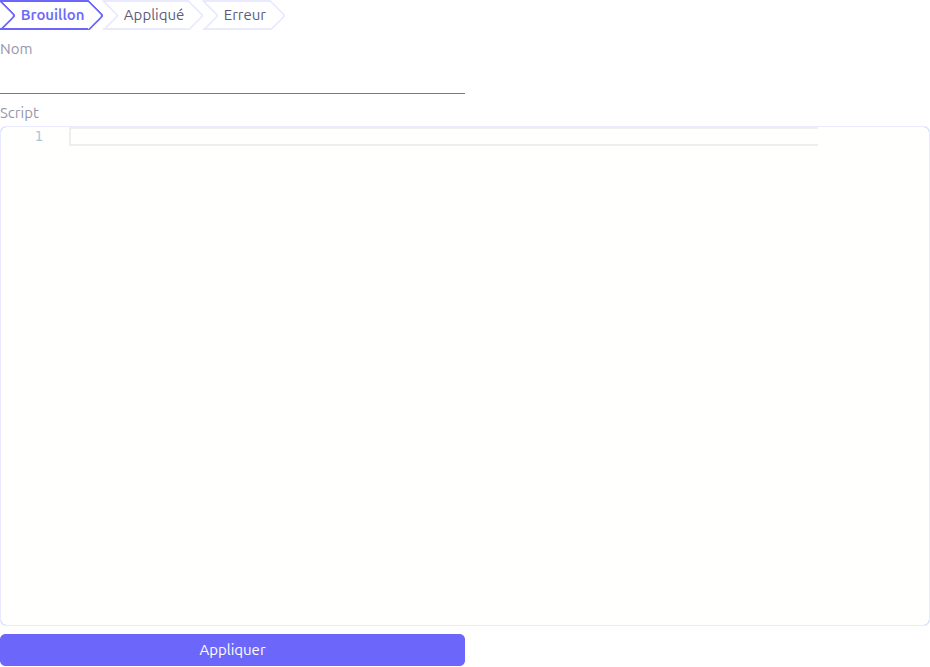
Workflow
Creating a Modification Script
-
Enter a Name (1) for the modification.
-
The Status (2) is displayed as a navigation bar with three states: Draft, Applied, Error.
-
Write the YAML script in the Script field (3), which uses a code editor with YAML syntax highlighting.
Available Operations
The following modifications can be applied to process instances:
| Operation | Description |
|---|---|
|
Start execution before the specified activity |
|
Start before an activity and submit a process variable |
|
Start execution after the specified activity |
|
Start after an activity and submit a process variable |
|
Start a specific transition |
|
Start a transition and submit a process variable |
|
Cancel all activity instances for the specified activity |
|
Cancel a specific activity instance |
|
Cancel a specific transition instance |
Script Syntax
The script follows a YAML structure:
migration:
  - instance:
      name:
        - "process-instance-1-id"
        - "process-instance-2-id"
      operations:
        - cancelAll("activity-1-id")
        - startBefore("activity-2-id")
  - instance:
      name:
        - "process-instance-3-id"
      operations:
        - cancelAll("activity-3-id")
- startAfter("activity-4-id","var-name","var-value")| You need the process instance ID and the activity IDs to use this feature. These can be found in the Process Instances technical monitoring view. |
Technical Details
WkfProcessUpdate Entity
| Field | Type | Description |
|---|---|---|
|
String (required) |
Name identifying the modification script |
|
Integer (default: 1) |
Current status of the modification. Values: |
|
Large String |
YAML script containing the modification operations |
Status Lifecycle
The status follows a simple lifecycle:
-
Draft (1) — Initial state when the script is created or uploaded
-
Applied (2) — Set when the script has been executed successfully against all targeted process instances
-
Error (3) — Set when any operation in the script fails during execution
| Once a script is applied or errors, you can modify and re-apply it. The status will update accordingly. |
Backend Services
-
ProcessInstanceModificationController.executeScript()— Parses the YAML script and executes the defined operations against the Camunda process engine -
ProcessInstanceModificationController.generateScript()— Generates a YAML script from an uploaded operations file -
ProcessInstanceModificationController.export()— Exports the current script as a downloadable YAML file
Related Pages
-
Process Instances — View and manage process instances (find instance IDs and activity IDs)
-
BPM Migration — Migrate process instances between model versions
-
BPM Overview — Complete BPM feature overview