Studio Configuration
Overview
The Studio configuration page allows administrators to control global Studio behavior.
How to Access
The configuration is accessed through the App Management system:
-
Go to Administration > Apps management
-
Find the Studio application card or row
-
Click Configure (available only when the Studio app is installed)
The configuration form cannot be deleted, duplicated, or created manually — only one configuration record exists per application instance.
Configuration Options
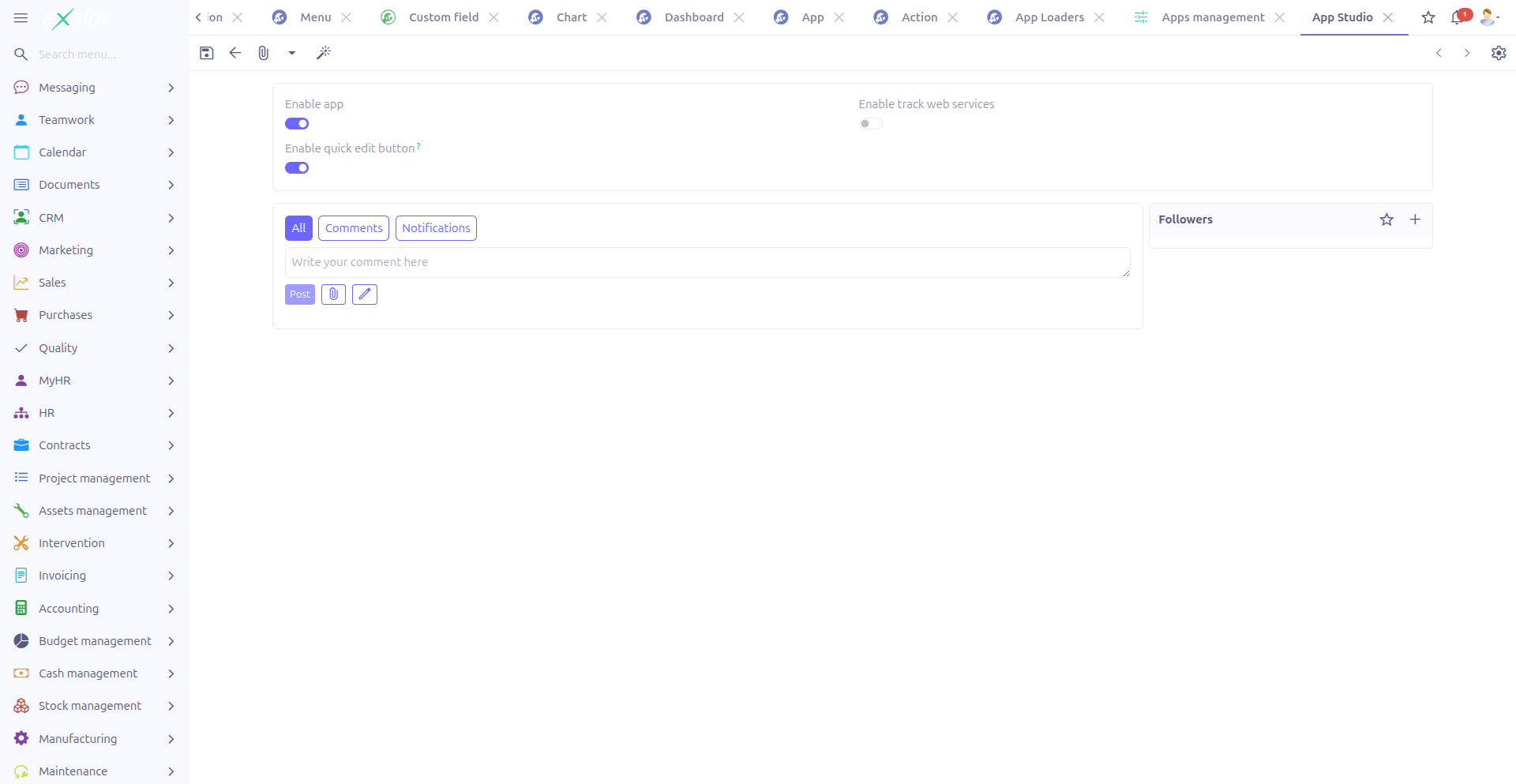
The configuration form provides the following settings:
Enable Studio App (1)
-
Field:
enableStudioApp -
Type: Boolean switch
-
Default:
true
When enabled, the Studio App feature is active. This has the following effects on the application:
-
The StudioApp field appears on all Studio component forms (models, fields, menus, actions, selections, charts, dashboards), allowing you to group components under a specific Studio App.
-
The Apps menu entry under App > Configuration > Apps is visible.
-
The App Loaders menu entry under App > Configuration > App Loaders is visible.
-
Grid views for models, fields, and other components display the StudioApp column and allow grouping by app.
When disabled:
-
The StudioApp field is hidden across all Studio forms and grids.
-
The Apps and App Loaders menu entries are hidden from the Configuration sub-menu.
-
All Studio components are managed without App grouping.
|
Disable this option if you do not need to package customizations into separate applications. This simplifies the interface by removing the StudioApp field from all forms. |
Enable Track Web Service Call (2)
-
Field:
enableTrackWebServiceCall -
Type: Boolean switch
-
Default:
false
When enabled, web service calls made through the WS Connector are tracked and logged for debugging and auditing purposes.
|
Enabling web service call tracking may impact performance in high-volume environments. Enable this option primarily for debugging or auditing purposes. |
Technical Details
The configuration is stored in the AppStudio entity (com.axelor.studio.db.AppStudio), which has a one-to-one relationship with the base App entity.
| Field | Type | Default | Description |
|---|---|---|---|
|
Boolean |
|
Controls visibility of StudioApp grouping across the Studio UI |
|
Boolean |
|
Enables logging of WS Connector calls |
The enableStudioApp setting is read by all Studio views via the configuration expression:
__config__.app?.getApp('studio')?.getEnableStudioApp()This expression is evaluated in showIf conditions on the studioApp field panels across all Studio component forms (MetaJsonModel, MetaJsonField, StudioMenu, StudioAction, StudioSelection, StudioChart, StudioDashboard, MetaAction).
Related Pages
-
Studio Apps — Packaging customizations into installable applications
-
App Loaders — Import and export Studio Apps across environments
-
Studio Overview — Complete feature overview