Actions
Overview
Studio Actions allow you to define business logic that can be triggered from menus, buttons, or field events. Axelor Studio supports five action types, each designed for a specific use case: creating records, updating data, running scripts, opening views, and sending emails.
Actions are managed from App > Studio components > Actions.
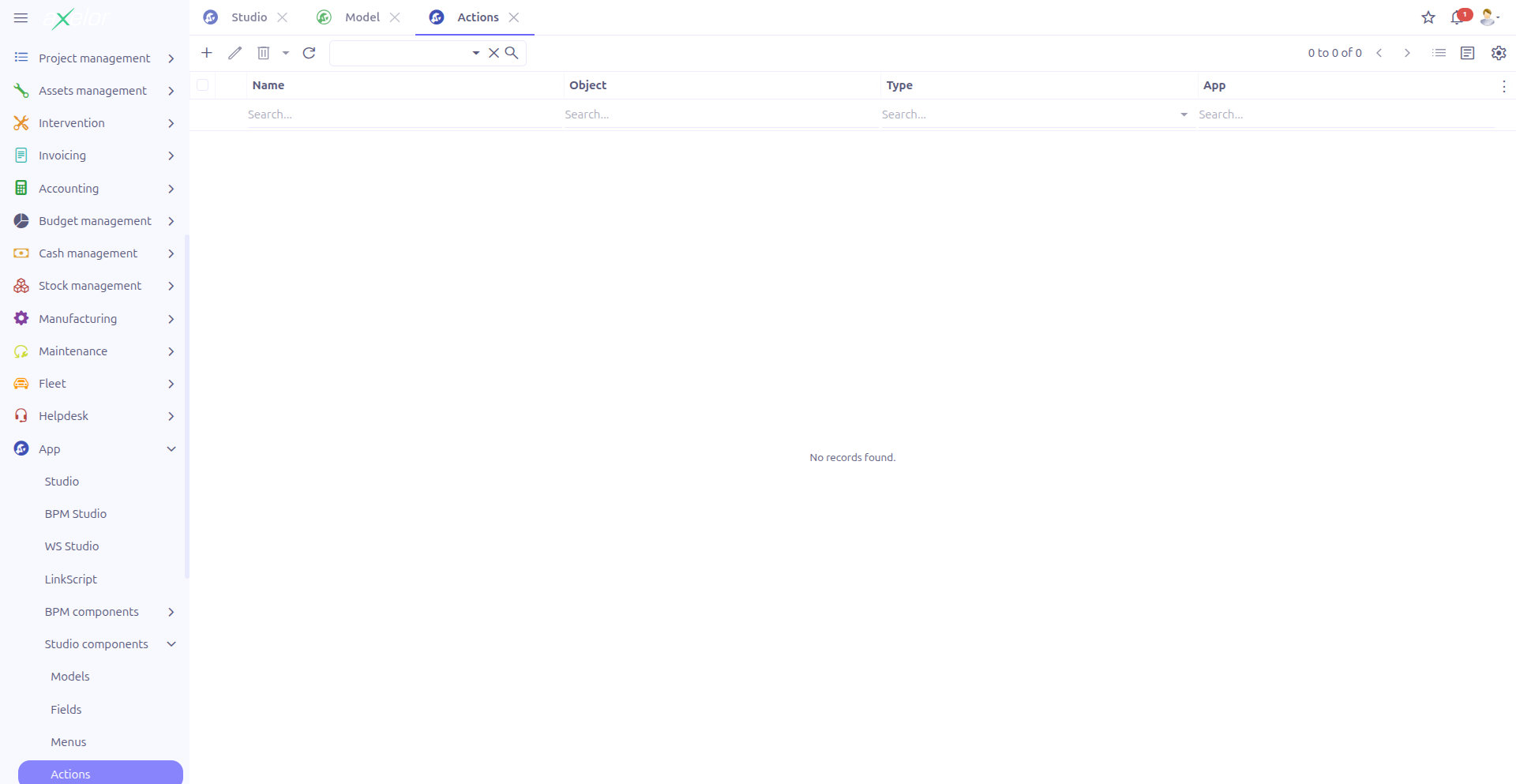
|
The Actions list filters out menu-bound actions by default ( |
Creating an Action
Navigate to App > Studio components > Actions and click New.
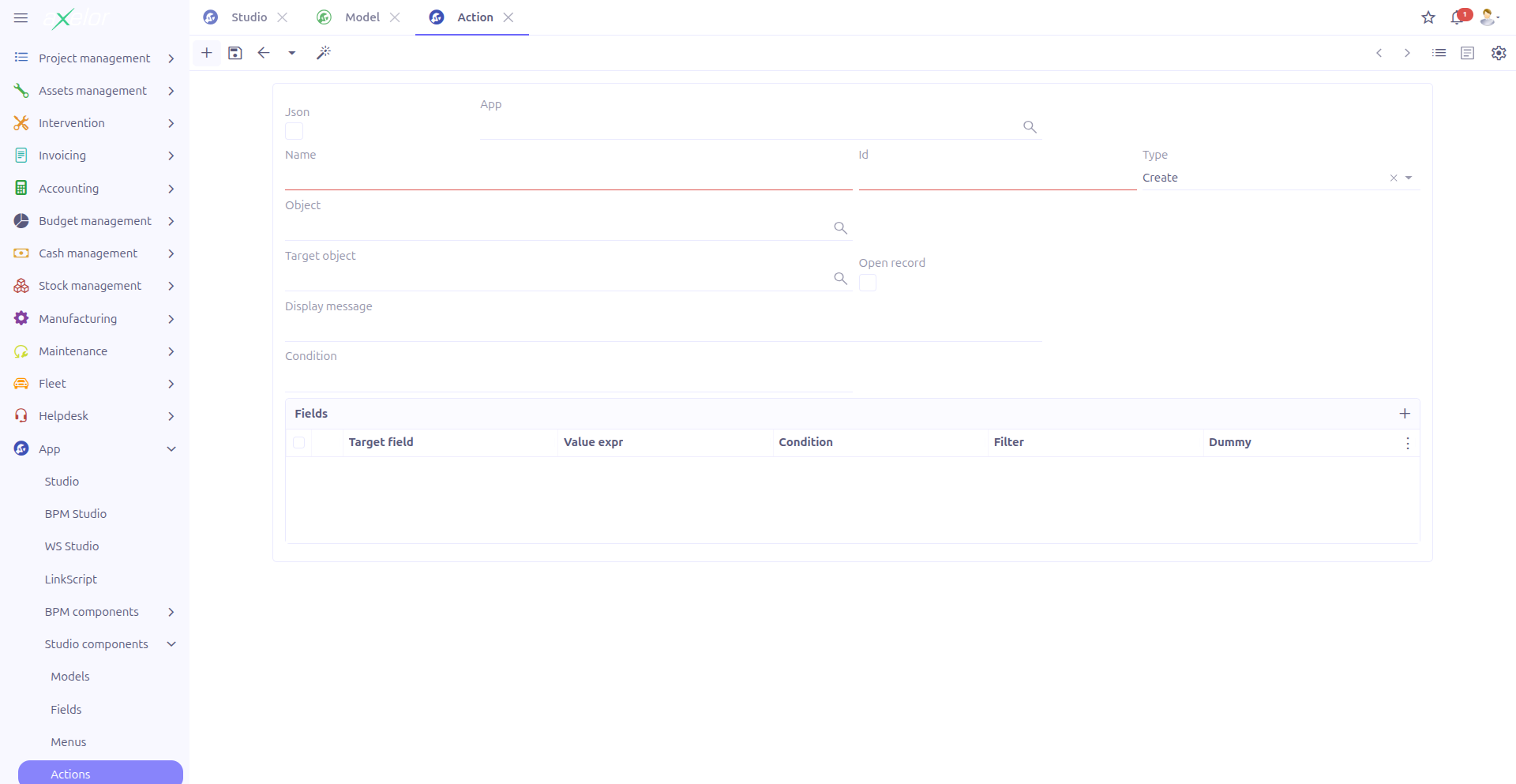
Common Fields
| Field | Required | Description |
|---|---|---|
Name (1) |
Yes |
Technical name of the action. |
Type (2) |
Yes |
Action type: Create, Update, Script, View, or Email. See sections below. |
Is JSON (3) |
No |
Toggle between custom (JSON) models and standard models for the target. |
Model (4) |
Conditional |
The data model this action operates on. Required for Create, Update, and Script types. Uses a ref-text widget. |
XML ID (5) |
No |
Unique XML identifier for import/export. |
Studio App (6) |
No |
Associates the action with a Studio App. |
The form dynamically shows different fields based on the selected Type.
Action Types
Create (Type 0)
Creates a new record in a specified model with pre-filled field values.
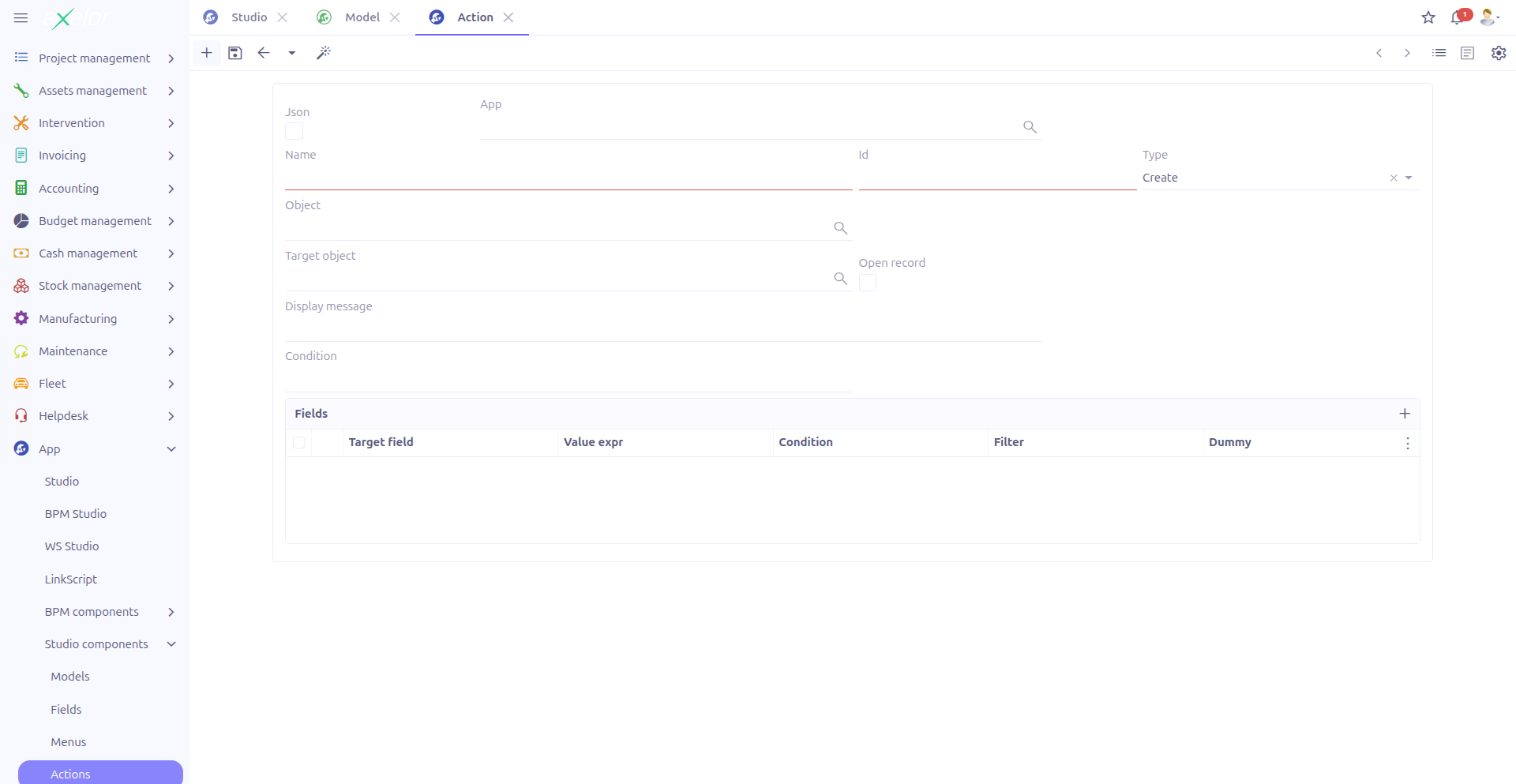
| Field | Description |
|---|---|
Target model |
The model in which the new record will be created. |
Open record |
When checked, the newly created record is opened in a form view after creation. |
Display message |
An optional message displayed to the user after the record is created. |
Condition |
A Groovy expression that must be true for the action to execute. |
Lines |
Field value assignments. Each line maps a target field to a value (static, field reference, or expression). |
Action Lines
Each action line defines a field assignment:
-
Target field: The field in the target model to populate (MetaField or MetaJsonField)
-
Value: Static value, field reference from the source model, or a Groovy expression
-
Condition: Optional condition for this specific line
-
Sub-lines: Nested assignments for relational fields
Update (Type 1)
Updates existing records in a model based on conditions.
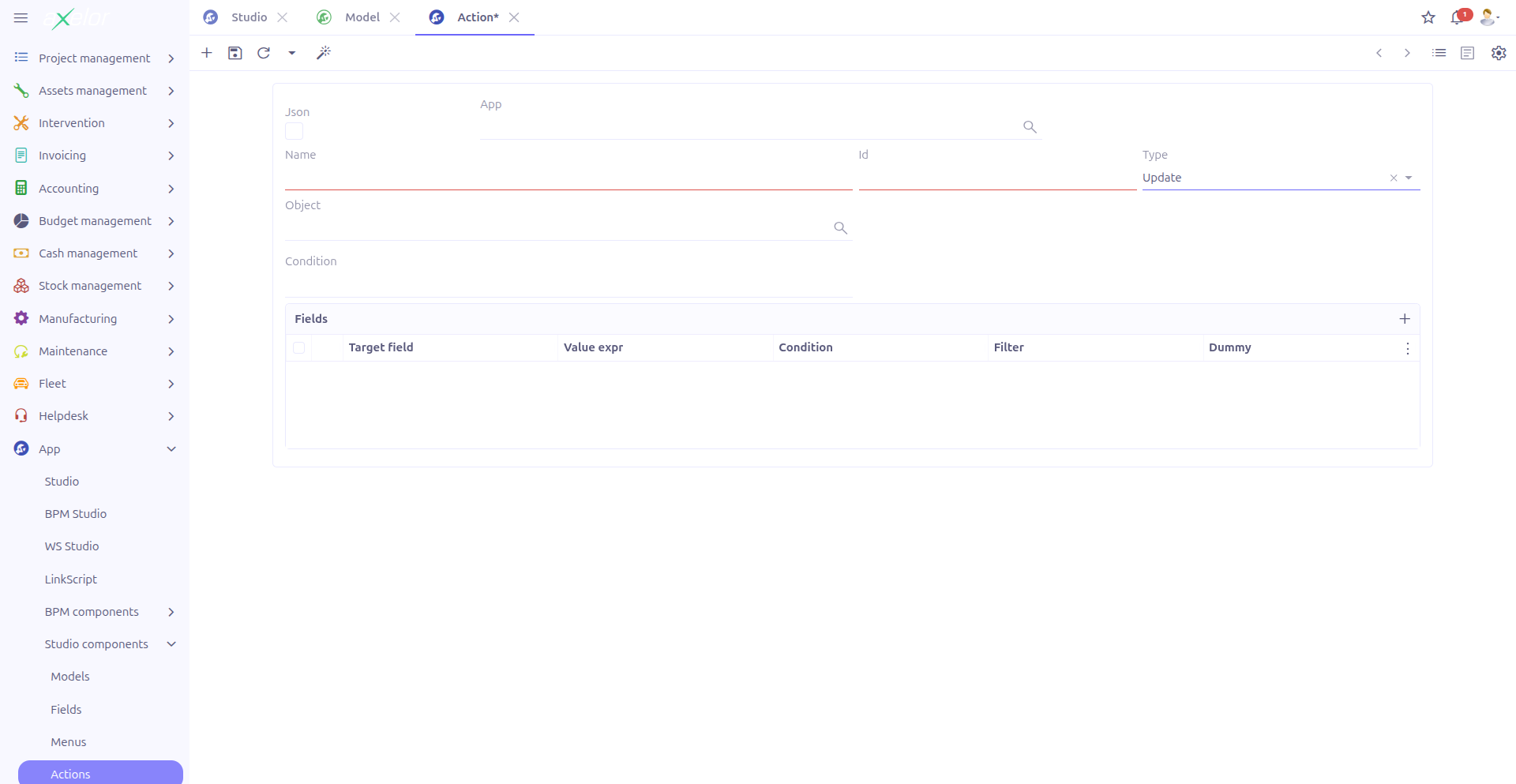
| Field | Description |
|---|---|
Model |
The model whose records will be updated. |
Condition |
A Groovy expression that determines which records are affected. |
Lines |
Field value assignments, same structure as Create action lines. |
| Update actions without a condition will affect all records of the specified model. Always define a condition to limit the scope of updates. |
Script (Type 2)
Executes a custom Groovy script for advanced business logic.
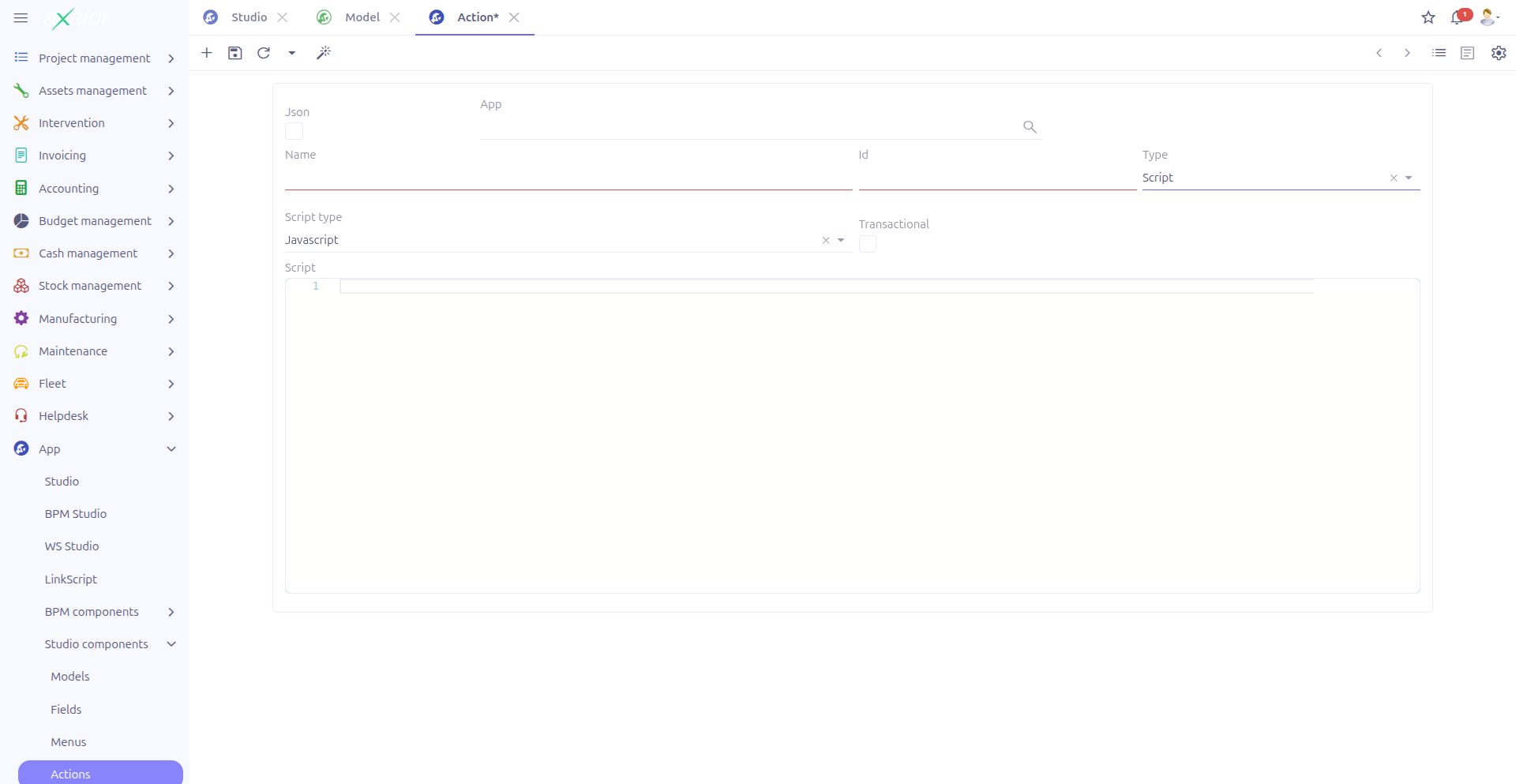
| Field | Description |
|---|---|
Script type |
The scripting language: Javascript (0) or Groovy (1). |
Transactional |
When checked, the script runs within a database transaction. If the script fails, all changes are rolled back. |
Script text |
The Groovy script code, edited using a CodeEditor widget with syntax highlighting. |
|
Use the Script type for complex business logic that cannot be expressed with simple Create or Update actions. Examples include: conditional calculations, multi-step data transformations, or integration with external services. |
Example Groovy script:
// Calculate total amount from order lines
def total = 0
record.orderLines?.each { line ->
    total += (line.quantity ?: 0) * (line.unitPrice ?: 0)
}
$response.setValue("totalAmount", total)
View (Type 3)
Opens a specific view with optional context parameters and domain filtering.
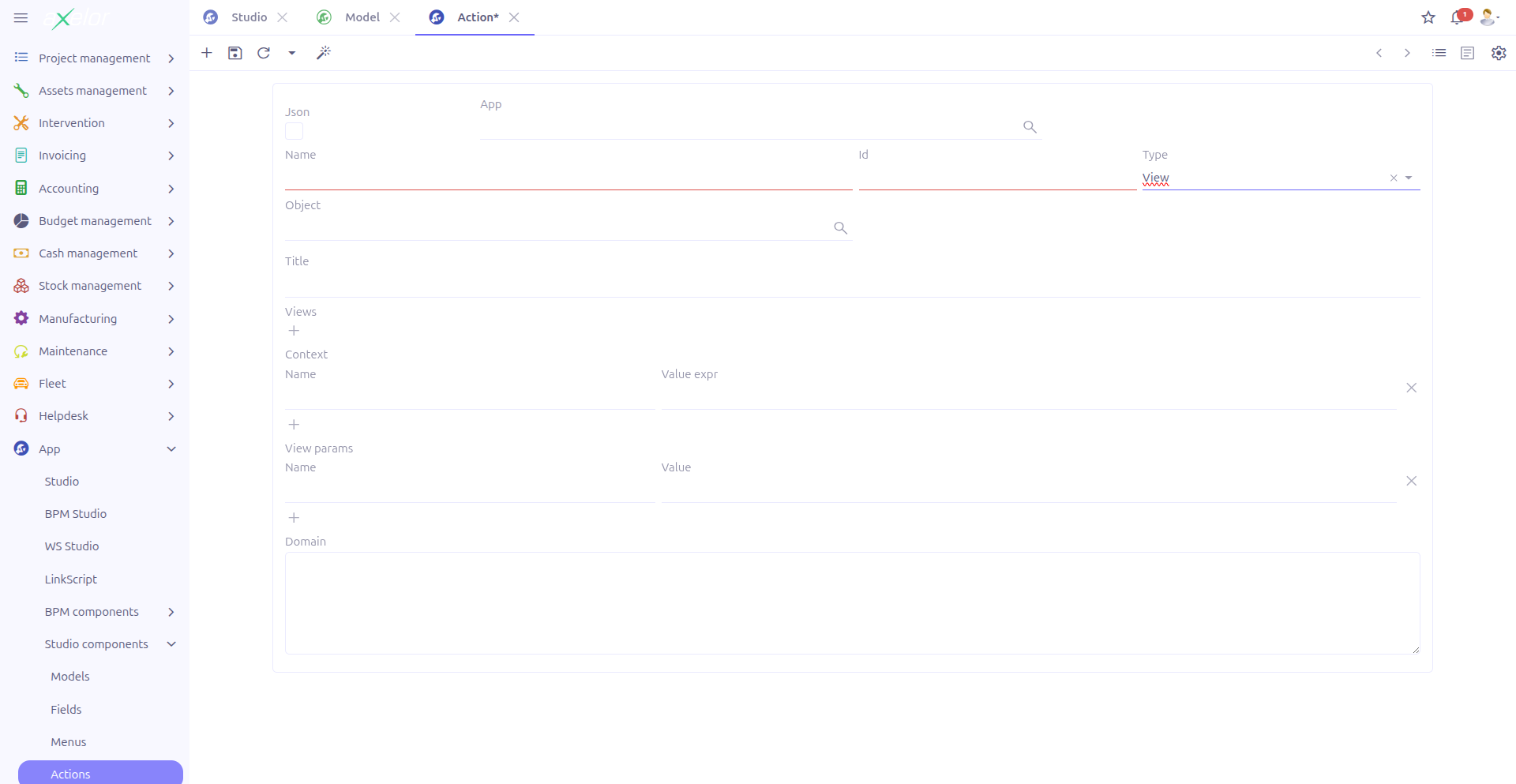
| Field | Description |
|---|---|
Title |
The title displayed in the view’s header/tab. |
Views (studioActionViews) |
List of view definitions (viewType + viewName) with sequence ordering. Defines which views are available (grid, form, etc.). |
Context lines (viewParams) |
Key-value pairs passed as context parameters to the opened view. |
Domain condition |
A JPQL-like expression to filter the records displayed in the view. |
Each view entry in the Views list specifies:
-
View type: The type of view (grid, form, cards, etc.)
-
View name: The technical name of the view to display
-
Sequence: Order of preference (lower = higher priority)
-
Condition: Optional condition for this view entry
Email (Type 4)
Sends an email based on a predefined email template.
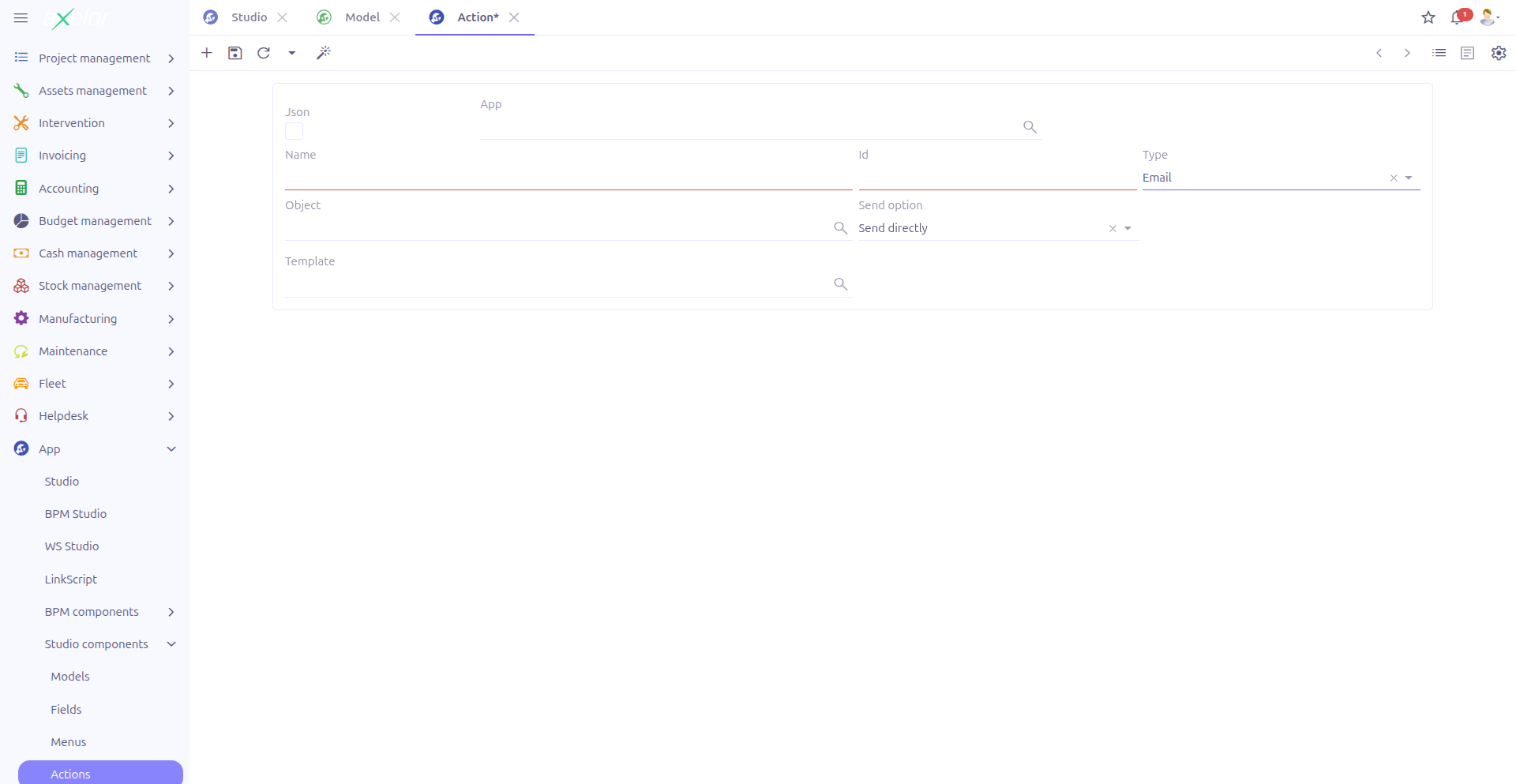
| Field | Description |
|---|---|
Send option |
Controls when the email is sent: Send directly (0) — sends immediately without user intervention, or Edit before send (1) — opens the email editor so the user can review and modify the email before sending. |
Email template |
Reference to a |
|
Email templates are managed separately in the application’s messaging configuration. The action only references an existing template. |
Custom Actions
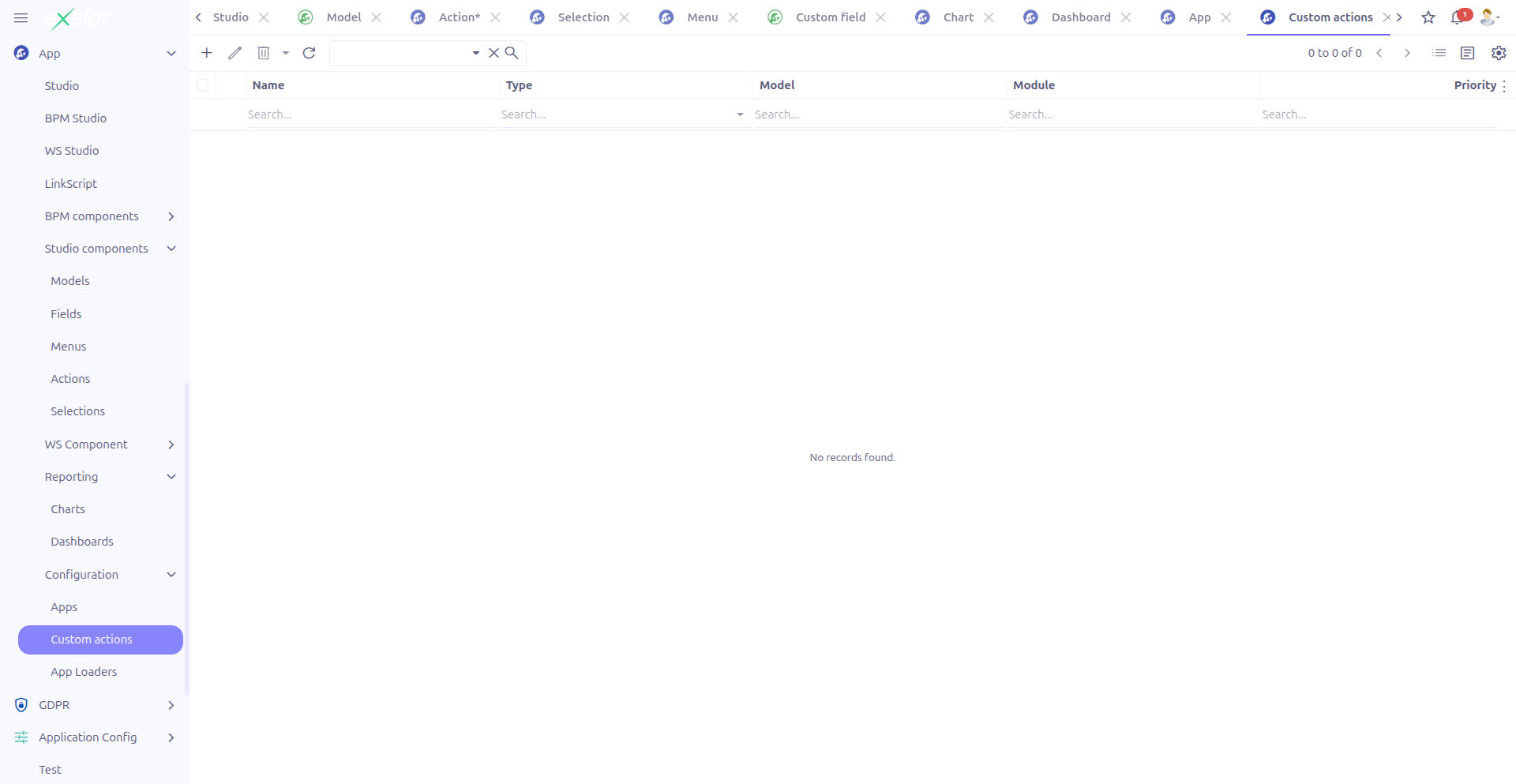
In addition to Studio Actions, there is a Custom actions entry under App > Configuration > Custom actions. Custom Actions provide direct access to the low-level MetaAction records of the Axelor platform. Unlike Studio Actions which offer a guided interface for five specific action types, Custom Actions allow you to write raw XML action definitions with full control over the action behavior.
|
Custom Actions require knowledge of the Axelor framework’s action XML format. Use Studio Actions for most use cases, and reserve Custom Actions for advanced scenarios that cannot be handled by the five standard action types (Create, Update, Script, View, Email). |
Accessing Custom Actions
The Custom Actions menu is available under App > Configuration > Custom actions. The list is pre-filtered to show only records where isCustom = true, which means only actions created through Studio are displayed (not actions defined in application source code).
Creating a Custom Action
Click New to create a new custom action.
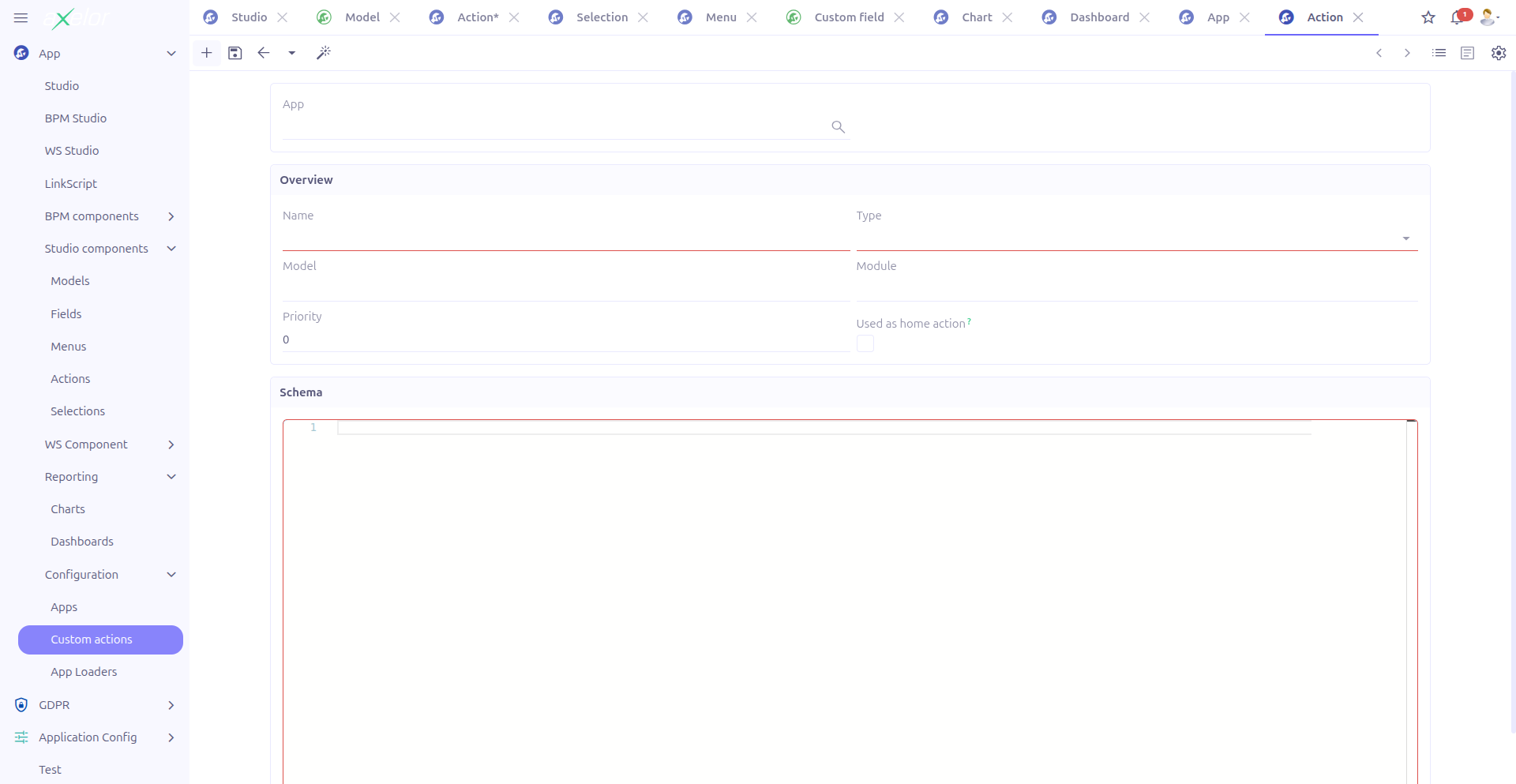
Form Fields
The form extends the standard MetaAction form with Studio-specific fields:
| Field | Required | Description |
|---|---|---|
Name |
Yes |
Technical name of the action. Must follow the Axelor naming convention (e.g., |
Type |
Yes |
The action type ( |
Model |
No |
The data model this action applies to (full class name). |
Module |
No |
The module this action belongs to. |
Priority |
No |
Numeric priority for action ordering when multiple actions with the same name exist. Lower values have higher priority. |
XML |
Yes |
The raw XML action definition. This is the complete action XML element that will be registered in the application. |
Studio App |
No |
Associates the action with a Studio App for packaging. |
Studio App Panel
The Studio App field is displayed in a dedicated panel at the top of the form. This panel is only visible when:
-
The
enableStudioAppoption is active (see Configuration) -
The form is opened from the Studio context (
_fromStudio = true)
When creating a new Custom Action from the Studio menu, the isCustom flag is automatically set to true.
Grid Views
Two grid variants exist depending on the enableStudioApp configuration:
-
With Studio App enabled (
studio-meta-action-grid): Displays columns for name, type, model, module, priority, and studioApp (grouped by studioApp). -
Without Studio App (
studio-meta-action-disable-appbuild-grid): Same columns but without the studioApp column or grouping.
Example: Custom Action-Validate
<action-validate name="action-custom-validate-amount">
<error message="Amount must be positive"
if="amount != null && amount <= 0" />
<alert message="Amount exceeds budget limit. Continue?"
if="amount > 10000" />
</action-validate>Custom Actions Technical Details
Custom Actions extend the MetaAction entity (com.axelor.meta.db) with the following fields added by Studio:
| Field | Type | Description |
|---|---|---|
|
Integer |
Ordering sequence for the action |
|
M2O: StudioApp |
Studio App grouping (conditional visibility) |
|
Boolean |
Marks the action as Studio-created (used for filtering) |
Technical Details
Studio actions are stored in the StudioAction entity with the following type constants:
| Constant | Value |
|---|---|
|
0 |
|
1 |
|
2 |
|
3 |
|
4 |
Key relationships:
-
StudioAction→StudioActionLine(O2M): Field assignments for Create/Update types -
StudioAction→StudioActionView(O2M): View definitions for View type -
StudioAction→Filter(O2M): Filter conditions -
StudioAction→Template(M2O): Email template reference
When a Studio Action is saved, the corresponding XML action is generated and registered in the application’s action registry.
Related Pages
-
Menus — Bind actions to menu entries
-
Custom Fields — Trigger actions via onChange/onClick
-
Conditional Expressions — Condition syntax for action lines
-
Studio Apps — Package actions with other components