OAuth2 and Google Services
Introduction
OAuth 2.0 is an open authorization framework that allows applications to access a user’s resources on a given service. With Google services, OAuth 2.0 lets you obtain access tokens so your application can interact with Google APIs on behalf of the user.
To use OAuth 2.0 with Google services:
-
Create a project in the Google Cloud Console (https://console.cloud.google.com). This project represents your application.
-
Enable the necessary APIs that your application needs to access (for example, the Google Calendar API for a calendar application).
-
Set up the OAuth consent screen to specify the information about your application shown to users when access is requested (application name, logo, requested scopes).
-
Create credentials: create OAuth 2.0 client credentials for your application. You will provide a redirect URI — the endpoint the authorization server redirects to after authentication.
-
Implement the authorization flow appropriate for your application (commonly the authorization code flow). The user is redirected to Google’s authorization server to grant the requested permissions.
-
Obtain an access token: after the user grants permission, exchange the authorization code for an access token at Google’s token endpoint.
-
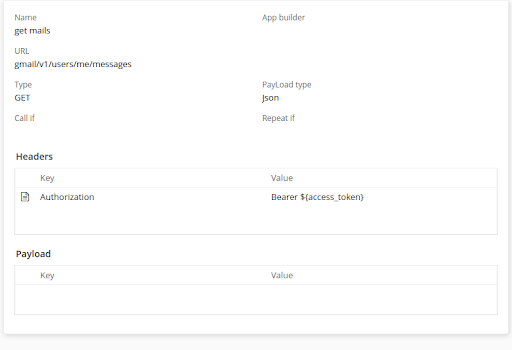
Use the access token: include it in the Authorization header of your requests following the OAuth 2.0 Bearer token scheme.
Authentication
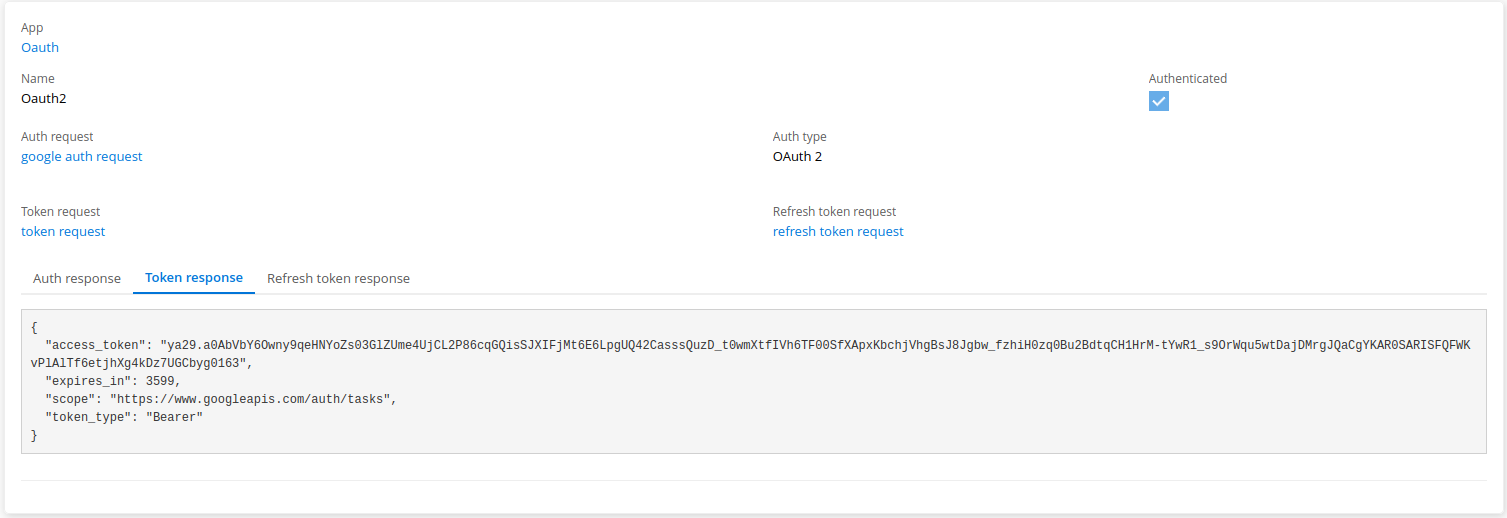
Create an authenticator of type oauth2 to connect with the Google OAuth2 protocol. OAuth2 requires three requests: an auth request to obtain the authorization code, a token request to obtain the token, and a refresh token request.
Authentication Request
The authorization request typically involves the following steps:
-
The client application redirects the user to the authorization server’s authorization endpoint URL with the parameters below.
-
Provide a
client_id— the unique identifier of the client application. -
Add a
redirect_uri— the URL the authorization server redirects the user’s browser to after authorization completes. -
Specify the
response_type— the value should becode, indicating that an authorization code is requested. -
The authorization server authenticates the user and asks for permission to grant the requested access.
-
If the user grants permission, the authorization server generates an authorization code and redirects the user’s browser to the
redirect_uriwith the code appended as a query parameter. -
The client application receives the authorization code and uses it to request an access token to access the protected resources on behalf of the user.
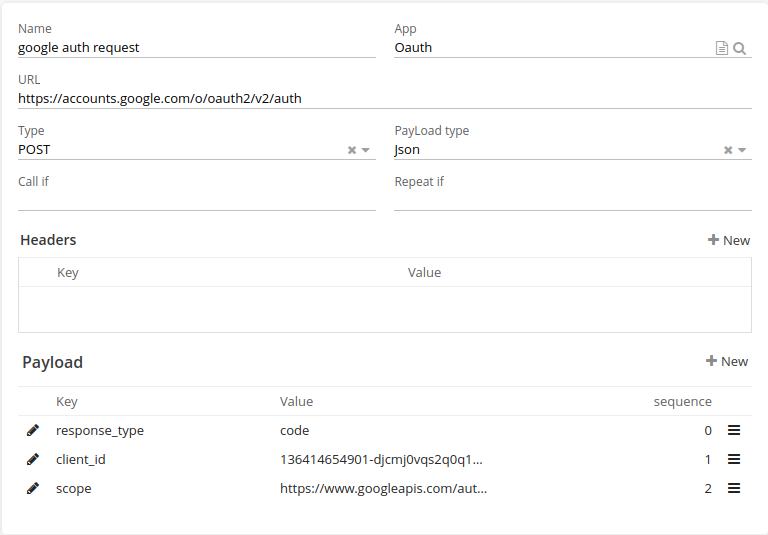
The authorization code must be kept confidential. The redirect_uri does not need to be set here. Configure your Google Developer Console account to obtain your client_id (https://console.cloud.google.com).
|
Token Request
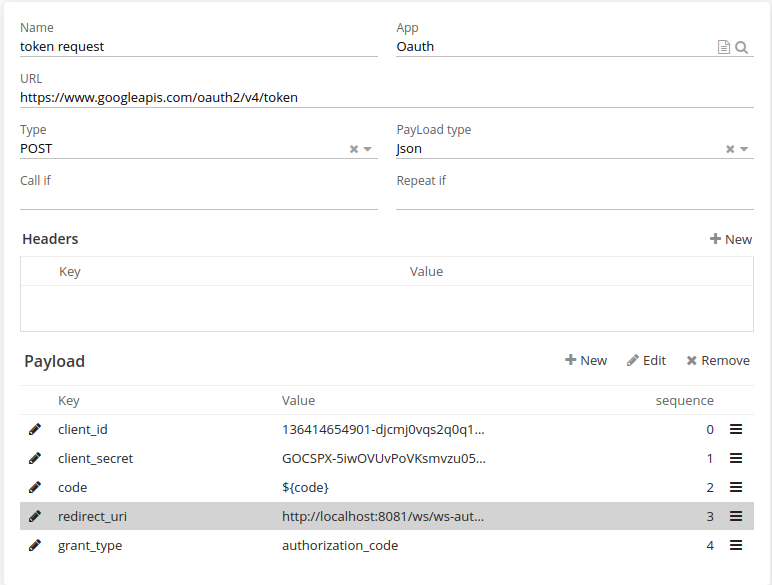
To obtain the token, send a POST request to Google’s token endpoint (https://oauth2.googleapis.com/token) with the following parameters:
-
grant_type: set to
authorization_code -
code: set to the authorization code obtained previously
-
redirect_uri: set to the same value used in the authorization request
-
client_id: the ID of the Google Cloud Console project
-
client_secret: the secret key of the Google Cloud Console project
Refresh Token Request
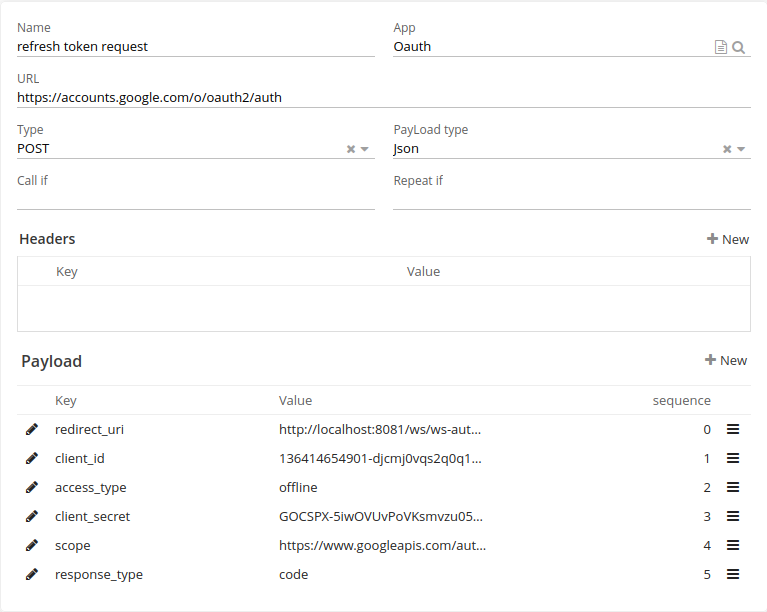
To request a refresh token, include the access_type parameter set to offline in the initial authorization request to Google’s authorization server. This indicates that a refresh token is requested alongside the access token.
| When you click Authenticate, the result of each of the three requests is shown in its corresponding tab panel below. |